Tag: wordpress

  • WordPress SEO: The Ultimate Beginner’s Guide for 2023

    Search Engine Optimization (SEO) is crucial to the success of your website from the very start. Website owners often make the mistake of ignoring SEO until long after their site is launched. This often leads to frustrating and costly problems down the road. That’s why it is so important to start now! Despite the perceived difficulty of SEO, beginners can benefit from simple SEO tasks that, in time, could help their site rank #1. In this step-by-step guide to WordPress SEO, we will provide a step-by-step approach to equip your site to rank higher in search engines.

    What is SEO?

    Millions of people use Search engines like Google daily to view the top results for their searches. SEO is the ongoing process of improving your website ranking in search results pages (SERPs). How high search engines rank your content is determined by various factors, including quality of content, keyword optimization, links, page speed, and more. SEO involves using simple and advanced techniques to address these factors to produce high-quality content relevant to users and easy for search engines to index. Of course, the ultimate goal of SEO is to get more organic traffic to your site, which can lead to many benefits.

    How Do Search Engines Work (in Simple Terms)?

    It is the job of search engines to serve the best relevant results for users. To determine what content is the best match for what a user types in a search bar, search engines like Google use bots that “crawl” websites for content and links to store and index that data in their database. When a search query is made, the data is analyzed to serve the most relevant content.

    What are the Benefits of WordPress SEO?

    You wouldn’t be reading this article if you weren’t already aware of at least some of the benefits of SEO. Here are a few of the most potent benefits of optimizing your WordPress site for search engines.

    • Increase Organic Traffic
    • Save money with less PPC Advertising
    • Increase leads and sales with higher conversion rates
    • Increase Brand Awareness/Authority
    • Get Featured Listings in the SERPs
    • Provide a better overall website for users

    Investing in SEO for WordPress now is one of the most influential and cost-effective marketing tools that can pay off handsomely in the long run.

    A Beginner’s Guide to WordPress SEO (Step by Step)

    1. Get Reliable Hosting

    Choosing the right hosting provider is a critical factor in WordPress SEO mainly because it can affect website speed and performance. So taking the time to understand WordPress Hosting and the solutions available will be worth it in the long run. The main types of WordPress Hosting include

    • Shared WordPress Hosting – These provide the best cheap WordPress Hosting options.
    • Dedicated Hosting – Dedicated Hosting providers are best for large sites that need high performance and dedicated space.
    • VPS Hosting – VPS hosting providers are a good alternative to shared, offering better performance and security.
    • Cloud Hosting – Cloud hosting services provide more flexibility and scalability, so you can only pay for what you need.
    • Managed WordPress Hosting (recommended) – This is the best overall solution for most. It ensures great performance for WordPress at an affordable price. Here are our top choices.

    Additional perks come with WordPress Managed Hosting providers that can help SEO. For example, with Siteground, you get a free SSL (more on this below), a Content Delivery Network (CDN), and other built-in site tools.

    When looking for the right hosting platform, at minimum, you will want to ensure they support the current WordPress hosting requirements and the latest version of PHP. Ideally, using a free trial to test your site speed and performance metrics beforehand would be best. For best results, look for a fast host.

    For more, check out our complete guide on how to choose your WordPress Hosting. Here are our top picks to help point you in the right direction.

    🥇 SiteGround🥈 Hostinger🥉 Cloudways
    Starting Price$14.99/month$9.99/month$11/month
    Storage10GB50GB25GB
    BandwidthUnmetered100GB1TB
    Monthly Visitors10,000UnmeteredUnlimited
    Free Domain❌❌❌
    24/7 Support✔️✔️✔️
    Trustpilot Rating⭐⭐⭐⭐⭐
    Read the reviews
    ⭐⭐⭐⭐⭐
    Read the reviews
    ⭐⭐⭐⭐⭐
    Read the reviews
    Visit SiteGroundVisit HostingerVisit Cloudways

    2. Get an SSL & Use HTTPS

    Modern browsers and Google no longer consider website URLs using HTTP or http:// (without the “S” at the end) to be secure. If you want your site URL to be protected, you need to use HTTPS (https://). This lets Google and your users know that your URL (or browser link) uses a secure (encrypted) server to share information. To use HTTPS in your URL, you’ll need to use an SSL (Secure Sockets Layer) or its more secure version, TLS (Transport Layer Security).

    SSL Manager in SiteGround

    SSL Manager in SiteGround

    An SSL certificate is often provided for free with your hosting provider, and you can also get a free SSL using a plugin or other third-party service like Cloudflare.

    For more, check out our Ultimate Guide to HTTPS and SSL for WordPress.

    3. Choose an SEO-Friendly WordPress Theme

    When choosing a theme for your WordPress site, it is vital to choose one that is SEO-friendly. Ideally, you will want a WordPress theme that is fast and lightweight. But, with the rising popularity of page builders, you will likely need to find a balance between speed and design options. Even robust page builders, like Divi, have taken strides to maximize performance by eliminating unnecessary bloat.

    In addition to speed, look for themes that use proper SEO headings, have clean code, are responsive, and are updated regularly.  Themes like GeneratePress will have these features built in. Also, make sure that your theme works seamlessly with popular SEO plugins that will take care of your technical SEO needs (including structured data and Schema markup).

    To help you get started, here’s our list of top SEO WordPress themes.

    4. Allow Search Engines to Index Your Website

    Don’t make the mistake of skipping this small step before launching your WordPress Website. Simply navigate to Settings > Reading. Next to the option Search Engine Visibility, there is a check box that reads, “Discourage search engines from indexing this site.” Make sure this box is unchecked. If not, you are asking Google to ignore you.

    Discourage Search Visibility - WordPress Reading Settings

    Note: It may be beneficial or recommended to keep the search engines from indexing the site during development so that Google doesn’t start indexing poor or inconsistent content before it is ready.

    5. Choose WWW or non-WWW

    When you first install WordPress and go through the setup process, you can pick the preferred format of your website address or URL. In addition to “https://,” you can choose whether or not to include “www” in the URL.

    To see what format your site is using, you can find it in your WordPress dashboard under Settings > General.

    WordPress Settings General Website WWW URL

    Both WWW and non-WWW versions are acceptable. Although some argue that there may be a slight edge in favor of using www over non-www, most SEO experts agree that you can use either format as long as you keep it consistent throughout your site. Google will treat www.yoursite.com and yoursite.com as separate URLs, resulting in duplicate content that may negatively affect your SEO.

    In short, pick one and stick with it. For more, check out our guide on WWW vs. non-WWW versions for SEO.

    Note: Do not change this if you already have a live site. This applies only to brand-new sites in development. Changing the format on an existing site will hurt your SEO.

    6. Set SEO-Friendly Permalinks & Slugs

    In WordPress, permalinks refer to the URL structure of your site. Setting your permalinks to the “Post Name” format is common practice for WordPress SEO. This structure provides search engines and users with more text that describes the content of your page or post. For example, if you are writing a post on “WordPress SEO,” it is better to have “wordpress-seo” in your URL instead of a number like “?p=123”, especially if you are trying to rank for that keyword/phrase.

    To change your permalink setting, go to your dashboard under Settings > Permalinks. Then select Post Name.

    WordPress Permalink Settings

    With this structure in place, you can change your permalink slug when editing your page or post in WordPress to include your keyword phrase for better on-page SEO.

    Permalinks, as the name suggests, should be considered permanent. That means you should never change the permalink settings on your live site or the permalink of a page or post. This will result in broken links and hurt your SEO. If you must change a permalink, use a proper 301 redirect.

    You can learn more in our posts on how permalinks affect SEO and how to configure WordPress permalink settings.

    7. Use Categories & Tags for SEO

    Categories and tags are the default taxonomies in WordPress that allow you to organize posts and pages. Using them properly can positively affect user experience, allowing users to sort and filter content to find what they need within a particular topic. In general, it is best to use categories for large groups of content under a broad topic (like “WordPress,” “Business,” “Design,” etc.). Posts or pages should be kept to 1 category to avoid possible SEO drawbacks like duplicate content or unnecessary web crawling. Tags can be helpful for users to find more specific topics. You can add multiple tags to a post as long you use them purposefully and consistently.

    The most significant impact that taxonomies can have on SEO is how search engines see them. Unless you have a good reason to do otherwise, we suggest you not include categories or tags in your permalinks. This makes it much easier to manage permalinks in the future and avoid possible cases of duplicate content or broken links when adding or changing categories.

    You can change this setting easily using an SEO plugin like Yoast or Rank Math.

    Yoast Remove Category from WordPress URL

    For more, check out our best practices for using categories and tags for SEO.

    8. Choose Your WordPress SEO Plugin

    Once you have the basic WordPress SEO structure in place, it’s time to look into a quality SEO plugin. This is by far the easiest and most effective way to take your WordPress site’s SEO to the next level. Popular SEO plugins (like Rank Math or Yoast SEO) will include most of the features, tools, and flexibility you need. These plugins can help optimize your entire website. We recommend RankMath because of its powerful SEO features, tremendous community support, and seamless integration with popular WordPress themes. With its easy-to-use interface, you can use Rank Math to optimize your on-page SEO on the front or back end.

    Analytics Rank Math Demo WordPress

    Here is a list of our best SEO plugins for WordPress, with all the features you need to boost your rankings.

    9. Submit an XML Sitemap

    An XML sitemap is an XML file on your website that provides a structured map of all of the pages and posts throughout your site. Unlike HTML sitemaps that may help with user experience and navigation, XML Sitemaps can be submitted directly to search engines. Once submitted, search engines will have an accurate map of your site so they can more effectively read and index your content. In WordPress, you can submit your sitemap to Google directly or use a sitemap plugin.

    SEO plugins like Yoast and RankMath will have a built-in feature to generate your XML sitemap.

    Rank Math Configure Sitemaps

    Rank Math Sitemap Configuration

    For more, check out our complete guide on XML sitemaps and SEO. And here is our list of the best sitemap plugins for WordPress.

    10. Use Keyword Research to Plan Content

    Keywords are the terms or phrases users enter to search for content within a browser or search engine. These keywords should be a driving force that determines what content you should create. Keyword research helps you determine what keywords people are currently searching so you can find the right ones to target when planning your content. To learn how to do it the right way, check out our complete guide on how to do keyword research.

    Semrush keyword research for WordPress SEO

    Semrush Keyword Research Tools

    SEO tools can be a lifesaver when it comes to keyword research. There are tools to help with keyword grouping, mapping, tracking, and more. Some SEO tools like Semrush provide an all-in-one SEO and keyword research solution to ensure you cover the right topics and adequately address user intent.

    For more, check out our top SEO tools for Keyword Research.

    11. Write High-Quality SEO Content

    There really is no way around this one. High-quality content is still the most essential aspect of your SEO strategy. Whether you are writing blog posts or sales copywriting, your goal is to create content that outperforms your competition and meets the needs of your visitors. You can start by following these key steps to writing quality SEO content.

    Use AI SEO Tools and Plugins for Better SEO Content

    With the rise of artificial intelligence (AI), many AI SEO tools are becoming more mainstream. Some of the best AI SEO tools are now using AI to help with the entire SEO content creation process. AI writing software like Jasper AI can help you generate content in seconds using simple text prompts, and SurferSEO can optimize your content for search engines. Or you can use both with an integration.

    WordPress also has AI plugins that will help streamline the writing process and optimize your content for SEO.

    Check out our list of the best AI writing tools to help you write high-quality with more speed and efficiency.

    12. Optimize Your Post or Page Content for SEO

    Writing high-quality content is only half the battle of WordPress SEO. You will also need to optimize your content for SEO. This involves several on-page SEO tasks, including optimizing HTML structure, keywords, syntax, readability, schema markup, internal/external links, images, etc. This may sound like a lot, but your SEO plugin can help streamline this process. RankMath will allow you to optimize these elements in real time while writing your post. And you can use its AI-generated suggestions based on your content to improve your SEO score for each page or post.

    WordPress SEO Using Rank Math

    For example, you can start by entering your target keyword or keyphrase to let RankMath know what you are trying to rank for. (IMPORTANT: Don’t use the same focus keyphrase on any other page or post. Only use it once because you don’t want to compete against yourself for that key phrase.)

    Here are a few more key suggestions to optimize our page or post:

    • Make sure your page title includes the keyphrase and the permalink slug includes your focus keyphrase.
    • Organize your heading tags properly and include your keyphrase in headings and subheadings when appropriate.
    • Add the focus keyphrase and other related or semantic keywords strategically throughout your page content.
    • Use the plugin’s SEO widget to ensure your content gets a passing score for readability and SEO.
    • Consider your word count compared with other top-ranking articles for the same keyword.
    • Add a meta description for SERPs that is concise, enticing, and includes your focus keyword.
    • Add schema markup to get featured/rich snippets in the SERPs with a plugin like Schema Pro.

    For more, here is a detailed checklist for on-page SEO.

    13. Optimize Images for WordPress SEO

    Images can have a big impact on your SEO. However, it probably has more potential to harm your ranking than it does to improve it. Here are a few tips to help optimize your images for SEO:

    • Compress and Resize – Large image files can drastically slow down your website. This will turn visitors away and hurt your SEO ranking. Try to keep all images below 100kb. You’ll need to balance quality and size using lossless compression with free tools like tinypng.com or an image optimization plugin.
    • Use the correct file types – Webp is the best format for the web these days for the best performance. Some plugins like EWWW Image Optimizer can convert your images to Webp for you. But you can also use JPG and PNG for good results. Avoid large file types like GIFs.
    • Add Lazy Loading to Images for faster page loads.
    • Add Image Alt Text – The Alt text describes the image on your site in text form. Not only does it help with accessibility and screenreaders, but it can also allow you to add helpful keywords for better overall SEO.

    For more, check out these best practices for optimizing images for SEO and the top plugins you can use.

    14. Optimize Links for WordPress SEO

    Links are essential for SEO in a lot of ways. The two types of links that you can include on your website are internal links (links to other pages on your site) and external links (links to pages on a different site). The other important link type is called backlinks (or inbound links) which are links to your site from other websites. Earning quality backlinks involves a link-building strategy that is more difficult to achieve because it involves convincing other websites to link to your content. All three are important for SEO. You can learn more from our SEO Links Beginner’s Guide. But for this post, we will give you a few tips on using the two types you have more control over – internal and external links.

    Use Internal Links

    Understanding how internal links help SEO is important. Here are a few tips to get you started:

    • Ensure you add internal links to content that is relevant to the subject matter. Users and search engines will recognize when an internal link is forced or doesn’t make sense in the context.
    • Use various (different) internal links. Don’t keep sending the user to the same few pages.
    • Use proper HTML link structure.
    • Use keyword-rich anchor text. Avoid using less informative text like “click here” or “learn more” to make links more optimized for users and search engines.

    Use “NoFollow” and “Follow” External Links

    When adding external links to your post, you can choose to have that link “followed” or “not followed” by search engines. By default, all external links in WordPress will be followed. Search engines will crawl the link to help both parties rank higher. But sometimes, using “nofollow” links is beneficial to avoid negative SEO results. For example, WordPress may add the “nofollow” tag to comment links to prevent search engines from crawling spam links or other links that could harm your domain authority. They are useful for linking to sites you don’t fully trust or want to endorse. You’ll also want to use “nofollow” links when using affiliate links or if you’re receiving payment from people clicking the link.

    To create a “nofollow” link in WordPress, you can add the rel=”nofollow” tag to the HTML as follows:

    <a href=”https://elegantthemes.com” rel=”nofollow”>anchor text</a>

    For more, check out our guide on how to use nofollow and follow links.

    Use a Plugin to Add Links for SEO (The Easy Way)

    Managing your internal and external links can get overwhelming, especially for beginners or larger websites. Rank Math will give you some help options for how links operate on your site.

    Rank Math Link SEO Settings

    But if you need more help, using a plugin like LinkWhisper can automate the process of adding, removing, and optimizing links throughout your site. With LinkWhisper, you can add links in WordPress automatically based on your keywords and monitor them easily. This is the best way to ensure you get the most SEO link juice possible from your links sitewide.

    15. Avoid Creating Duplicate Content

    Duplicate content is the same (or very similar) content that can be found in multiple locations or URLs. This can often happen through the misuse of permalinks, using HTTP and HTTPS, pagination, or URL variations (like tracking code parameters). Having the same content on two different URLs can sometimes lead to Google crawling multiple versions of the same content. This can lead to each variation competing against each other in the ranks or the wrong version being indexed. Check out our guide to duplicate content and SEO for more details.

    You can easily check your website for duplicate content by looking up your indexed pages in Google Console or by searching your site pages in Google (i.e., “site:elegantthemes.com”).

    Google Search - # of Pages - Duplicate Content

    The number of pages should match the number of pages you created in WordPress. If not, you may have duplicate content that needs to be fixed.

    Use Canonical URLs and Redirects

    One way to avoid duplicate content is to use canonical URLs on your website. A canonical URL is defined by a link tag in the HTML of your header with the rel=”canonical” tag. It looks like something like this:

    This suggests to search engines that this is the main URL for this content. That way, if the same content is found on a different URL, Google will know which one to index. You can add a canonical URL to any page in WordPress using an SEO plugin.

    Set Page Canonical URL Rank Math
    In addition to canonical URLs, you can 301 redirects to avoid duplicate content and keyword cannibalization. For example, if you change the permalink of a blog article, you will want to make sure and add a 301 permanent redirect to the new URL to avoid losing all of the organic traffic and ranking earned for that post.

    For more, check out our list of the best Redirect Plugins for WordPress.

    16. Optimize Speed and Performance for WordPress SEO

    Optimizing your website for speed and performance is essential for SEO. So, understanding how page speed affects SEO is a must for beginners. Search engines like Google use several core web vitals and metrics to determine how well your site performs, which can significantly impact your rankings. The easiest way to check your website’s speed and performance metrics is to use a free online tool like GTMetrics or Google’s PageSpeed Insights. These tools will give you an overall score and a list of improvements that can be made to improve your score.

    website speed and performance metrics example

    WordPress SEO Speed and Performance Tips

    Here are some best practices to improve the speed and performance of your WordPress website:

    • Get fast hosting – Using a Fast WordPress hosting provider can take seconds off your page load times without doing anything else.
    • Use reliable WordPress themes and plugins – Some WordPress themes and plugins will perform better and load faster than others. You must use a theme that performs well out of the box and integrates well with other popular WordPress plugins. Even robust themes and page builders like Divi have built-in speed optimation to give you a head start.
    • Use a content delivery network (CDN) – A CDN provides a cached version of your website at various servers throughout the world for faster load times. You can use CloudFlare to add a CDN to your site manually or use a plugin. Some hosting providers, like Siteground, will provide a free CDN solution.
    • Use Site Caching – Site caching drastically improves site speed by saving a static version of your website pages for faster delivery. You can add caching to your site easily with a WordPress cache plugin.
    • Keep Your Database Clean – Keep your database clean and optimized for the best performance. WP-Optimize is a top database plugin for speed optimization.
    • Minify Your Site Files – Minification makes your site files smaller (taking out blank spaces), reducing the time it takes to load a page. For better performance, you can use a minification plugin like Autoptimize to minify your  CSS, HTML, and Javascript files.
    • Optimize for Mobile – How well your website performs on mobile devices sp perhaps more important than how it performs on desktop. Ensure your website is responsive and optimized for speed on mobile as well. For more, see our ultimate guide to mobile SEO.

    Speed and Performance Plugins

    This may seem a bit overwhelming. However, the right plugin can do a lot of this for you. If you are serious about performance, we recommend using a premium plugin like WP Rocket that provides an all-in-one solution for speed and performance. For more, check out our list of the best WordPress Speed and Performance Plugins.

    Wrapping Up

    You don’t have to be an SEO expert to optimize your WordPress site for search engines. There are simple steps any beginner can follow to set their site up for success. It starts with choosing the right host, theme, and SEO plugin(s) that make the process much easier. With the right tools, you can spend more time less time on SEO and more time on your business. Hopefully, the steps in this post can help you climb in the rankings to get the traffic you have always dreamed of having.

    If you have a physical business, you will definitely want to create a Google My Business profile and explore local SEO.

    Featured image via Overearth / shutterstock.com

    The post WordPress SEO: The Ultimate Beginner’s Guide for 2023 appeared first on Elegant Themes Blog.

    Go to source

  • 30 Best WordPress Magazine Themes for Creating a Professional Online Magazine

    Now, let’s look at our 30 picks of the best WordPress magazine themes. We’ve done plenty of research to identify the best options based on pricing, reviews, reliability, and features. We’ll include free, freemium, and premium options to accommodate every budget. 1. ColorMag ColorMag Stats: With more than 80,000 active installations, ColorMag is undoubtedly one […]

    Read More…

    The post 30 Best WordPress Magazine Themes for Creating a Professional Online Magazine appeared first on Hostinger Tutorials.

    Go to source

  • WordPress Performance Analysis Finds Translations May Significantly Slow Down Sites

    After a recent in-depth performance analysis earlier this year showed that translations can have an impact on server response times, WordPress contributors are proposing half a dozen technical solutions for consideration to improve performance for the ~56% of WordPress sites that use translations.

    “Initial benchmarks showed that the median loading time for a localized site can be up to 50% slower than for non-localized sites, depending on which themes and plugins are being used,” Google-sponsored WordPress core committer Pascal Birchler said.

    Based on recent discussions on GitHub, the Performance team has whittled it down to an updated list of six possible top contenders for speeding up sites with translations, including the advantages and disadvantages of each:

    • Solution A: Use different file format
    • Solution B: Native gettext extension
    • Solution C: Cache translations
    • Solution D: Lazily evaluated translation calls
    • Solution E: Optimize/Rewrite existing MO parser
    • Solution F: Splitting up translation files

    Localized WordPress sites currently download .po and .mo files that contain the translations, but the first suggested solution proposes storing translations in .php files and using the .mo file as a fallback, as Birchler proposes that PHP loading and executing another PHP file would be a faster approach. He has a proof of concept on GitHub at at swissspidy/wp-php-translation-files and swissspidy/ginger-mo.

    “When looking at all these factors, it appears that a revamped translations parser (solution E) could bring the most significant improvements to all localized WordPress sites,” Birchler said. “Especially when combined with a new PHP translation file format (solution A), which Ginger MO supports, the i18n overhead becomes negligible. Of course the same risks associated with introducing a new format apply.

    “On top of that, a revamped i18n library like Ginger MO could also be combined with other solutions such as caching or dynamic MO loading to potentially gain further improvements. However, those routes have yet to be explored.”

    The Performance team plans to test these ideas further on a wider scale through its Performance Lab feature project after gathering feedback from the broader community. August 6, 2023, is the deadline for leaving feedback on the proposal, which includes benchmarks and more details from the analysis.

    Go to source

  • How to Secure Your WordPress Website in 2023 (Detailed Tutorial)

    WordPress has become one of the world’s most popular content management systems (CMS), with over 44% of websites built on it. As with any online platform, security should be at the top of your list of concerns. In this post, we’ll examine WordPress security concerns and provide tips on how to keep your WordPress website safe and secure.

    Let’s dive in.

    Is WordPress Secure?

    WordPress.org

    For the most part, yes. WordPress developers work hard to maintain the security of their platform through patches and updates occurring regularly. However, since WordPress is built on an open-source framework, hackers can analyze how it’s constructed and frequently develop new ways to gain control of WordPress websites. Because of this, WordPress security is crucial. Knowing the risks associated with using WordPress is important to understand better how to secure your website.

    WordPress Security Concerns

    When operating a WordPress website, there are several potential risks to be aware of. One of the biggest concerns is hackers. Because WordPress is so popular, it attracts the attention of nefarious actors who attempt to exploit vulnerabilities like outdated plugins or core files to gain unauthorized access to your site. They can employ methods such as backdoors, launching brute force attacks, pharma attacks, denial of service (DoS) attacks, or cross-site scripting (XSS).

    If left unresolved, there can be serious consequences, such as malware (malicious code designed to steal your site’s visitor information), forwarding your website to a completely different one, adding content you’re unaware of, Google warnings that can hurt your position in the SERPs, or worse, being unable to log in to your website.

    How to Secure Your WordPress Website

    The following section will explore best practices to enhance WordPress security to protect your website against potential threats.

    Subscribe To Our Youtube Channel

    WordPress Security: Choose Good WordPress Hosting

    The first step to take is partnering with a good WordPress hosting company. With so many choices available, it can be difficult to determine how to choose the right host. If you’re a beginner, it’s probably best to opt for a good managed hosting provider, such as SiteGround, that will provide all security updates for WordPress, while also maintaining the server it’s installed on. For those who are more tech-savvy, a cloud hosting provider, such as Cloudways, is an excellent choice.

    SiteGround WordPress hosting

    Either option will give you all the tools you need to ensure your website is safe and secure, including:

    Keep Your WordPress Login Secure

    Another easy thing you can do to boost your WordPress security is to lock down your login credentials. This can be done in several ways, including using a plugin to change the login URL from /wp-admin to something of your choosing. You can also add two-factor authentication (2FA) to your login and limit login attempts, which will help repel bots.

    Google apps login

    Another way to protect your login is by linking it to your Google account using the Google Apps Login for WordPress. Once your login is locked down, you should whitelist your users’ IP addresses. This ensures that only registered users can get in, even if they have managed to figure out your password.

    Use a Suite of WordPress Security Plugins

    Another very useful thing you can do is to install a good security plugin, such as iThemes Security. It will allow you to add 2FA, limit login attempts, schedule backups, and hide your WordPress login.

    ithemes security plugin

    In addition to a WordPress security plugin, consider installing a good backup plugin, like UpdraftPlus, if your host doesn’t offer backups. A backup plugin protects you from losing your site’s files, helping you to avoid rebuilding WordPress from scratch. You can easily restore your site with little effort if something goes wrong. Finally, incorporating an activity log plugin like WP Activity Log will allow you to pinpoint what went wrong and when.

    Keep PHP Updated

    WordPress requires three things to work correctly: PHP, MySQL, and HTTPS support. PHP, or hypertext preprocessor, is a popular open-source scripting language used in web development and is the backbone of WP. Like WordPress, being open source leaves it open for malicious actors looking to take advantage. To avoid these potential issues, it’s best to keep PHP updated. Not only does it help with WordPress security, but it also keeps your site running optimally.

    How PHP works

    Choose Strong Passwords

    One of the most important aspects of WordPress security is choosing strong passwords for login. Weak or easily guessable passwords leave your site vulnerable to unauthorized access and expose your site to botnets. Botnets are a collection of computers that have been infected by malware and come under the control of a hacker. They are the leading cause of DDoS attacks on the internet, but you can prevent your site from falling victim to them by taking the correct precautions.

    Password policy maker plugin

    For example, you can protect your site by ensuring all users adhere to a password policy. One great way to do this is by installing a plugin like Password Policy Maker.

    WordPress Security: Keep Software Updated

    Another simple step in WordPress security is keeping your WordPress core, plugins, and themes updated. Leaving software out of date can have negative consequences on your website, including security breaches, the WordPress white screen of death, or any number of common errors.

    You can either keep up with updates on your own or enable automatic updates. What is right for you depends on several factors, including time, expertise, and the type of software your WordPress install runs. Regardless of whether you handle updates or choose to update automatically, you should always make a backup before performing any updates.

    Install SSL Certificate

    If you partner with a good hosting provider, one of the benefits that come with it is a free SSL certificate. However, there may be situations where you’ll need to install one yourself. Most providers, like SiteGround, offer a free SSL that installs in a few minutes. As you read this, you might ask , “Why do I need an SSL certificate?”. Let’s explain.

    SSL certificate WordPress security

    image courtesy of Valery Brozhinsky | Shutterstock.com

    SSL, or secure socket layer, expands the hypertext transfer protocol (HTTP) to hypertext transfer protocol secure (HTTPS), adding encryption and an extra layer of security. For example, a consumer who makes a purchase over HTTP risks their credit card information being exploited. On the other hand, their information would be protected if they had made the same purchase over HTTPS. Your site and its visitors are exposed and vulnerable without that secure connection. That’s why installing an SSL certificate on any new website is crucial.

    Conduct a Security Audit

    Once you’ve taken steps to secure your site, it’s important to conduct a WordPress security audit occasionally. Just as technology changes daily, so does a hacker’s arsenal of tools. Malware and other tactics are developed regularly, so securing your WordPress website isn’t a one-and-done deal. Schedule regular security checks, and look for signs that your site may be in trouble. If you notice your site loading slowly, your traffic drops, you discover new links you didn’t add, or you experience excessive login attempts, it may be time to run a security scan to ensure your site remains safe and secure.

    Advanced WordPress Security Techniques

    In addition to the steps listed above, there are a few more advanced techniques to incorporate into your site to enhance WordPress security.

    Harden the wp-config.php File

    One common point of entry for hackers is your WordPress website’s wp-config.php file. It houses information about your database, including the name, host, username, and password. Leaving this important file open can prove detrimental, so hiding it is always a good idea.

    Move Your wp-config.php File

    To move wp-config, you can drag it into your site’s root folder (public HTML), and WordPress will look for it whenever the site is pinged. However, if your site’s file structure includes a htaccess file, you can further protect it by adding a directive to deny access to it by using the following code:

    <FilesMatch "wp-config/.php">
    Require all denied
    </FilesMatch">
    

    Note: Before doing this, ensure your hosting provider hasn’t already taken steps to move your wp-config file for you. Some hosts, such as Kinsta, do this automatically to keep your site safe.

    Change WordPress Salt Keys

    WordPress salt keys

    Another way to protect your wp-config file is by altering your site’s salt keys. These keys add an extra layer of protection while saving passwords to your database, signing in to cookies, and other important WordPress security aspects. If hackers can obtain your salt keys, they can access your site’s database and files, including stored credit card information, passwords, and other important information. Therefore, it’s recommended to change them periodically.

    Change File Permissions

    By default, files in your root directory are set to 644, which means they are both readable and writable, leaving them vulnerable to bad actors. According to WordPress, these should not be left at default permissions. Rather, they should be changed to 440 or 400 to prevent others on the same server from reading them. However, it’s important to check with your hosting provider before making any changes to your file permissions. They may have a unique system in place, so changing permissions could cause disruption to your site.

    Disable XML-RPC

    XML-RPC is a WordPress API that allows you to connect your website to third-party apps and tools. In recent years, it has been exploited by brute force attacks, allowing access to WordPress sites. It is primarily used for making Zapier connections or accessing your site remotely through an app. You should disable XML-RPC on your server if you aren’t using any of these connections.

    There are several ways to do this, including disabling it through htaccess, using a code snippet, or with a plugin. The most advanced method, htaccess, can be tricky for beginners, so the most recommended approach is to use a code snippet.

    For the htaccess method, use an FTP client to access your site’s files, then add the following code to your htaccess file:

    # Block WordPress xmlrpc.php requests
    <Files xmlrpc.php>
    order deny, allow
     deny from all
    allow from 123.123.123.123
    </Files>
    

    Note: Be sure to change the IP 123.123.123.123 with your own.

    Alternatively, you can use the AIOSEO plugin’s tools htaccess tab to insert the code:

    AIOSEO

    If you’d rather disable XML-PRC using a code snippet, you can easily accomplish it using the WPCode plugin. It has a built-in snippet that you can use to disable the API.

    disable XML-PRC

    Hide WordPress Version

    This is an often overlooked step when it comes to WordPress security, but an important one. By default, WordPress leaves a footprint in your site’s code that shows which version is installed. This might seem harmless, but by accessing the website’s source code, hackers can determine what version of WordPress you’re running. If it’s outdated, they can use that info to hack into your site by injecting malware or malicious scripts.

    hide WordPress version

    So, as an extra WordPress security measure, hide your site’s WordPress version to make it harder for hackers to take control of your site. There are good ways to do this. You can either implement a code snippet plugin that will remove the line in the source code or create a child theme and place it into your functions.php file.

    function elegantthemes_remove_version() {
    return '';
    }
    add_filter('the_generator', 'elegantthemes_remove_version');
    

    Alternatively, if you’d like to remove the WP version in the meta tag, in database query strings, and in RSS feeds, use this code:

    /* Hide WP version strings from scripts and styles
    * @return {string} $src
    * @filter script_loader_src
    * @filter style_loader_src
    */
    function elegantthemes_remove_wp_version_strings( $src ) {
    global $wp_version;
    parse_str(parse_url($src, PHP_URL_QUERY), $query);
    if ( !empty($query['ver']) && $query['ver'] === $wp_version ) {
    $src = remove_query_arg('ver', $src);
    }
    return $src;
    }
    add_filter( 'script_loader_src', 'elegantthemes_remove_wp_version_strings' );
    add_filter( 'style_loader_src', 'elegantthemes_remove_wp_version_strings' );
     
    /* Hide WP version strings from generator meta tag */
    function wordpress_remove_version() {
    return '';
    }
    add_filter('the_generator', 'elegantthemes_remove_version');
    

    What to Do if Your WordPress Website is Hacked

    Even if you do everything right, you may find yourself in a situation where your website has been hacked. Thankfully, there are steps you can take, including putting your site into recovery mode, restoring from your most recent backup, or resetting your passwords. If all else fails, your hosting provider may be able to help.

    Final Thoughts on WordPress Security

    By taking the necessary steps to boost your WordPress security, you can ensure your site continues to operate normally while being safe for your visitors. While WordPress offers tremendous benefits and ease of use, it’s important to understand its shortcomings. Thankfully, there are a number of WordPress security plugins like iThemes that can help keep things on track.

    Looking for more information on WordPress? Check out some of our in-depth articles that will transform you into a WordPress expert in no time:

    Featured Image via Pikovit / shutterstock.com

    The post How to Secure Your WordPress Website in 2023 (Detailed Tutorial) appeared first on Elegant Themes Blog.

    Go to source

  • How to Back Up Your WordPress Website in 2023

    Keeping your WordPress website safe and secure should be at the top of your mind. After you’ve added your favorite WordPress plugins and chosen your beautiful theme, your next step should be protecting the investment of time, resources, and money you’ve put into your site. This is where maintenance of your WordPress website comes in. There are a few things you should do to keep up with your WordPress website, and one of them is keeping a free online and offline back. In this post, we’ll learn how to back up your WordPress website in three ways, discuss backup storage solutions, best practices, and what to do if you need to use your backup after a website crash.

    How to Backup Your WordPress Website Using a Plugin

    There are many backup plugins that you can use to take a backup of your website. A WordPress backup plugin is a quick and straightforward way to create a website backup. For our guide, we’ll walk through using UpdraftPlus, a popular WordPress backup plugin, to create your website backup.

    Install and Setup Plugin

    From your WordPress dashboard, from the left-hand menu, hover over Plugins. Next, click Add New.

    Installing UpdraftPlus, a WordPress backup plugin

    In the search bar in the top right, type Updraft. Click Install Now; the button will turn blue after installing the plugin. Click the blue button that now says Activate next to the first option.

    Configure Settings

    Once UpdraftPlus is installed, you can access the plugin by hovering over Settings from the left-hand menu. Then, click on the UpdraftPlus Settings menu option. This will show you the plugin’s dashboard, notifications regarding your backups, and your existing and scheduled backups.

    The UpdraftPlus dashbaord

    Create a New Backup

    Click the large, blue backup Now button to create your first backup.

    Starting a manual backup with UpdraftPlus

    Once you’ve done this, a popup will appear. You’ll be presented with four options:

    Manual backup options with UpdraftPlus

    You can include your database or your files in your backup. Both options have an (…) following them, allowing you to get specific about the database tables and folders you’d like to include or exclude from your backup. Once you have set up cloud storage for your plugin, you’ll have the option to. We’ll come back to this later. Lastly, you have the choice of deciding whether this download will be deleted automatically or not. Once you have made your selections, click the Backup Now button.

    A successful backup within UpdraftPlus

    Once your backup has been completed successfully, you’ll notice it is added under the Existing backups table. You can select specific aspects of your backup to download, restore said download, delete it, or view the log processed as it backed up your website.

    Schedule Automatic Backups

    Now, let’s look at setting up scheduled, automatic backups. Click on the Settings tab from the UpdraftPlus dashboard.

    Setting up scheduled backups with UpdraftPlus

    The first two options on your screen allow you to set up automatic schedules for your backup process. You can set up a schedule for the files and database of your website in a frequency from a few hours to monthly. Additionally, you can decide how many backups you’d like to keep on your server.

    From the same settings screen, we can set up the storage solution we’ll be using for our website. UpdraftPlus has many options for storing your backups on the cloud. Some of the options available include:

    • Dropbox
    • Google Drive
    • Email and
    • SFTP

    With the free version of the UpdraftPlus, you can back up to one cloud or online service. However, the plugin’s premium version can back up to multiple places. For our guide, let’s back up to Google Drive. From the list of cloud services, select the Google Drive icon—next, login to your Google Drive account by clicking the Sign in with Google button.

    Backing up your website with Google Drive

    Next, sign into your Google account.

    Login to your Google Drive

    After, grant UpdraftPlus access to your Google Drive account, then click Allow.

    Allow UpdraftPlus access to your Google Account

    Once this is done, you’ll be presented with this final screen. Click on the Complete Setup button. This will take you back to your WordPress installation.

    Complete the UpdraftPlus setup

    Once you have returned to your WordPress install, you’ll see a notification that your Google Drive has been successfully connected.

    Success notification from UpdraftPlus and Google Drive

    Once your account is connected, click on the Settings tab again. Then, scroll down to the cloud account you set up and click the Save Changes button.

    Save changes on the UpDraftPlus settings page

    When you make a backup, you can send the backup to your Google Drive account.

    New option to save on the cloud now available

    Storing Your Backup Offline

    It’s always a good idea to download backups onto your computer, a USB, or any cloud storage platform that will allow you to store your website offline. To do this, click any of the folders you’d like to download to the media of your choice from the backup you’ve just made.

    Download your backup form UpdraftPlus

    For a full offline website backup, download the database, plugins, themes, uploads, and other folders. Now that we know how to make a backup with a plugin online, offline, and to the cloud, let’s see how we can do this with our hosting provider.

    How to Backup Your WordPress Website Using Your Hosting Provider

    Backing up your website with a plugin is a simple and easy way to back up your WordPress website if you can access WordPress’ user interface. However, things can get a bit sticky for you if you don’t have access to the dashboard. This is why knowing how to back up your WordPress using your hosting provider is essential.

    For our use case, we’ll show you how to manually back up your WordPress website using Siteground, one of the best hosting providers for WordPress.

    Login and Access Site Management Tools

    Visit Siteground and click the Login link in the top right-hand corner.

    Login to Siteground

    You’ll then need to enter your username and password.

    Login to your Siteground account

    Once in your account, you’ll be presented with your Siteground home screen, which lists all your products. Click on the Manage button under the Websites title.

    Manage your websites with Siteground

    Once here, you’ll see a table listing all your websites within your Siteground account. Click on the Site Tools button next to the website that you’d like to back up.

    Use Site Tools to manage your website in Siteground

    Create a New Backup

    On your website, you’ll see a variety of tools and options that you can use to manage your site. To start the backup process, click on the Tool Finder, or press CTRL + K. Then, search backup in the search box that appears. Finally, click Backups from the dropdown.

    Once on the Backups page, give your backup a name you’ll remember. Then, click on the blue Create button.

    Name and start your web hosting backup process

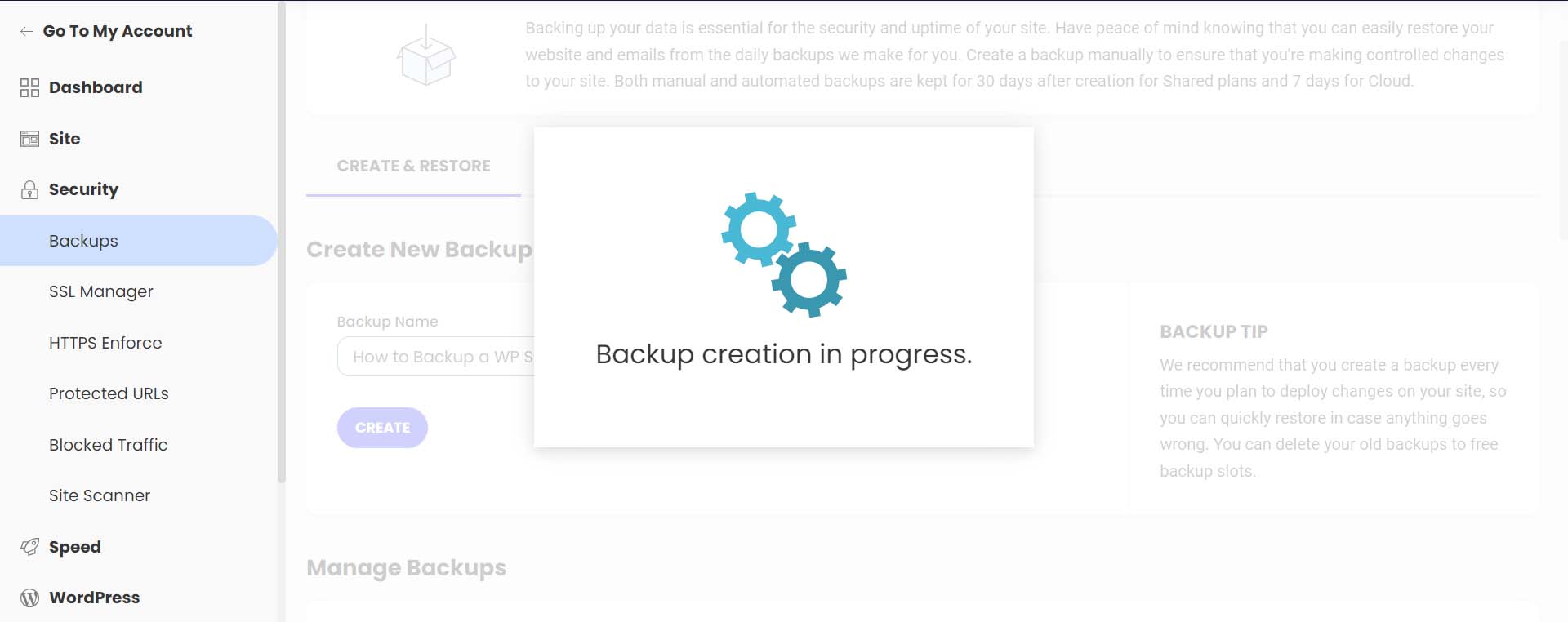
    You’ll be presented with this screen as your backup is being created.

    Backup in progress

    You’ll get a confirmation message once your backup has finished being created.

    Backup successfully created

    Notice your backup now shows up in your list of backups, alongside your regular, automated backups, with your note attached.

    See your new backup within your backup list

    Siteground makes it easy to restore your website in the case of file corruption, hacking, and more. To do this, select the meatball menu next to the backup you’d like to restore. Then, select which type of restoration you’d like to process.

    How to restore your backup

    This easy one-click method of backing up and restoring your WordPress website is an excellent benefit of using Siteground and other managed WordPress web hosts.

    Next, let’s look at how to do a manual backup of your database and WordPress files.

    How to Backup Your WordPress Website Manually

    To manually back up your WordPress website, the easiest method is to download a backup of your site files using your hosting provider. An overwhelming majority of modern web hosts provide you with an online file manager and portal that you can use to manage your website’s files directly. The software that many hosts use is cPanel. With cPanel, you can access your databases, email accounts, and a visual file manager. For more information about cPanel, check out our cPanel guide. However, more commonly, your hosting provider may have its own propitiatory interface they provide to their clients for file management and backups.

    If you don’t have access to your files on your host or through cPanel, you can back up your site via FTP. Filezilla is a popular FTP client to manage your WordPress site via FTP. You can use terminal clients like Putty and WinSCP to connect to your server and back up your site as a last resort.

    This time, however, we’ll be using a file manager within our web host to back up our files and phpMyAdmin to back up our database. We’ll still be using our Siteground account for this tutorial section. However, you can still follow similar steps irrespective of your web host.

    Backing Up Your Site Files

    While still in your Siteground account, from the left-hand menu, click site. Then, click File Manager.

    Navigate to your file manager

    Once in the file manager, you’ll notice a folder called public_html. This is where all your WordPress files live. Right-click on this folder. Then, click on the Archive link.

    Create WP folder archive

    Next, name your archive. Then, click Confirm to start archiving (or zipping) your WordPress files.

    Name your archive

    Once your archive has been created, you’ll be presented with this success message.

    Archive successfully created in Siteground's file manager

    You’ll now notice that your archive is a new file within your file manager. Now, right-click on your archive. Then, click Download to safely save your file backup offline and on your hard drive or media.

    Download archive to your offline media of choice

    Backing Up Your WordPress Database with phpMyAdmin

    Now that we’ve manually backed up our WordPress files, we can move on to backing up our database. Again, your web host should offer a simple way to back up your database within its site tools or using cPanel. However, for direct access and more control, you can use phpMyAdmin for pretty much any WordPress website.

    To access phpMyAdmin in Siteground, go to the Site section within the left menu. Next, we click on the MySQL link. Then, we click on the phpMyAdmin link from the right side of the screen. Finally, we scroll down slightly and click the blue Access phpMyAdmin button. This will open up the free PHP tool in a separate window.

    Start backing up your database

    Once you’re in phpMyAdmin, you’ll see a list of your website’s databases on the left-hand side.

    Click on the database that you’d like to download. It should coincide with the database for the website files that we backed up earlier. If you’re unsure of the database you should select, you can find your database name within the wp-config.php file of your WordPress file structure within the file manager. Then, click the Export button from the top menu.

    Select and export your database

    You have two options when it comes to exporting your database. To keep it simple, select the Quick Export method. Then, select Go. If you’d like to add additional outputs, select specific tables to backup and more, click the Custom button, and make your choice before selecting Go.

    Export Your Database

    Save Your Database File

    Finally, your. SQL file will be generated. Depending on your database size, this could take a few seconds to a few minutes. An alert box will pop up, asking you to save your database file. It is recommended to save it in the same place you saved your WordPress files zipped folder.

    Save your SQL file

    That’s it! Now you have an external backup of all of your site files and your database.

    Where to Store Your WordPress Backups

    As mentioned throughout this tutorial, there are many places where you can store your WordPress backups. The first and easiest place is directly within WordPress. This is typically the place where backup plugins save your backups. However, this can cause performance issues in the future as you make more backups and your website grows larger. We suggest storing backups outside of your WordPress site in multiple places for safekeeping. You can store them on your computer, on an external hard drive, or in the cloud using a third-party host or platform like Google Drive or Dropbox.

    It should be mentioned that having an offline backup of your website is imperative. While your web host and cloud storage are great places to store your backup files, any online platform can go down or corrupt your backup files. Having an external copy of your site is the only way to make sure you have a safe copy.

    How Often Should You Backup Your WordPress Website

    Most web hosts today offer complimentary, daily backups of your website. However, depending on the complexity of your website and the processes occurring on your site, you may need to change this schedule. On average, having some form of automated, daily backup is good practice. This can be done either through your web host or a plugin like UpdraftPlus or BackupBuddy, to name a few.

    However, if you’re in the eCommerce space, you would surely want to consider backing up your website more frequently, depending on your server load, storage limits, and the number of orders on your website. It is not uncommon for an eCommerce website to do hourly or even backups by the minute! In addition to daily backups, consider making monthly offline backups for your website for peace of mind.

    What to Do If Your Site Crashes

    Having your website crash is a devasting feeling. Your first port of call should be your web host. More often than not, they have daily backups of your website from which you can quickly restore it. Secondly, check your online cloud and your backup storage folder on your website to see if there is a backup there that you can restore. You’ll need to copy over your database and file structure if you manually restore your website. In the rare event that you can gain access to your WordPress dashboard during a site crash, you can try restoring one of your backups from your backup plugin if it has that feature.

    Tips and Best Practices for Backing Up Your WordPress Website

    Here are a few things to remember when backing up your WordPress website.

    • Consider Using a Backup Plugin: A backup plugin is the easiest way to manage and create backups in WordPress. Check out these best backup plugins for WordPress.
    • Test Your Backup: It’s important to test your back to ensure that in a time of crisis, you’ll have a backup that actually works. You can do this by restoring a backup on a local install or staging site. Additionally, this tests to see any bugs in your files or steps you may need to include or optimize as you create your backups.
    • Backup Both Your WordPress Files and Database: Some backup plugins allow you to backup only the database instead of the entire site. However, it’s always a good idea to create a full backup of your website regularly, especially after making changes to your site. Sometimes changes in your file system could cause issues with your database backup if your file structure has changed.
    • Keep an External Backup: Cloud backups rely on platforms that can go down or fail. If the worst-case scenario occurs, an offline backup will save you. Taking an external backup of your complete site once a month can be a good practice to adopt.
    • Use Automatic Backups When Possible: Automatic backups free headspace for you to maintain your website. Choose a backup plugin with this, or ensure this feature is included in your hosting plan.
    • Don’t Store Your Online Backups Within WordPress: As a backup is a complete snapshot of your website, storing them within your WordPress website can not only eat up your storage space but cause issues when it comes to performance. Aim to store your online backups outside your WordPress installation and, even better, on the cloud through services like Google Drive or Dropbox.
    • Backup Before and After Major Site Changes: Make a full site backup before adding a new design or functionality to your website. You never know if a new plugin that you add or a tweak to a theme could take your website offline.
    • Keep Your Backups Secure:.Whether storing them online or locally, make sure your backups are secure and safe from hackers. You can store them in password-protected folders and media devices like USBs, encrypt them, and more.
    • Label Your Backups Something You’ll Remember: Most backups have an auto-generated name which can be hard to remember when you check back on it several weeks later. Give your backup a name that’s easy to identify. For example, “Before Menu Edit” lets you know this backup was before you changed your menu.

    Conclusion

    Learning how to make a backup of your WordPress site is an essential step in the website building process. A backup will save your website when it’s been hacked, and it’s good practice to be able to restore your site if anything goes wrong. It’s also good insurance overall. Additionally, backups are an essential website maintenance task that should be carried out on your website frequently. With WordPress, there are a few ways to back up your website. If you’d prefer to use a plugin for your backups, our list of the best WordPress backup plugins is an excellent place to start.

    Alternatively, the restoration process of a website is the other side of maintaining a website. A good migration plugin can make it easy to move your website to a new location. In closing, learning how to make a backup of your WordPress website is a necessary skill to gain as you build your next website project.

    Image by jossnat / shutterstock.com

    The post How to Back Up Your WordPress Website in 2023 appeared first on Elegant Themes Blog.

    Go to source

  • What Is WordPress Playground and How to Create a Browser-Based Test Environment

    Normally, there are several steps to set up WordPress – configure a WordPress hosting account, conduct a WordPress install, set up an admin account, then customize the WordPress site. While going through these steps can take time, the WordPress core team initiated WordPress Playground to let people experience the CMS without hassle. In this article, […]

    Read More…

    The post What Is WordPress Playground and How to Create a Browser-Based Test Environment appeared first on Hostinger Tutorials.

    Go to source

  • WordPress 6.3 RC2 Released, Watch the Live Product Demo

    WordPress 6.3 RC2 has been released and is ready for community testing. Since RC1 landed a week ago, 15 changes have come in from the Editor and Trac, including bug fixes for footnotes, internationalization fixes, a missing command for opening the distraction free in the Site Editor, and a few other issues. 

    This release also brings in work completing the About page and adds a “Get Involved” section, closing a 10-year old ticket that suggested adding a “Contribute” tab to the About page.

    The new Get Involved page features both code-based and no-code contribution opportunities with a link to WordPress’ contributor teams.

    The video of the WordPress 6.3 Live Product Demo has been published so anyone who was not able to attend can get a preview of what is coming in the next release. Automattic-sponsored contributors Anne McCarthy and Rich Tabor hosted the demo, showing users how to use the new command palette to zip around the editor and manage settings views. They also guide viewers through browsing and editing pages within the Site Editor, managing synced patterns (formerly called Reusable Blocks), and showcased various new blocks and design tools.

    Check out the highlights post for all the links to features referenced in the demo and the Q&A portion of the broadcast.

    For those interested in performance improvements coming in 6.3, an upcoming hallway hangout is happening tomorrow Thursday, July 27, 2023 at 11:00 AM EDT. Participants can check the #core-performance Slack channel for the Zoom link before the event. Team leads will cover highlights from the 170+ performance improvements included in 6.3 and will discuss future improvements for 6.4.

    WordPress’ Training team is calling for volunteers to help with updating and revising existing Learn WordPress resources ahead of the 6.3 release. The team has created a board on their GitHub repository which highlights high priority tasks.

    WordPress 6.3 RC3 is expected to be released on August 1, and the general release is scheduled for August 8, less than two weeks away. There is still time to find and report some bugs. One easy way is to install the WordPress Beta Tester plugin on a local testing site or use a quick throwaway site from services like InstaWP or TasteWP. Bugs can be reported on Trac or via the Alpha/Beta section of the support forums.

    Go to source

  • How to Add a Gallery to Your WordPress Website in 2023 (Easy Guide)

    Adding a gallery to your WordPress website allows you to showcase many photos. Whether you’re looking for your standard grid gallery or a unique masonry gallery experience, learning how to add a gallery to your WordPress website is always a good idea. In this tutorial, we’ll work through two ways to add a gallery to your WordPress site: with the Block Editor and one of the best gallery plugins available, the Envira Gallery Plugin.

    How to Add an Image Gallery Using the WordPress Block Editor

    To begin this tutorial, we’ll learn how to add a gallery using the default WordPress block editor. This process will work with most WordPress themes that have compatibility with the Block Editor.

    Setup Your Gallery Page

    Login to your WordPress website. Then, hover over the Pages menu item. Then, click Add New.

    Add a new gallery page to your WordPress website

    After giving your page a title, Click the black plus icon in the content area of the Block Editor. This will open up the available blocks. In the search bar, enter “gallery.” The Gallery Block will present itself. Click on the Gallery block to add the block to your page.

    Add gallery block

    Once your Gallery Block has been added to your page, we can move on to adding photos.

    Customizing and Populating Your Gallery Block

    With your Gallery Block in place, you have two options for populating your gallery. You can upload new photos directly from your hard drive. Or, you can choose photos already available on your website through the Media Library. For our tutorial, we’ll choose photos from our Media Library. To do this, click on the Media Library link in blue.

    Add photos to your photo gallery

    This will open up your Media Library for you to select your photos.

    Select your gallery photos

    Select your chosen photos, then click the blue Create a new gallery button. Now, you can add a caption or edit each photo in your gallery. Finally, click the blue Insert Gallery button to add your gallery to your page.

    Add completed gallery to page

    Now that your Gallery Block is populated, you can use the block settings column to make aesthetic changes to your gallery. You can change the column number, crop images, and link individual images to various places on and off your website.

    Style your Gallery Block

    Once you are happy with your gallery, you can save your page. Feel free to add more galleries or individual images using the image block for more creative layouts. To learn more about how to use the Gallery Block in your next WordPress project, check out our post, How to Use the WordPress Gallery Block.

    While the Gallery Block is a simple and efficient way of adding an image gallery to your WordPress site, it does have some drawbacks. For example, you can’t use it to showcase your product photos, nor can it be customized deeply. This is where reaching out for a plugin may be more helpful. Plugins provide robust features when it comes to expanding the native capabilities of WordPress. This can be seen in how much more functionality you receive when working with a plugin for a gallery.

    How to Add an Image Gallery in WordPress Using a Plugin

    As with most WordPress plugin types, there is a wide selection of gallery plugins that you can choose from for your next project. We’ve even compiled a list of the most popular gallery plugins! While there are many options, we’ll work with the flexible Envira Gallery plugin for our tutorial.

    Envira Gallery is a robust gallery plugin that beautifully manages videos and photos. A key feature of this plugin is its powerful drag-and-drop interface. Additionally, it integrates beautifully with WooCommerce, and social media and has a slew of templates that you can use to style your gallery. Deep linking, watermarks, and right-click protection are features you can experience with Envira Gallery. If you’re looking for a solid plugin to handle your image galleries, Envira Gallery should be your top pick.

    Install & Configure Envira Gallery

    After creating a new page on your WordPress website, hover over Plugins. Then, click Add New. In the search box, type in Envira Gallery. Then, activate the plugin by clicking the blue Activate button.

    Install Envira Gallery plugin

    After having the plugin installed, you’ll now notice that there is a new menu option. This is where all your galleries will be created.

    The new Enivra Gallery menu item

    Let’s look at the Envira Gallery dashboard and create our first gallery!

    Creating Your First WordPress Gallery with Envira

    To create your first gallery, hover over the Envira Gallery menu option. Then, click Add New.

    Add your first Envira Gallery

    Next, give your gallery a title by clicking within the Add Title textbox.

    Give your gallery a title

    Under the native Envira Gallery tab, you can upload new photos from your computer or select files from other sources like the Media Gallery. Click the green Select Files from Your Computer button to upload new photos. Click the grey Select Files from Other Sources button to add files from your Media Library.

    Add photos to your gallery from your hard drive of the Media Gallery

    Under the External Gallery tab, Envira Gallery allows you to use photos from your Instagram feed within your gallery. This is a premium option that you can utilize when you upgrade to the premium version of the Envira Gallery plugin.

    Envira Gallery and Instagram integration

    For this example, we will select photos from within the Media Gallery. To do this, Click the grey Select Files from Other Sources button under the Envira Gallery tab. Then, scroll through your media gallery. To select multiple images, press the CTRL button while selecting the photos you want to add to your gallery.

    Bulk select images for your gallery

    Once you’ve added your photos, you’ll notice that they show in the Gallery tab.

    The Gallery tab within the Envira Gallery plugin

    Once you’ve uploaded photos to your gallery, click on the green Publish button. This will make your gallery live and generate a shortcode you can use throughout your WordPress website to showcase your gallery. You’ll also have a code snippet generated if you want to input your gallery into your template files.

    Saved Envira Gallery

    Next, let’s add our gallery to our page.

    Adding Your Envira WordPress Gallery to Your Page

    Eniva Gallery comes with a block that we can use to add our gallery to our pages and posts. To do this, click the black plus icon. This will bring out the pop-out with your various blocks. In the search bar, enter Envira. This will bring up the Envira Gallery’s block. Click on the block to add it to your page.

    Add your Envira Gallery to your website via Block Editor

    Click the dropdown menu once you’ve added your block to the page. Then, select the gallery that you’d like to add to your page.

    Select your gallery from the Envira Gallery

    With your gallery selected, you can use the native block editor sidebar to edit your gallery’s settings. Or, you can click the edit button icon which will allow you to edit your gallery’s settings within the Envira Gallery dashboard.

    Edit settings via the Block Editor or the Envira Gallery dashboard

    Now that we’ve added our gallery to our page let’s look at some of the customizations we can make.

    Customizing Your WordPress Image Gallery

    These features can be edited within the free version of the Envira Gallery plugin.

    The Config Tab

    The Config tab allows you to control aspects of your gallery, like the number of columns, image dimensions, and lazy loading settings.

    The Config tab of the Enivra Gallery plugin

    The Lightbox Tab

    The Lightbox tab gives you all the settings you need to adjust the lightbox to match your needs and requirements for your gallery.

    Envira Gallery's lightbox settings

    The Misc Tab

    Change your gallery’s title and slug, and add custom CSS classes to have deeper control over your gallery’s appearance.

    Miscellaneous options within the Envira Gallery plugin

    Mobile, video, social, tags, and pagination settings are all a part of the premium feature set that you can expect from Envira Gallery. For a complete list of all the features that the premium Envira Gallery plugin provides, check out this exhaustive list.

    A strong gallery plugin like Envira Gallery makes adding an image gallery to your WordPress website straightforward. Using a plugin to add galleries to your WordPress site is a sound choice and leaves all the heavy lifting of managing your photo and video assets to your plugin. Now, let’s look at some other popular gallery options you can consider for your WordPress website.

    Other Popular WordPress Gallery Options

    There are multiple ways to add a gallery to your WordPress website. From using the Block Editor to a plugin, we’ve highlighted a few other ways that make adding an image gallery to your WordPress website easy for anyone to handle.

    NextGEN Gallery (Imagely)

    Nextgen Imagely gallery plugin

    With more than 32 million downloads, NextGEN Gallery is one of the most downloaded WordPress image gallery plugins for a reason. Available in both a free and premium version, this gallery plugin gives you all the tools you need to make the best gallery for your site. With eCommerce integration allowing you to sell your photography, photo proofing for professional photographers, and a slew of premade templates and styles, NextGEN Gallery does it all. Automatically resize your images, add watermarks, and manage albums and galleries. For another plugin option for your WordPress website, check out NextGEN.

    Get NextGEN Gallery

    10Web Photo Gallery

    10Web Photo Gallery

    10Web Photo Gallery is another WordPress plugin with drag-and-drop functionality, easy gallery management, and rave reviews. A key feature of this plugin is its spotlight on image SEO, which you should look out for if search engine optimization is key to your website’s success. Of course, this plugin comes with multiple styles and layouts, mobile responsiveness, and social sharing capabilities allowing your website visitors to show your beautiful galleries to their networks.

    Get 10Web Photo Gallery

    Modula

    Modula Gallery Plugin

    Modula is a Gutenberg-compatible gallery plugin, meaning that it adds Filters, password protection, sliders, and more are all part and parcel of using this unique plugin for your next image gallery. While other plugins may focus on themes and styling, Module has a proprietary solution that combines image optimization with a blazing-fast CDN. Say hello to better site performance, even with a heavy library of photos!

    Get Modula

    Divi

    Divi Gallery Module

    Divi is a powerful WordPress theme that has a highly-customizable gallery module. Divi’s Gallery Module gives you two orientation options, customizable overlay styles, and much more. Creating a full-width image gallery is a simple process with the Gallery Module, as is crafting unique and eye-catching border decorations that you can use to make your gallery match perfectly with your branding. Furthermore, Divi’s gallery capabilities can be further expanded through finds on the Elegant Themes Marketplace. Plugins like DiviFilter Grid and Divi Masonry Gallery are great additions to your Divi theme to easily create beautiful, eye-catching galleries.

    Conclusion

    Adding an image gallery to your WordPress website has been made simple. Gone are the days of manually preparing photos in image programs before organizing them by hand online. Creating a basic image gallery with the Block Editor is an easy process that takes a few minutes. For deeper functionality, it’s possible to use a plugin like Envira Gallery or Modula to create feature-rich galleries using photos, videos, and even social media posts. If you’re still looking for a list of gallery plugins that you can test out and review, here are our top gallery plugins for you to research and try.

    Image by denayunebgt / shutterstock.com

    The post How to Add a Gallery to Your WordPress Website in 2023 (Easy Guide) appeared first on Elegant Themes Blog.

    Go to source

  • WordPress vs. Other CMS: The Perfect Match for Your Project!

    WordPress vs. Other CMS: The Perfect Match for Your Project! In today’s digitized world, having a user-friendly and dynamic website is crucial for businesses and individuals alike. Choosing the right content management system (CMS) is the first step towards achieving this goal. With numerous options available, it can be overwhelming to make the right choice. However, fear not! In this article, we will explore why WordPress is the perfect match for your project and also take a closer look at some alternatives.

    Why Choose WordPress for Your Project?

    When it comes to CMS, WordPress undoubtedly takes the lead. Its popularity speaks volumes about its effectiveness and versatility. One of the key reasons for choosing WordPress is its user-friendly interface. Even if you have little to no technical knowledge, you can easily navigate and manage your website with its intuitive dashboard. Additionally, WordPress offers a wide range of themes and plugins, allowing you to customize your website according to your unique needs and preferences. Another advantage of WordPress is its robust community support. With millions of users worldwide, you can find answers to your queries and troubleshooting tips in no time. From forums to tutorials, blogs, and even in-person meetups, the WordPress community is always ready to lend a helping hand. Moreover, regular updates and security patches ensure that your website stays protected and up to date with the latest features and functionalities. Lastly, WordPress is known for its exceptional SEO capabilities. It comes with built-in tools and plugins that make it easier for search engines to crawl and index your website, ultimately improving its visibility and ranking. This means more organic traffic and potential customers for your business.

    Exploring Alternatives: Which CMS is the Perfect Match?

    While WordPress is undoubtedly a fantastic CMS, it is important to explore other alternatives before making a final decision. One popular alternative is Joomla. Similar to WordPress, Joomla is an open-source CMS that offers a wide range of templates and extensions. Although it may not be as beginner-friendly as WordPress, Joomla provides more advanced functionalities and is ideal for larger-scale websites and e-commerce platforms. Another option worth considering is Drupal. Often regarded as the most powerful CMS available, Drupal is highly customizable and scalable. It offers robust security features and is perfect for complex websites that require extensive customization and integration with third-party systems. However, Drupal has a steeper learning curve and may not be suitable for beginners or smaller projects. In conclusion, choosing the right CMS is crucial for the success of your project. While there are several alternatives available, WordPress remains the top choice for its user-friendly interface, extensive customization options, and strong community support. However, it is always beneficial to explore other CMS options like Joomla and Drupal to ensure you find the perfect match for your unique project needs. So, get ready to unleash your creativity and build the website of your dreams with the ideal CMS!

  • WordPress Tutorial for Beginners: Step by Step Guide (2023)

    WordPress is one of the world’s most popular content management systems (CMS). With over 44% of the internet built on it, WordPress allows users of any skill level to create a website quickly. There’s no intensive coding to learn; rather, it works much like old word processors. In this WordPress for beginners guide, we will explore the benefits of using WordPress, provide a step-by-step guide to its dashboard, and walk you through creating pages and taking your site live.

    Let’s dive in.

    What is WordPress?

    WordPress.org

    WordPress got its start way back in the 90s as a blogging platform. Since then, it has evolved into a complex CMS capable of building any website, from a membership site to a forum to an online store. WordPress comes in two iterations: .com and .org. While the core platform is the same, there are quite a few differences. The main difference between the two is how they are hosted. With .org, it’s considered a self-hosted platform, which means you’ll need to purchase a separate hosting plan to use it. Alternatively, the .com version of WordPress is an all-in-one platform with built-in hosting.

    In this guide, we’ll focus on .org rather than .com primarily because of its extra benefits.

    The Benefits of Building a Website with WordPress

    There are plenty of reasons to love WordPress. First and foremost, it’s free. Well, sort of. The platform is entirely free, but hidden costs include hosting, a domain, plugins, and a theme, which can add up quickly. However, cost concerns are overshadowed by how easy it is to learn WordPress. It’s relatively straightforward once you get past the learning curve, and if you get stuck, tons of tutorials and documentation are available from hundreds of sources.

    Another benefit of WordPress is how easy it is to customize. Whether creating a blog, ecommerce site, or a huge online community, a wide range of themes and plugins are available to help you craft a unique browsing experience for your visitors. WordPress is for beginners, so you can easily change the layout, colors, fonts, and other design aspects. If you’re a seasoned developer, you can use custom code snippets and webhooks to make WordPress function any way you want.

    As your website grows, WordPress can handle the additional traffic and additional content like a champ. Plus, it’s SEO-friendly, meaning it’s optimized for search engines, which helps your website rank higher in search results ranking pages (SERPs) and attract more organic traffic.

    Setting Up Your Hosting Plan

    Before we dive into the details of the WordPress dashboard, we’d be remiss if we didn’t explain the importance of picking a good hosting provider. Choosing the right hosting partner is essential to your website’s success. In fact, it can make or break it. You want your web host to be fast, reliable, scalable, and secure. Plus, it needs to fit within your budget. That may seem like a tall order, but plenty of amazing WordPress hosts are out there, and we recommend a perfect choice for anyone: SiteGround.

    SiteGround WordPress hosting

    SiteGround offers three plans which appeal to WordPress beginners and experts. It’ll fit within any budget, with prices ranging from $15 – $40 monthly. SiteGround runs specials often, so there’s an excellent chance of getting a killer deal. It’s more than just affordable, though. You’ll get a lot of bang for your buck with SiteGround. With features like free emails, SSL, CDN, and migration, you’ll have all the tools to keep your website running smoothly.

    They are strict on security, too. They offer one of the best security packages in the business, with a web application firewall (WAF) keeping nasty hackers away. Additionally, you won’t have to worry about malware, DDoS attacks, or other security issues.

    Setting Up WordPress

    In the following steps, we’ll instruct you on how to install WordPress, explore the tools within the dashboard, and walk you through the steps to create content, style your site, and push it live. Once you complete these steps, you’ll see why WordPress is perfect for beginners.

    Step 1: Installing WordPress

    There are a few ways to install WordPress, including using a hosting provider, manually installing it yourself, or locally using Local by Flywheel or MAMP Pro. In this tutorial, we’ll show you how to install WordPress using SiteGround’s Site Tools dashboard. If you’d like to learn other ways to install WordPress, read our definitive guide.

    Install WordPress via SiteGround

    After signing up for a SiteGround account, you can easily install WordPress in just a few clicks. Start by clicking the set up site button at your screen’s top center.

    install WordPress

    Next, choose whether to set up your site on a new, existing, or temporary domain. Select temporary domain, then click continue.

    choose temporary domain

    SiteGround will assign a temporary domain to your WordPress install. To proceed, click continue.

    temporary domain

    Next, click start new website.

    start new website

    Choose WordPress.

    Choose WordPress

    The next step allows you to create your login credentials. This is how you’ll log in to your WordPress dashboard when working on your site. Be sure to write down or save your login information for reference. Click continue to proceed to the next step.

    WordPress for beginners

    Finally, click the finish button to install WordPress.

    finish setup

    You have two choices in accessing the WordPress dashboard. Through SiteGround, you can click on the log in admin button.

    Another way to log in to WordPress is through the CMS by navigating to www.yoursite.com/wp-admin in your browser. Be sure to replace www.yoursite.com with your unique domain.

    Step 2: WordPress for Beginners – the Dashboard

    Upon logging in for the first time, you’ll notice the WordPress toolbar on the left-hand side of the screen. It contains all the tools and settings you’ll need to begin building your site. The main dashboard screen contains quick links for viewing or managing pages, editing the design of your site, useful links, and WordPress-related blog posts.

    WordPress dashboard

    The next tab, Updates, allows you to review any plugins, themes, or core files that need to be updated. You need to keep the software updated for functionality and security. Otherwise, your site could fall victim to hackers, or at the very least, break. When embarking on updating plugins, themes, or WordPress core, be sure to make a backup of your website in case you counter any issues.

    WordPress updates

    Posts

    The next tab is for posts. Here you can create new posts or edit existing ones. You can also set up your blog’s categories and tags, which is great for keeping your content organized, helps with SEO and makes it easy for your users to find what they are looking for.

    WordPress posts

    Media

    WordPress comes with its own media library, where you can add and edit images for your website.

    WordPress media

    Pages

    The next set of tools allows you to add pages to your website. Although pages are created much like posts, there are some differences. These pages will appear in the main navigation, allowing visitors to browse your content easily. Another difference is that posts enable categories and tags, whereas pages do not.

    WordPress pages

    Comments

    The next setting for WordPress is comments. When you publish posts on your website, WordPress automatically provides a comment section to each post. Your site’s visitors can add remarks to your posts, providing interest for other readers and an opportunity for you to boost engagement. However, comments are only beneficial if you take the necessary steps to moderate them effectively.

    WordPress comments

    Appearance

    Some of the most beneficial tools in WordPress are contained within the Appearance tab. Here you can install themes, customize them, add widgets to display important information, create navigation menus, and more. Depending on which theme you choose to use, these tools will vary. If using a full site editing block theme like Twenty Twenty-Three, you are limited to themes and editor. Premium WordPress themes, such as Divi, generally have more options, including the ability to edit your theme’s files.

    WordPress appearance

    Plugins

    WordPress offers extendability of its platform through the use of plugins. They allow you to add functionality, such as chatting with visitors, tracking your site’s performance, or hundreds of other tasks. The plugins tab reveals a list of plugins currently installed (1) on your website. You can view, manage, or delete plugins as needed. The Add New (2) option enables you to search for and install new plugins available in the WordPress repository or install new ones in a few clicks. Depending on the theme you have installed, a plugin editor option allows developers to make coding changes to activated plugins.

    WordPress plugins

    Users

    The all users section of the WordPress dashboard allows you to manage your site’s users. You can add, edit, or delete users and specify their roles and permissions. The profile option lets you edit each user’s gravatar image, bio, and contact information. A quick tip: users can also be extended with membership plugins that enable you to restrict content based on membership level.

    WordPress users

    Tools

    The tools section of the dashboard offer features to manage and maintain your site. You can browse available tools, import or export WP posts, pages, and media through an XML file, monitor your site’s security and performance, and export or erase users’ personal data to maintain GDPR compliance.

    wordpress for beginners

    Settings

    The WordPress settings section allows you to set your site’s title and tagline, set a home page, set default media sizes, set privacy, and more. These settings are too complex to go into here, so we’ve linked some helpful articles below to walk you through the steps.

    WordPress settings

    Step 3: WordPress for Beginners – Themes

    A WordPress theme is your website’s face. When a potential customer (or reader) lands on your site, you want them to find the information they’re looking for and be engaged visually. That’s why finding the best WordPress theme for your overall needs is important. Once you find the perfect companion, there are two ways to install your new theme. You can search for and install a free theme from the WordPress directory or upload a premium theme, such as Divi.

    Start by navigating to Appearance > Themes in the WordPress dashboard. Click on Add New Theme.

    add new theme

    When using SiteGround, you’ll be offered a choice from recommended themes (1), browsing for WP directory themes (2), or uploading a theme (3). Depending on your hosting provider, those options may appear different but function similarly. If you wish to search for a theme by keyword, you can enter search terms into the search bar (4).

    choosing WordPress theme

    Once you select your choice, click the install button.

    install WordPress theme

    When the screen refreshes, click the activate button to make your theme live.

    activate theme

    Step 4: WordPress for Beginners – Plugins

    The next step in the process is installing some plugins. How many you need or what they will do depends on the niche you’re going for. Thousands of plugins are available through the WordPress repository and third-party vendors, such as the Divi Marketplace, so the sky is the limit.

    Every website should have a few crucial plugins in place to ensure the safety and security of its customers. That’s why there is an essential list of plugins that will give you everything you need for your WordPress website on our blog.

    Installing a WordPress Plugin

    Similar to themes, there are two ways to install a plugin: searching within WordPress or uploading a premium theme. First, navigate to Plugins > Add New.

    add new plugin

    The steps to installing a plugin from the WP directory are similar to installing a theme. Search or browse for the plugin of your choice, then click install to download the plugin.

    wordpress for beginners

    Click the upload plugin tab to upload a plugin, then choose file.

    upload plugin

    We’ll choose the Divi Builder plugin from our computer and upload it to WordPress. Once uploaded, click install now.

    install plugin

    To complete the installation, activate the plugin.

    Step 5: WordPress for Beginners – Adding Content

    Now that our theme and plugins are installed, we can add content. We’ll need to concentrate on a few areas: posts, pages, and media.

    Add a Post to WordPress

    When creating posts in WordPress, you can add content using the Gutenberg block editor or use one of many page builder plugins, such as Divi.

    Here’s a quick overview to show you how to create posts in WordPress:

    Click the Add New button to add a new post.

    add new post

    Next, you’ll give your post a title. Click on it and add the text.

    add title

    To add content, click the plus icon at the top left of the screen (1) or in the page editor (2).

    wordpress for beginners

    Once you’ve added content, assign it to a category (1), add any relevant tags (2), then click the publish button to make your post live (3).

    Publish WordPress post

    Add a Page to WordPress

    To add a new page to your site, navigate to Pages > Add New.

    add WordPress page

    As with posts, give your page a title (1) and add content (2).

    wordpress for beginners

    Once all content has been added, click publish to make your page live.

    publish page

    Step 6: WordPress for Beginners – Customization

    Before you take your site live, there are a few last-minute details that you should take care of, including adding any custom CSS, configuring SEO, adding social media, and configuring your theme’s settings. These options will vary depending on the theme installed.

    Adding Custom CSS

    You can add custom CSS to style different elements of your website. Depending on the theme, there are a few places to add your snippets. The first way is through the WordPress customizer. More basic themes will offer this option in Appearance > Customize. For premium themes like Divi, you can add custom CSS in Divi > Theme Options.

    Divi Theme options

    Auto-Update Plugins

    WordPress has built-in functionality that allows you to turn on automatic plugin updates. The downside to this is encountering an issue during a plugin update. You might not know what went wrong if you aren’t handling updates yourself. Using an activity log plugin will give you more clarity into what went wrong so you can troubleshoot the issue easier.

    To enable auto-updates, navigate to the WordPress dashboard’s plugins section. Click enable auto-updates on any plugin you’d like to update.

    wordpress for beginners

    Configure Your SEO

    One of the most important last steps before launching your website is configuring its SEO settings. Using an SEO plugin such as Rank Math is an excellent option. It offers a step-by-step process that guides you in achieving better SEO scores using helpful tips and suggestions.

    Rank Math settings

    Add a Site Title and Tagline

    Your site’s title is used to help visitors identify the website they are browsing. The tagline is a short description of your website. It’s best to use a unique title and tagline rather than repeating the title, as it provides a more accurate depiction of what your website is about. To change these, navigate to Settings > General. From there, input your desired title and tagline, then save your changes.

    WordPress site title

    WordPress Reading Settings

    There are two important things that you should do here, including setting a home page (1) and ensuring the Discourage search engines from indexing this site checkbox is unchecked (2). You can show your latest posts on the home page or choose a static post or page. When the discourage checkbox is ticked, search engines block your site from being indexed, so you’ll want to leave that unchecked before launching. Save your changes when finished (3).

    WordPress reading settings

    Configure Theme Settings

    Before taking your site live, you want to represent your business properly. Add your logo, social media accounts, color, and fonts. Every theme is different; most allow you to complete these tasks in their theme settings. Using Divi, navigate to Divi > Theme Options. Here, you can add all necessary branding elements and make other necessary changes. Check out our documentation for tips on how to use Divi’s theme options.

    Divi options

    Back Up Your Site

    The last and most important step before pushing your site live is to back up your website. By making a backup, you’ll preserve your site’s files in case of a misstep in the launch process. Most managed hosting providers, such as SiteGround and Cloudways, offer backups in their hosting plans. However, depending on the host, you might need to install a good backup plugin.

    Step 7: WordPress for Beginners – Taking Your Website Live

    The last step in the process is to take your website live. Since we built our site on a temporary domain using SiteGround, you’ll need to add a domain first. If you built your site in a development environment, there are different steps to take.

    Regardless of your hosting provider, there are a few items to check once your site is live:

    1. Conduct a speed test for your website, and make any necessary speed enhancements.
    2. Test all forms. If you are having issues, you may need to install an SMTP plugin.
    3. Make a post-launch backup of your site to ensure the most recent iteration is secured.
    4. Secure your website with an SSL certificate. If using SiteGround, follow these steps.
    5. Submit your XML sitemap to Google.
    6. Double-check all SEO metadata.
    7. Set up analytics and integrate it into your website using an analytics plugin.

    Final Thoughts on WordPress for Beginners

    WordPress is a powerful and versatile CMS that can create various websites. Although there is an initial learning curve to overcome, it’s easy for beginners to learn and master. With a vast community of third-party developers, tutorials, and plugins available, you can customize your WordPress website to make it your own. To get the most out of WordPress, opt for a quality WordPress host, such as SiteGround, so you can easily install and manage your WordPress site.

    Need more tutorials? If you’d like a more comprehensive look into WordPress, check out our complete guide on how to make a website from scratch.

    Featured Image via olesia_g / Shutterstock.com

    The post WordPress Tutorial for Beginners: Step by Step Guide (2023) appeared first on Elegant Themes Blog.

    Go to source