Tag: wordpress

  • 10 Best WordPress Project Management Plugins in 2023

    Staying organized is one of the most important things you can do when running a business. It doesn’t matter what industry you’re in. If you skip organization, your revenue will likely suffer. Fortunately, there are plenty of tools out there for addressing this problem, including WordPress project management plugins. With the right solution, you can keep your team on track without leaving WordPress.

    What is a WordPress Project Management Plugin?

    A WordPress project management plugin is a software extension that adds project management functionality to a WordPress website. It’s incredibly useful for those who work within a larger team or organization. With a project management plugin installed, WordPress users can manage projects, tasks, team members, and project-related files, all from within the WordPress dashboard.

    WordPress project management plugins typically include features such as task management, milestone tracking, time tracking, data visualization, and file sharing. They can be used by individuals, teams, freelancers, agencies, and businesses to streamline project management tasks, increase productivity, and improve project efficiency.

    Top 10 Best WordPress Project Management Plugins

    In this post, we’ll introduce you to ten of the best WordPress project management plugins on the market. Each one has useful features, lots of positive user ratings, as well as updates, and support from its developer.

    Let’s get to it!

    1. WP Project Manager

    WP Project Manager

    You can’t talk about WordPress project management plugins without mentioning WP Project Manager. This tool adds a full-featured project management system to your site’s dashboard. You can set up new projects, assign tasks to specific users, track how long it takes them to complete the work, and more:

    Adding new tasks to the project manager

    Tasks can have set deadlines, and members can launch project-specific discussions to keep each other in the loop. This plugin also lets you upload files for each task, set milestones, and much more.

    WP Project Manager uses a module system that gives you control over what features you want to enable. For example, if you’d rather use Slack for communication instead of the built-in messaging boards, you can disable that module.

    Key Features:

    • Launch new projects
    • Assign specific tasks and to-do lists to projects
    • Assign projects and tasks to specific members
    • Enable members to communicate using project-specific discussions
    • Upload files related to each project
    • Disable the plugin modules you don’t need

    WP Project Manager is for you if…

    …you want access to a full-featured project management system within WordPress. WP Project Manager offers enough features to compete against professional project management platforms, and it’s much cheaper. Therefore, if you’re part of a big team and you’re already using WordPress, this plugin can save you a lot of money.

    Price: Free, with premium plans starting at $79 per year

    Get WP Project Manager

    2. Project Panorama

    Project Panorama

    Next up, Project Panorama stands out because of the sleek interface and the client/admin dashboard available on the front end. This plugin automatically keeps track of progress for each project as members update tasks, and it also enables clients to stay informed:

    Project Panorama

    Along with assigning tasks to specific team members, you can also set due dates and add documentation to each project. You can create multiple teams, with each one tackling specific tasks. Project Panorama also gives you access to a project calendar. Therefore, you can get a quick overview of all the tasks in your docket.

    Key Features:

    • Get access to a project calendar
    • Add projects to your docket
    • Set up tasks and milestones for each project
    • Automatically update project progress as you complete tasks
    • Create multiple teams with different members
    • Communicate using discussion threads for each project

    Project Panorama is for you if…

    …you want to use a WordPress project management plugin that enables you to keep clients informed about their projects. Project Panorama lets clients check in on a specific project’s progress any time they want, so you don’t have to send update emails every day.

    Price: Plans start at $69 per year

    Get Project Panorama

    3. PublishPress Editorial Calendar

    PublishPress Editorial Calendar

    There’s a whole suite of PublishPress plugins, and all of them are focused on helping you manage complex editorial calendars. For example, PublishPress Editorial Calendar is a fantastic project management plugin for WordPress content. If you run a multi-author website or publish content regularly, you can use a customizable calendar to help you manage those tasks:

    Using a content calendar to schedule a post

    Ideally, you should be planning content for your blog in advance. With a content calendar, you can ensure that all of your writers know what’s on their schedules well ahead of time.

    Key Features:

    • Use a content calendar to schedule posts in advance
    • Assign upcoming posts to specific authors
    • Let authors know what content is on their schedule

    PublishPress Editorial Calendar is for you if…

    …you run a WordPress blog and want to schedule content in advance. Having an editorial calendar is a lifesaver, so you should definitely try it out.

    Price: Free, with premium licenses starting at $129 per year

    Get PublishPress Editorial Calendar

    4. Upstream

    Upstream

    UpStream is a project management plugin for WordPress that focuses on ease of use. It provides a project management back end that requires no coding knowledge to use effectively.

    With UpStream, you can add new projects to your dashboard, including milestones, target dates, and specific tasks. Projects also have specific sections for adding bugs as custom tasks. That makes this plugin perfect for tech-related projects:

    Adding a bug to your task list

    You can assign projects and tasks to specific team members. Moreover, the plugin also lets you categorize tasks by their urgency. Team members can also update their statuses when they’re done.

    Key Features:

    • Add projects to your dashboard
    • Add tasks to each project
    • Set milestones and end dates for your projects
    • Assign team members to projects and tasks
    • Categorize tasks by urgency and update their statuses

    UpStream is for you if…

    …you’re looking for a no-frills WordPress project management plugin. UpStream is free to use, and it lets you manage both simple and complex projects. The plugin also offers a lot of premium add-ons. However, its free core functionality stands well on its own.

    Price: Free, with premium extensions available

    Get UpStream

    5. SP Project & Document Manager

    Smarty Pants

    SP Project & Document Manager is all about file and document management. You can use this plugin to transform your WordPress website into a remote file storage solution for your business, with folders for each individual project.

    Its standout feature is a front-end file uploader that team members can use without logging into the dashboard. This means you can use SP Project & Document Manager to easily share files with coworkers and clients. The plugin also lets you assign specific folders and documents to users, limiting access as needed.

    Key Features:

    • Create dedicated project folders for file storage
    • Enable users to upload files to dedicated folders through the dashboard or the front end
    • Share access to files or folders with specific users

    SP Project & Document Manager is for you if…

    …you’re already using a project management solution that lets you keep track of projects and tasks. However, you need a more organized platform for file storage. SP Project & Document Manager lets you transform your website into a cloud storage solution that’s perfect for collaborating on large projects.

    Price: Free, with premium licenses starting at $75

    Get SP Project & Document Manager

    6. Projectopia

    Projectopia

    Projectopia is the top-selling project management plugin on CodeCanyon. You can use this tool to manage projects through the dashboard. You can also give clients access to their own areas where they can monitor progress on their commissions:

    The Projectopia client dashboard

    This plugin also enables you to offer clients quotes and estimates within the system. Customers can even use their dashboards to submit support tickets, and you can assign team members to take care of them.

    You can use Projectopia to set up as many projects as you want, assign specific roles to team members, and set milestones. Finally, the plugin also comes with built-in payment processing functionality. This makes it a great all-around option.

    Key Features:

    • Create projects
    • Set milestones and timed tasks
    • Assign specific roles and tasks to team members
    • Give clients access to their own dashboards
    • Provide clients with quotes and invoices, and process payments
    • Enable clients to submit support tickets

    Projectopia is for you if…

    …you want a WordPress project management plugin that offers a powerful client dashboard and built-in payment processing functionality.

    Price: $79/lifetime

    Get Projectopia

    7. Task Manager Pro – Task Management Plugin For WordPress

    Task Manager Pro
    Task Manager Pro is a task management plugin designed specifically for WordPress users. It allows individuals, teams, freelancers, agencies, and businesses to manage tasks and projects within the WordPress dashboard, streamlining the process of task management and increasing productivity.

    Task Manager Pro dashboard

    Task Manager Pro offers powerful task management functionality within the WordPress environment, including task categorization, task assignment, deadline tracking, time tracking, and reporting. By using Task Manager Pro, users can streamline task management, collaborate more effectively with team members, and improve productivity.

    Key Features:

    • Create and manage tasks
    • Customizable task fields
    • Simple and intuitive interface
    • Assign tasks to team members
    • Track task progress
    • Advanced Reporting
    • WordPress-specific integration
    • Email notifications for task updates

    Task Manager Pro is for you if…

    You want robust reporting functionality that allows users to generate detailed reports on task and project progress, including data on task completion, time spent, and other metrics.

    Price: $22/ lifetime

    Get Task Manager Pro

    8. Kanban Boards for WordPress

    Kanban Boards for WordPress

    Kanban Boards for WordPress is one of the simplest and most powerful WordPress project management plugins available. Using Kanban boards is a great way to manage nearly anything you have to keep track of. You can set up boards for project management, editorial calendars, sales pipelines, and even custom use cases:

    Setting up a Kanban board

    With a Kanban board, you can also track how long it takes you to complete projects and specific tasks. The plugin lets you see updates in real-time as other team members finish their own tasks. Therefore, you’ll know where each project stands at any time.

    Key Features:

    • Set up a Kanban board for project management
    • Add projects and tasks to the board
    • Set time estimates for each task
    • Track how long it takes you to complete work

    Kanban Board is for you if…

    …you’re already a fan of Kanban. If you’ve used this platform in the past, you’ll have no problem jumping in with Kanban Boards for WordPress. Otherwise, keep in mind that there’s a learning process involved as you adopt the Kanban system.

    Price: Free, with premium licenses starting at $149 per year

    Get Kanban Board

    9. Zephyr Project Manager

    Zephyr Project Manager

    If you have a lot going on, Zephyr Project Manager lets you set up projects and add as many tasks as you need to each of them. You can also assign team members to specific projects or tasks, and anyone can comment on ongoing projects:

    Creating a project in Zephyr

    This WordPress project management plugin lets you upload files to projects, monitor progress, and more. You’ll also get to use a project calendar, and you can decide which WordPress users get access to management functionality.

    Key Features:

    • Add projects to WordPress
    • Set up tasks for specific projects
    • Enable team members to leave comments on projects
    • Get access to a project calendar
    • Decide which users get access to project management features

    Zephyr Project Manager is for you if…

    …you want to use a project management tool with a sleek, user-friendly interface. Zephyr Project Manager also offers all the features that medium or large teams need within its free version, which makes it one of our top picks.

    Price: Free, with premium licenses starting at $69 for a lifetime license

    Get Zephyr Project Manager

    10. Business Manager

    The Business Manager plugin

    Business Manager doubles as a WordPress project management plugin and a Human Resources (HR) solution. You can use this plugin to keep track of projects, employees, and clients. It lets you store key information such as client addresses, available hours, tax ID numbers, and much more:

    Adding client details to Business Manager

    By using this tool, you can keep track of project deadlines, add tasks to each entry, and assign work to specific team members. The plugin also lets you add project notes and files to keep everything organized.

    Key Features:

    • Manage projects, employees, and clients
    • Store critical client and employee information in WordPress
    • Keep track of project deadlines
    • Add tasks to each project and assign them priority levels
    • Add project notes

    Business Manager is for you if…

    …you want a WordPress project management plugin that also lets you keep track of critical client and employee information.

    Price: Free, with premium add-ons starting at $29

    Get Business Manager

    Conclusion

    If you’ve used project management software in the past, you’ll likely be surprised at how well some of these plugins compare against professional platforms. When you’re already using WordPress, a project management plugin can help you work on many tasks without leaving your dashboard.

    PluginPriceFree Option
    🥇WP Project Manager$79.00 per year✔️Visit
    🥈Project Panorama$69.00 per year❌Visit
    🥉PublishPress Editorial Calendar$129.00 per year✔️Visit
    4UpstreamFree✔️Visit
    5SP Project & Document Manager$75.00 lifetime✔️Visit
    6Projectopia$79.00 lifetime❌Visit
    7Task Manager Pro$22.00 lifetime❌Visit
    8Kanban Board$149 per year✔️Visit
    9Zephyr Project Manager$69 lifetime✔️Visit
    10Business ManagerFree✔️Visit

    If you’re still not sure what project management plugin to use, you can’t go wrong with WP Project Manager or PublishPress Editorial Calendar.

    Do you have any questions about how to get started with project management? Let’s talk about them in the comments section below!

    Featured image illustration via venimo / shutterstock.com

    The post 10 Best WordPress Project Management Plugins in 2023 appeared first on Elegant Themes Blog.

    Go to source

  • 8 Best WordPress Portfolio Plugins in 2023

    If you’re a photographer, a writer, or a creative of any kind, then you need a portfolio. Moreover, that collection of work needs to reflect the fact that you’re a professional who can get the job done. Without an up-to-date portfolio, finding work that befits your talents can be difficult.

    The right WordPress portfolio plugin can help you showcase your work in all its glory. The following six tools go above and beyond to offer you key functionality and also boast strong ratings and regular updates.

    What is a Portfolio Plugin For WordPress

    A portfolio plugin for WordPress is a tool that enables you to create and display your portfolio on your WordPress website. These plugins provide various options to display your work, such as custom layouts, filters, and categories. Ideally, they will help you add and manage your portfolio items, including images, videos, and other media files, through an intuitive interface.

    With a portfolio plugin, you can customize the design and functionality of your portfolio to match your branding and style. You can also add interactive features to make your portfolio more engaging for your visitors, such as animations, hover effects, and social media integration.

    8 Best Portfolio Plugins for WordPress

    With a wide range of plugins available, it can be challenging to find the right one for your needs. To make it easier, we’ve compiled a list of the eight best portfolio plugins for WordPress. From cost to features and performance, we’ve taken all of these factors into account to help you find the best option to display your work. Let’s get to it!

    1. Spotlight

    Spotlight, a WordPress portfolio plugin.

    A lot of artists choose to use their social media profiles as a kind of portfolio. If you use Instagram to show off your best work, you can find a way to integrate your feed into WordPress. That way, you won’t need to create a new gallery to display your work on your website. Plus, you’ll be able to direct visitors to your social media profiles.

    Spotlight is a simple plugin that enables you to embed your Instagram feed anywhere on your website. You can display your Instagram posts as a grid, and choose how many images to showcase on your site:

    Spotlight in action

    This plugin lets you set a custom bio description and change your account’s logo. Plus, you can include a Follow button so visitors can follow your account without leaving your website.

    Using Spotlight, you can embed personal or business Instagram accounts. Moreover, the plugin lets you embed feeds from multiple accounts on the same page or on different pages.

    Key Features:

    • Embed Instagram feeds in WordPress
    • Customize your feeds’ styles
    • Add a follow button to your embedded feeds

    Spotlight is for you if…

    …you use your Instagram profile as a portfolio. With this plugin, you can display that portfolio on your WordPress site and gain more followers for your social media account.

    Price: Free, with premium licenses starting at $39/yr

    Get Spotlight

    2. Envira Gallery

    Envira gallery WordPress plugin Logo.

    Envira Gallery, one of the best WordPress gallery plugins, can also be used as a great portfolio plugin to showcase your work or projects. With its customizable features, templates, and user-friendly interface, Envira Gallery is an ideal solution for creating a stunning portfolio that represents your brand or style.

    Example of grid builder

    You can use Envira Gallery’s drag-and-drop builder to create a portfolio that looks great on all devices, including desktops, laptops, tablets, and smartphones. The mobile-friendly design ensures that your portfolio is easily accessible to your visitors, regardless of their device.

    The eCommerce integration feature enables you to sell your work or services directly from your portfolio. You can add custom CSS or JavaScript to further customize your portfolio and make it stand out from the rest. Additionally, social media sharing options enable you to share your portfolio with your social media followers and increase your reach.

    Key Features of Envira Gallery:

    • Drag & Drop Builder.
    • Mobile Friendly.
    • Social Media Sharing.
    • Ecommerce integration.
    • Add custom CSS or JavaScript

    Uploading images via the dashboard is incredibly simple; creating a new gallery takes just a few clicks.

    Upload gallery

    The adaptive drag-and-drop gallery builder is simple to use and will make your grid or masonry galleries look great on all devices.

    However, the free version only offers a handful of features, so you’ll have to go premium to get the most out of the product’s features.

    Envira Gallery is for you if…

    …if you’re looking for a powerful and user-friendly portfolio plugin for your WordPress website. With its drag-and-drop builder and customizable templates, Envira Gallery makes it easy to create a stunning portfolio that showcases your work in the best possible light.

    Envira Pricing: Free, with plans starting at $26 per year

    Get Envira Gallery

    3. GS Logo Slider

    GS Logo Slider, a WordPress portfolio plugin.

    A lot of portfolios include logos for the clients that professionals work with. Displaying logos for past and current clients is a simple way to showcase that you’re in demand and you’ve worked with companies visitors might know.

    With that in mind, GS Logo Slider enables you to add each of your client’s logos to your site and display them using sliding galleries:

    A sliding logo gallery

    This plugin offers a broad range of gallery styles, and you can configure each logo to lead users to another page or website. For example, you can add URLs to project pages for each specific client, talking about the work you’ve done together.

    Using GS Logo Slider, you can add sliding logo galleries to your pages using shortcodes or blocks. Moreover, the plugin lets you create categories and tags for your clients’ logos.

    Key Features:

    • Create sliding logo galleries
    • Add your client’s logos to a library and categorize them
    • Create categories and tags for client logos
    • Place logo sliders on your pages using shortcodes or blocks

    GS Logo Slider is for you if…

    …you want a quick way to show off what clients you’ve worked with. You can also include that information within specific entries in your portfolio gallery. However, a logo slider offers a much easier (and more visually appealing) way to impress visitors when they visit your home page.

    Price: Free, with premium licenses starting at $30

    Get GS Logo Slider

    4. Real Testimonial

    Testimonial, a WordPress portfolio plugin.

    Testimonials are a key tool for encouraging potential customers to trust you. If someone is getting to know your work through your portfolio, a few positive messages from previous clients can help convince them that you’re the right person for their project.

    Using the Real Testimonial plugin, you’ll be able to display customer testimonials using sliders. You can add testimonials manually and include everything from custom titles and descriptions to ratings. Customers can also add links to their sites and social media profiles and even include video testimonial recordings.

    Here’s what the basic testimonial slider looks like:

    A testimonial slider

    You can create multiple sliders using different templates and assign custom settings to them. For example, you can choose what order to display your testimonials in, how many to include in your slider, and whether to add schema markup.

    Customers can include photographs alongside their testimonials, and you can choose where and how they’ll appear. However, one feature that is missing from the plugin’s free version is the option for customers to submit testimonials through a form. Instead, you’ll have to contact them and collect feedback personally.

    Key Features:

    • Display testimonial sliders
    • Add titles, descriptions, ratings, and contact information to your testimonials
    • Create multiple sliders and customize their settings
    • Add sliders to pages using shortcodes

    Real Testimonial is for you if…

    …you have a few previous clients you can solicit positive feedback from, and you want to add compelling social proof to your portfolio site.

    Price: Free, with premium licenses starting at $49/yr

    Get Real Testimonial

    5. Divi Builder

    Divi Builder, a WordPress portfolio plugin.

    Divi Builder is a page builder plugin that you can use alongside most modern themes, including our own Divi Theme. Particularly if you use the plugin and theme together, you’ll get access to a broad range of features that can help you build the perfect WordPress portfolio.

    Using the Divi Builder, you can add a Portfolio or a Filterable Portfolio module to any of your pages. Those modules work with the custom Project post type, which the Divi Builder sets up for you. You can add project pages and divide them into categories using Divi:

    You’ll also get a broad range of customization options for every module. You can modify each element’s design, layout, effects, and even custom CSS.

    Moreover, the Divi Builder gives you access to a large library of pre-built page templates you can use. Among those, you have several options for full portfolio websites focusing on different types of creative work:

    Several examples of Divi portfolio templates

    The Divi Builder also includes a powerful Theme Builder tool. You can use this to create theme templates that you can assign to the custom page and post types. In addition, Divi Builder can help you add links to social media, so potential customers can follow you online.

    Key Features:

    • Use Divi’s portfolio modules to build project galleries
    • Get access to a new custom post type for portfolio projects
    • Use pre-built templates to set up portfolio pages
    • Customize portfolio modules
    • Use Divi’s Theme Builder to create templates for custom posts and page types

    Divi Builder is for you if…

    …you’re already using the Divi theme. Even if you’re using a different theme, however, you can still use the Divi Builder page builder plugin to set up portfolios that look precisely the way you want.

    Price: Licenses start at $89

    Get Divi Builder

    6. Visual Portfolio

    Visual Portfolio, a WordPress portfolio plugin.

    Next on our list, Visual Portfolio is a gallery plugin that enables you to use multiple types of portfolio layouts within the Block Editor. With this plugin, you can add masonry, grid, tile, justified, and carousel galleries to any of your pages:

    Adding Visual Portfolio blocks

    It also enables you to set up new categories for your work and build a library of portfolio items. You get access to a custom post type for portfolio pages, and each module supports multiple types of files, including images as well as hosted video and audio.

    Visual Portfolio offers plenty of customization settings for each of its portfolio blocks. You can modify layouts, add visual effects to individual galleries, and choose what information to display at a glance:

    Customizing a portfolio block

    If you’re not using the Block Editor, Visual Portfolio also integrates with Elementor and WPBakery. In those cases, the plugin lets you create reusable portfolio layouts that you can add to any page using shortcodes.

    Key Features:

    • Get access to multiple types of gallery blocks
    • Add images and posts to your portfolio galleries
    • Embed-hosted video and audio files within your galleries
    • Customize each gallery block
    • Integrate your portfolio layouts with Elementor and WPBakery

    Visual Portfolio is for you if…

    …you want to access easily-customizable portfolio blocks. This plugin lets you set up as many custom portfolio galleries as you need. Plus, you can divide your portfolio into categories, which is perfect if you want to showcase a large library of work.

    Price: Free, with premium licenses starting at $39/yr

    Get Visual Portfolio

    7. Portfolio Gallery

    Portfolio Gallery, a WordPress portfolio plugin.

    Portfolio Gallery enables you to set up as many individual galleries as you need to showcase portfolio items. It also lets you choose between multiple styles.

    Moreover, you can create sub-galleries for each entry in your portfolio. Here’s how that looks when using the Portfolio Gallery builder:

    Using the Portfolio Gallery builder

    On top of adding sub-galleries for each entry, you can also include titles and descriptions, and set images to lead to external URLs. This plugin also lets you add each portfolio item under multiple categories for easier sorting. Here’s what that looks like from the front end using the Content Popup style:

    An example of a portfolio gallery popup

    Portfolio Gallery’s styles are perfect if you want to include multiple pictures for each entry in your portfolio. You can also take advantage of descriptions to talk about each project and how you approached it.

    One downside of using this plugin is that it doesn’t offer many options when it comes to visual customization. Although you can choose from multiple gallery styles, you can’t modify colors, add effects to galleries, or even use custom CSS without some tinkering (at least, not without the premium version).

    Key Features:

    • Create as many portfolio galleries as you need using multiple styles
    • Add sub-galleries to individual portfolio items
    • Add images and/or videos to your galleries
    • Embed galleries anywhere on your site using shortcodes
    • Disable right-clicking on galleries

    Portfolio Gallery is for you if…

    …you want a WordPress portfolio plugin that doesn’t require much customization. The plugin’s default style works well for minimalist portfolio websites. Moreover, you can include a lot of information and display additional images for each project.

    Price: Free, with premium licenses starting at $19/yr

    Get Portfolio Gallery

    8. Grid Kit Portfolio Gallery

    Grid Kit Portfolio Gallery, a WordPress portfolio plugin.

    Next up, Grid Kit Portfolio Gallery is what we’d call an all-in-one WordPress portfolio plugin. This tool enables you to set up portfolio galleries, normal photo albums, client logos, and team showcases. When you combine all of those features, you get a solution that’s perfect for large agencies:

    An example of a GridKit gallery

    You can add titles, descriptions, and URLs for each project in your portfolio galleries. If you set up client-based galleries, you’ll be able to add multiple projects to each of them. Each gallery that you create gets its own shortcode, which you can place anywhere you want on your website.

    Although Grid Kit Portfolio is a fantastic option for agencies, the free version is missing gallery customization functionality. You don’t get to choose specific layouts or customize the style of your galleries.

    Key Features:

    • Create portfolio galleries
    • Add regular galleries and photo albums to your site
    • Create client logo galleries
    • Set up galleries to introduce team members

    Grid Kit Portfolio Gallery is for you if…

    …you’re happy using basic grid galleries for your portfolio. Alternatively, the premium plugin offers a broad range of portfolio gallery types that you can use, and it’s perfect for agencies.

    Price: Free, with premium licenses starting at $49.99

    Get Grid Kit Portfolio Gallery

    Which Portfolio Plugin is The Best?

    PluginPriceFree Option
    🥇Spotlight$39/yr✔️Visit
    🥈Envira Gallery$26/yr✔️Visit
    🥉GS Logo Slider$30/yr✔️Visit
    4Real Testimonial$49/yr✔️Visit
    5Divi$89/yr❌Visit
    6Visual Portfolio$39/yr✔️Visit
    7Portfolio Gallery$19/yr✔️Visit
    8Grid Kit Portfolio Gallery$49.99/lifetime✔️Visit

    Using WordPress to create a portfolio is relatively simple. With the right WordPress portfolio plugins, you’ll be able to display your work, show who you’ve worked with, and even share client testimonials. All of these elements are key components of a strong portfolio, whether you’re a graphic designer, a developer, or anything in between.

    If you’re still not sure which WordPress portfolio plugin to use, we’re big fans of Envira Gallery due to its ease of use and monetization features. However, if you want to use a page builder instead, Divi Builder offers plenty of modules and templates that will help you design a gorgeous portfolio website.

    Do you have any questions about how to create an effective WordPress portfolio? Let’s talk about them in the comments section below!

    Featured image illustration via klyaksun / shutterstock.com

    The post 8 Best WordPress Portfolio Plugins in 2023 appeared first on Elegant Themes Blog.

    Go to source

  • 9 Best WordPress Sitemap Plugins for Busy Site Owners in 2023

    Optimizing your website for organic search traffic is crucial for any website. This task can be time-consuming for busy site owners. Sitemaps are some of the best tools available to improve your website’s SEO.

    They not only provide information about your website to search engines to help them index your site, but they also ping them when you update your website. In this article, we’ll look at the 8 plugins to help you decide which is the best WordPress sitemap plugin for your needs.

    What is a WordPress Sitemap?

    A sitemap is a list made with XML that tells search engines about your content and the structure of your website. They include page URLs, when the content was last modified, the type of content, etc. Post types are identified, and you have the option to keep post types from indexing if you want to keep them private.

    Search engines such as Google can crawl your website on their own, but this takes time. Providing a sitemap ensures that search engines have all the information they need to index your website.

    The XML document can be created by hand, but the best way to create a sitemap is with a WordPress sitemap plugin. Sitemap plugins inform search engines of changes on your website, so their information is always up to date. They’re easy to use, and there are plenty to choose from.

    For this list, I’ve separated them into two types: SEO plugins that include sitemaps and those that are dedicated to sitemaps. I’ve only included plugins that create sitemaps for search engines since our focus is on improving search engine optimization (SEO).

    Subscribe To Our Youtube Channel

    WordPress SEO Plugins with Sitemap Features

    Since sitemaps are an important part of SEO, creating a sitemap is a standard function of SEO plugins. Here are the best SEO-focused WordPress sitemap plugins with awesome sitemap features.

    1. Rank Math SEO

    Rank Math SEO

    Rank Math SEO includes a fast-loading sitemap that works with different post types, including attachments, projects, custom post types, etc. It also creates sitemaps for taxonomies. It includes lots of detailed options for customizing your sitemaps. Generate Locations KML files for local sitemaps.

    It will also create a WooCommerce sitemap. Even though this plugin has a premium version, everything you need for sitemaps is included in the free version.

    Key Features:

    • Fast loading
    • Works with custom post types
    • Local sitemaps
    • WooCommerce sitemaps
    • Include images in your sitemaps
    • Exclude posts
    • Exclude terms

    Price: Free the pro version starts at $59.00/yr

    Get Rank Math

    2. All-in-One SEO

    All in One SEO

    All-in-One SEO  provides several types of sitemaps, including the standard XML map, a news sitemap, a video sitemap, and an RSS sitemap. The pro version adds news, video, and RSS.

    Sitemaps are included in the free version and give you the ability to enable indexes, enter the number of links per sitemap, choose the post types and taxonomies, disable by date, disable by author, enter specific URLs, and set up advanced settings.

    Key Features:

    • Standard XML sitemap
    • News sitemap
    • Video sitemap
    • RSS sitemap
    • Advanced settings for each type of sitemap

    Price: Free for XML sitemaps, $49.50 per year for Pro (adds news, video, and RSS sitemaps)

    Get All-in-One SEO

    3. SEOPress

    SEOPress

    SEOPress creates a sitemap for post types, taxonomies, videos, images, and HTML. The sitemap features are included in the free version. The general XML sitemap and Image sitemap are enabled by default. The settings are simple and you can adjust the general options and options for the post types, taxonomies, and HTML sitemaps independently. You can view the sitemap, ping Google manually, and flush the permalinks.

    Exclude pages, posts, custom post types, or terms from the sitemap. You can also set the sort order and disable the publication date. It’s limited to 1000 posts per post type.

    Key Features:

    • XML sitemap
    • Image sitemap
    • Author sitemap
    • Video sitemap
    • HTML sitemap
    • Independent options for each type
    • Ping Google manually
    • Flush permalinks

    Price: Free, pro version starts at $49.00/yr

    Get SEOPress

    4. Yoast SEO

    Yoast SEO

    Out of all the top WordPress SEO plugins, Yoast SEO is by far the most popular, and it includes a sitemap feature. For this reason alone, it’s one of the best choices to build a sitemap for your WordPress website. It’s available in both a free version and a premium version with expanded features.

    The free version includes sitemap features, which are enabled by default. You have control over the number of sitemap entries. Mark post types that you don’t want to appear in your sitemap. Add an external sitemap if you have sitemaps for other parts of your website.

    Key Features:

    • Automatically generates a sitemap
    • Limit the number of sitemap entries
    • Mark post types as index
    • Add an external sitemap
    • View the sitemap

    Price: Free; premium version starts at $99.00/yr

    Get Yoast SEO

    5. Jetpack

    Jetpack

    Jetpack is a popular plugin from Automattic, the creators of WordPress, and happens to be a good option for a WordPress sitemap plugin. The free version comes with a set of traffic tools that includes sitemap features. It automatically generates a sitemap for your public posts and pages.

    You can enable custom post types. It also generates a sitemap specifically for Google News. If there is another sitemap plugin in use, this feature is automatically disabled. It warns you if you have search engine visibility disabled in your WordPress settings.

    Key Features:

    • Generates sitemaps for your public pages and posts
    • Add new custom post types
    • Creates a sitemap for Google News
    • Automatically disables the sitemap feature if another sitemap plugin is in use

    Price: Free

    Get Jetpack

    Dedicated WordPress Sitemap Plugins

    Dedicated WordPress sitemap plugins have no other features aside from creating a sitemap. Here’s a look at the most popular dedicated sitemap plugins.

    6. Sitemap by BestWebSoft

    Sitemap by BestWebSoft

    Sitemap by BestWebSoft supports standard pages, custom post types, and taxonomies. It can be integrated with your Google Webmaster Tools account. Create sitemaps for your media.

    The pro version adds features that support custom URLs, multisite, exclude posts, and set the frequency of your changes. The free version has tools not found in other plugins, but some of the most common features are only available in the pro version.

    Key Features:

    • Integrates with Google Webmaster Tools
    • Custom post types
    • Creates media sitemaps
    • Compatible with their Multilanguage plugin
    • Pro version supports custom URLs
    • The pro version supports multisite
    • Pro version includes tools to exclude pages and posts

    Price: Free for basic features, $24.00 per year for pro features

    Get Sitemap by BestWebSoft

    7. Google XML Sitemaps

    Google XML Sitemaps

    Google XML Sitemaps is one of the oldest, most popular, and highest-rated sitemap plugins available. It includes multiple languages and it’s compatible with multisite WordPress installations. It calculates the priority of posts based on their number of comments. You can set it to prioritize by comment average or disable the priority feature.

    It also includes filters that allow other plugins to add their pages to the sitemap. Sitemaps include post types, taxonomies, and custom post types. Include or exclude items, change the frequencies, and change the priority of each post type.

    Key Features:

    • Calculates the priority of posts based on comments.
    • Includes multiple translations
    • Compatible with multisite
    • Allows other plugins to add to the sitemap

    Price: Free

    Get Google XML Sitemaps

    8. XML Sitemap & Google News

    XML Sitemap & Google News

    XML Sitemap & Google News creates a standard XML sitemap and a sitemap for Google News. You can control which sitemaps are enabled, which post types and taxonomies are included, how priority is calculated, and who to ping when the site is updated.

    You can also set robots.txt rules, add external pages, and add external sitemaps. It’s compatible with multisite and it’s multilingual-ready. Several one-click tools help you ping search engines, clear cache, etc.

    Key Features:

    • Creates a sitemap for Google News
    • Choose the post types and taxonomies
    • Add external pages
    • Add external sitemaps
    • Multisite compatible
    • Polylang and WPML compatible

    Price: Free

    Get XML Sitemaps & Google News

    9. Simple Sitemap

    Simple site map logo

    Simple Sitemap is a WordPress plugin that helps improve the SEO ranking of a website by automatically generating an HTML sitemap of its content. With the latest version, users can build and preview their sitemap visually directly in the post editor without using complicated shortcodes. The plugin offers standard or tabbed layouts, responsive sitemap tabs, and plenty of flexible customization options.

    One of the standout features of Simple Sitemap is its responsive design. The sitemap is optimized for all devices, including desktops, tablets, and smartphones. This means that your visitors can easily navigate your website and find the content they are looking for, no matter what device they are using.

    Key Features:

    • Allows users to choose the specific post types and taxonomies to include in the sitemap
    • Provides the ability to add external pages to the sitemap
    • Supports the inclusion of external sitemaps
    • Compatible with multisite setups

    Price: Free

    Get Simple Sitemap

    Selecting the Right Sitemap Plugin

    Choosing the right WordPress sitemap plugin is an important step in improving your website’s SEO. The best option for your website will depend on the other SEO tools you need. Be sure to check if the features you need are available in the free version or if the premium version is required.

    Many website owners prefer a one-stop solution such as Yoast SEO or All in One SEO. These are the most popular SEO plugins available, and they’re solid options.

    PluginPriceFree Option
    🥇Rank Math$59.00/yr✔️Visit
    🥈All-in-One SEO$49.50/yr✔️Visit
    🥉SEOPress$49.00/yr✔️Visit
    4YoastSEO$99.00/yr✔️Visit
    5JetpackFree✔️Visit

    If you need a feature that isn’t provided in the standard SEO plugins, dedicated sitemap plugins might be a better option. Google XML Sitemaps and XML Sitemap, and Google News are excellent choices.

    If you need options for WooCommerce and products, take a closer look at the plugins with options for images. Several of the sitemap plugins throughout this list include options for images.

    PluginPriceFree Option
    🥇Sitemap by BestWebSoft$24.00/yr✔️Visit
    🥈Google XML SitemapsFree✔️Visit
    🥉XML Sitemaps & Google NewsFree✔️Visit
    4Simple SitemapFree✔️Visit

    Ending Thoughts

    That’s our look at the 9 best WordPress sitemap plugins for busy site owners. There are lots of good options available, and many of them are free. In our opinion, you can’t run a successful website without good SEO tools, and Rank Math provides everything you need.  If you’re just looking for a sitemap solution, however, you can’t go wrong with Sitemap by BestWebSoft.

    Whatever your sitemap needs are, you’re sure to find the right plugin on this list.

    We want to hear from you. What’s your favorite WordPress sitemap plugin? Let us know in the comments below.

    Featured image illustration via hanss / shutterstock.com

    The post 9 Best WordPress Sitemap Plugins for Busy Site Owners in 2023 appeared first on Elegant Themes Blog.

    Go to source

  • 7 Best WordPress Live Streaming Plugins and Software in 2023

    Live streaming has become more popular than ever. Many social platforms allow for live streaming, but it’s also possible to live stream from your WordPress website. It sounds complicated, but it’s easier than most realize. In this article, we’ll look at the best WordPress live-streaming plugins and software to help you get started.

    Why Live Stream?

    Live streaming is great for broadcasting events such as sports, weddings, concerts, theater, and more. It’s a great way to build brand awareness and promote products. It’s also a great way to build and engage with your audience.

    A few examples include:

    • Video games
    • Webinars
    • Live coaching
    • Classes
    • Church services
    • Product demonstrations

    What You Need to Live Stream

    There are two types of software you need to create your live stream:

    1. Software to capture your video for the live stream. This is usually done with specialized software.
    2. A way to embed the live stream into your WordPress website. This is usually done with WordPress live-streaming plugins.

    The Best Live Streaming Software

    First, you’ll need to create the live stream. This portion of the list shows the best software for creating the live stream. Of course, you’ll need a camera, microphone, video capture hardware, or any other equipment based on the type of content you’re creating.

    The live stream software will provide you with code to embed within your WordPress website. This code can be embedded using the WordPress live-streaming plugins we’ll discuss in the next section.

    1. XSplit Broadcaster

    XSplit Broadcaster

    XSplit Broadcaster is a live streaming and recording studio designed with gaming and esports in mind. It works just as well for any type of streaming. It integrates with Skype and Zoom video calls, includes desktop sharing, and allows for overlays. Use multiple sources for media and drag or resize them.

    XSplit Broadcaster

    It includes many high-end features to create live streams that look professional. Set up scene presets, chroma key sensitivity, change the camera shape, adjust the audio levels for each scene, enable split-screen, and lots more.

    Features

    • Skype and Zoom integration
    • Desktop sharing
    • Overlays
    • Multiple media sources
    • Drag and resize sources
    • OBS importer
    • Stream to multiple platforms
    • Recording
    • Expandable
    • Green screen
    • Windows and Mac

    Price: $15 per month and up

    Get XSplit Broadcaster

    2. Wirecast

    Wirecast

    Wirecast is professional-grade streaming software that’s used by television broadcasters. It even has production gear available to start streaming from anywhere in minutes. You can stream to unlimited destinations including YouTube and other platforms. The stream can then be embedded into your WordPress website using plugins such as WPStream.

    Wirecast

    Capture multiple sources and edit them live. Add overlays, backgrounds, shots, and lots more.

    Features

    • Windows and Mac
    • Unlimited platforms
    • Stream and record
    • View up to 17 sources per monitor
    • ISO recording can be used for live instant replay
    • Multiple output options
    • Extensive training available

    Price: $599 lifetime

    Get Wirecast

    3. OBS Studio

    OBS Studio

    OBS Studio is a free and open course app with professional-level tools for live streaming and recording. Connect to multiple sources to show your desktop, specific windows, browser tabs, and cameras at the same time. Rearrange the screen to show the exact layout you want. It’s ideal for showing a video source, such as your desktop, while showing a camera capture in the corner. It’s best used with a streaming provider.

    This example shows my browser with an image captured from my webcam in the bottom right corner. I can move the webcam capture anywhere and make it any size.

    OBS Studio

    The live stream output can connect to a streaming service or you can create a custom output for your server.

    Features

    • Professional tools
    • Multiple capture sources
    • Open Source
    • Real-time audio and video capture
    • Output to multiple services
    • Unlimited scenes with transitions
    • Recording
    • Green screen
    • Runs on Windows, Mac, and Linux

    Price: Free

    Get OBS Studio

    4. YouTube Livestreaming

    YouTube Livestreaming

    YouTube has a live stream feature built-in. You just need enough subscribers and content to access it. It gives you the option to go live now or schedule it for later.

    YouTube Livestreaming

    You’ll then have the option to use your webcam or streaming software.

    YouTube Livestreaming

    Go through the process of setting up your live stream.

    YouTube Livestreaming

    It then gives you links that you can use to embed your live stream into your website. Paste the link into your pages, posts, Divi modules, etc., publish the page or post, and you’re live. You can set the live stream to “Public” so anyone on YouTube can see it or set it to private so only those visiting your WordPress website can see it. This might be the simplest method on this list.

    Features

    • Go live or schedule for later.
    • Use webcam.
    • Use streaming software.
    • Publish YouTube streams as public or private.
    • Paste the embed link anywhere on your website.

    Price: Free

    Get Youtube

    Live Streaming Software Comparison Table

    PluginPriceFree Option
    🥇XSplit Boradcaster$15/mo❌Learn More
    🥈Wirecast$599 lifetime❌Learn More
    🥉OBS StudioFree✔️Learn More
    4YoutubeFree✔️Learn More

    The Best WordPress Live Streaming Plugins

    Once you have your software, you’ll need a way to embed the live stream into your WordPress website. The easiest way to do this is to use one of the many WordPress live-streaming plugins that are available.

    This list is what I consider the best plugins for embedding your live streams. There are a few popular plugins that I didn’t include due to having a fatal error or having a reputation for publishing content without permission.

    1. WpStream

    WpStream

    WpStream allows you to stream video-on-demand, pay-per-view, and live streams. It requires a WPStream account and limits your streaming bandwidth based on the subscription you choose. It connects to broadcast software and smartphones. Create video channels as custom post types and embed them with shortcodes. It integrates with WooCommerce.

    WpStream

    Settings let you enter video channels to display, set user roles, choose the type of channel, and set the default price. You can also adjust the default channel settings, subscription options and customize the messages.

    WpStream

    Create the channels as a custom post type using the classic editor. It includes categories, tags, actors, media categories, movie ratings, and a featured image.

    Features

    • Connects to popular broadcast software
    • Stream with your smartphone
    • Video channel custom post type
    • Embed with shortcodes
    • 5GB bandwidth
    • 1GB media storage
    • Pay-per-view
    • Video-on-demand
    • WooCommerce integration
    • Pro version adds more bandwidth and storage, content protection, and removes ads.

    Price: Free, the pro version starts at $19 per month

    Get WpStream

    2. Embed Plus for YouTube

    Embed Plus for YouTube

    Embed Plus for YouTube is one of the most popular WordPress live-streaming plugins. It allows you to embed a YouTube video, playlist, channel, gallery, or live stream. Streams are easily embedded into the classic editor using the embed tools and into Gutenberg with the included block.

    Embed Plus for YouTube

    The settings screen gives you lots of control over how the embed works and looks.

    Embed Plus for YouTube

    It adds a new block to Gutenberg called YouTube Wizard. This allows you to embed a live stream or any other YouTube content you want.

    Features

    • Autoplay
    • Looping
    • Annotations
    • Related videos
    • Progress bar
    • Video controls
    • Localization
    • Default “not live” content
    • Gutenberg block
    • Pro version adds customizations, live chat, featured thumbnails, video SEO, and more.

    Price: Free, the pro version starts at $39.99

    Get Embed Plus for Youtube

    3. Bzplayer Pro

    bzplayer website

    Bzplayer Pro is a powerful and customizable video player that allows users to play and stream videos on their websites. With a sleek and intuitive interface, Bzplayer Pro offers a wide range of features and customization options to make the video playback experience as smooth and engaging as possible.

    Features:

    • Support for multiple video formats, including MP4, WebM, FLV, HLS, and MPEG-DASH
    • Customizable player skin with support for multiple color schemes
    • Responsive design to fit any screen size

    BZplayer demo

    Bzplayer Pro’s key features make it a versatile tool for anyone looking to enhance their website’s video playback experience. The support for multiple video formats ensures that users can play any type of video, while the customizable player skin allows them to match the player’s design with their website’s branding. Finally, the responsive design ensures that the player looks great on any device, from desktops to smartphones.

    Bzplayer Pro is for you if…

    • You want to enhance your website’s video playback experience with a customizable and versatile video player
    • You need a video player that supports multiple video formats and can be easily integrated into your website
    • You want a video player with a responsive design that looks great on any device

    Bzplayer Pro Pricing: $21

    Get Bzplayer Pro

    Live Streaming Plugin Comparison Table

    PluginPriceFree Option
    🥇WpStream$19/mo✔️Learn More
    🥈Youtube Embed Plus$39.99/site✔️Learn More
    🥉BzPlayer$21/site❌Learn More

    Which Live Streaming Solution Should You Choose?

    That’s our look at the 7 best WordPress live streaming plugins and software.

    WpStream might be the best solution overall. The stream is hosted on their powerful platform and includes lots of options. WpStream stands out for its robust hosting platform and extensive feature set. This plugin offers a range of customization options, including the ability to embed live streams on your website, add pay-per-view options for monetization, and set up multi-camera live streams.

    Having said that, you can’t go wrong with any of the options on this list. No matter your needs a budget; there’s sure to be something here to get you started with live streaming from your WordPress website.

    We want to hear from you. Have you tried any of these WordPress live-streaming plugins or software platforms? Let us know what you think about them in the comments.

    Featured Image via ingibiork / shutterstock.com

    The post 7 Best WordPress Live Streaming Plugins and Software in 2023 appeared first on Elegant Themes Blog.

    Go to source

  • 9 Best WordPress PayPal Plugins in 2023

    If you make purchases online, then you’re probably familiar with PayPal. This platform accounts for close to 22% of online transactions in the US. What’s more, the service boasts over 390 million accounts throughout the world. In other words, PayPal is everywhere, and if you sell products or services through WordPress, you’d do well to consider adding it as a payment processor.

    In this article, we’ll introduce you to eight of the best WordPress PayPal plugins you can use to add support for this platform. They’ve been chosen based on their feature sets, ratings and reviews, support, and pricing.

    Let’s get to it!

    What is a PayPal Plugin for WordPress?

    A PayPal plugin for WordPress is a powerful tool that can help website owners easily integrate PayPal payment functionality into their WordPress sites. PayPal is one of the most popular and trusted payment platforms globally, and integrating it with a WordPress site can be an excellent way to provide customers with a secure and convenient way to make payments.

    Typically, a PayPal plugin for WordPress will offer a range of features that make it easy to set up and manage payment processing. This includes payment buttons, shopping carts, order management tools, and more. These features can help to simplify the payment process for customers, which can help to increase sales and revenue for businesses.

    Additionally, some PayPal plugins may offer advanced features such as tax and shipping calculations, custom payment forms, and integration with other payment gateways. This can provide businesses with greater flexibility and customization options when it comes to setting up their payment systems.

    9 Best WordPress PayPal Plugins

    We’ve taken into account user reviews, regular updates, and a satisfied user base to ensure that the plugins on our list are reliable and easy to use. Whether you’re looking to sell digital products, physical goods, or services, these PayPal plugins can help you set up a payment system that works seamlessly with your WordPress site.

    1. GiveWP

    GiveWP donation plugin

    GiveWP is one of the most popular plugins available on WordPress, currently garnering over 100,000 active users, and for a good reason. It allows you to take one-time and recurring donations with PayPal (and other payment platforms.)

    One of the key benefits of GiveWP is its analytics reporting system, which allows you to track your donations and monitor the performance of your campaigns. This makes it easy to identify your top donors and optimize your fundraising efforts.

    Another advantage of GiveWP is its seamless integration with Divi, a popular WordPress theme. This allows you to create custom donation forms that match your site’s design, giving your donors a seamless and branded experience.

    Key Features of GiveWP:

    • Custom goals and templates.
    • Donation subscription services.
    • Full analytics reporting system.
    • Integrates with Divi

    A example of a form from GiveWP

    GiveWP offers a free version of the plugin that includes essential features like PayPal and Stripe integration, a donor database, and access to reports. For more advanced features like recurring donations and PDF receipts, you can purchase a premium package starting at $149.

    GiveWP is for you if…

    You’re seeking a comprehensive donation package, email marketing or multi-level donation campaigns, Stripe and PayPal integration, or use Divi.

    GiveWP Pricing: Free. The Basic Package starts at $149/yr

    Get GiveWP

    2. Easy Digital Downloads

    Easy Digital Downloads

    If you need a plugin that enables you to sell digital files via WordPress using PayPal (among other gateways), Easy Digital Downloads should be your top choice. This solution enables you to create a catalog of digital products, each with its own page. You can use Easy Digital Downloads to sell e-books, digital copies of photos, software, and any other file you want:

    Creating a new product using Easy Digital Downloads

    Easy Digital Downloads enables you to process payments and track orders, and it can automatically submit the files that users purchase. You can use this plugin to generate sales reports and keep track of customer histories.

    It also enables you to manage taxes with different rules for specific regions. Easy Digital Downloads can integrate with SendWP to send transactional emails, and it also supports the Recapture service, which can help you with re-targeting users who abandon their carts.

    Key Features:

    • Sell digital files using PayPal
    • Process orders and send transactional emails
    • Generate sales reports
    • Keep track of customer purchase histories
    • Set taxes for multiple regions

    Easy Digital Downloads is for you if…

    …you want to focus on digital files only. Easy Digital Downloads is very straightforward, and it supports PayPal payments out of the box.

    Price: Free, premium plans starting at $99.50/yr

    Get Easy Digital Downloads

    3. Paid Memberships Pro

    Paid Memberships Pro

    Paid Memberships Pro is a full membership solution for WordPress. Using this plugin, you can create multiple membership or subscription levels and tiers. You can decide what content each membership gets access to and process payments, all using one plugin.

    Out of the box, Paid Memberships Pro supports multiple gateways, including PayPal. You can set a default currency for PayPal payments and choose whether to include sales tax or not:

    On top of enabling you to restrict content to members, Paid Membership Pro also lets you set up a member directory and profiles. The plugin lets you restrict almost any type of content, including custom post types and WooCommerce products, on top of regular posts and pages.

    Key Features:

    • Create multiple memberships or subscription tiers
    • Decide what membership tiers get access to what content
    • Use PayPal and other gateways to process payments

    Paid Memberships Pro is for you if…

    …you want to run a subscription-based website. This plugin gives you full control over who can see what content, and you can set up as many membership tiers as you need.

    Price: Free, with premium licenses starting at $247/yr

    Get Paid Memberships Pro

    4. WooCommerce

    WooCommerce

    First and foremost, WooCommerce is by far the most popular WordPress e-commerce plugin on the market. This solution supports PayPal payments out of the box, and it enables customers to make purchases using their credit cards or account balances.

    You’ll need a PayPal Business account if you want to enable integration via WooCommerce. Once you connect your account, you’ll be able to start processing payments via PayPal:

    Enabling PayPal payments in WooCommerce

    With WooCommerce, you can use your WordPress website to sell both physical and digital products. This plugin enables you to manage inventory, coordinate shipping, send email notifications, and of course, process payments.

    Key Features:

    • Sell physical and digital products
    • Process product orders
    • Manage shipment options
    • Send email notifications concerning orders
    • Enable customers to pay using PayPal and other payment processors

    WooCommerce is for you if…

    …you want to launch an e-commerce website using WordPress. There are some e-commerce plugins that are more specialized than WooCommerce. However, none of them offer as many extensions or are as popular. Moreover, WooCommerce lets you enable PayPal payments in a matter of minutes.

    Price: Free, with premium extensions available

    Get WooCommerce

    5. WordPress Simple PayPal Shopping Cart

    WordPress Simple PayPal Shopping Cart

    In some cases, you might not need an e-commerce plugin that can handle hundreds of products. Instead, you may prefer a solution that enables your customers to add specific products or services to their carts and pay using PayPal. That’s precisely what WordPress Simple PayPal Shopping Cart does.

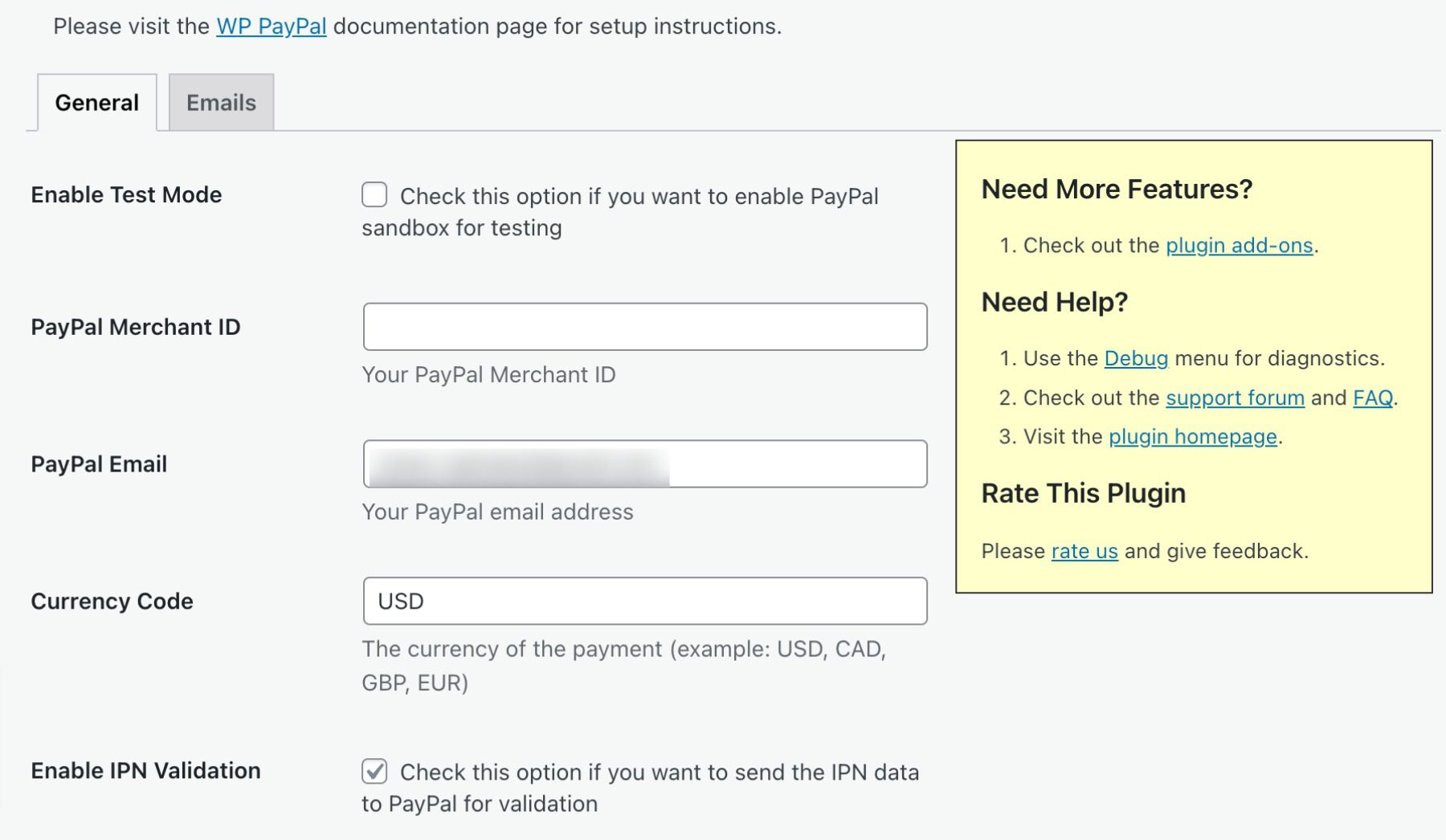
    With this plugin, you can use shortcodes to create custom “add to cart” buttons that you can set up on any of your pages. You can configure as many buttons as you need, each one with a different price. Then you can add a cart and checkout section:

    A PayPal shopping cart

    This plugin enables you to configure your shopping cart and add shipping costs to customer orders. WordPress Simple PayPal Shopping Cart also lets you send purchase confirmation emails, and you can use it to sell any kind of product you want through your website.

    Key Features:

    • Create custom “add to cart” buttons using shortcodes
    • Add cart and checkout sections to any part of your site
    • Configure shipping and payment settings for your cart
    • Offer coupons to your customers

    WordPress Simple PayPal Shopping Cart is for you if…

    …you don’t want to use a full-fledged e-commerce solution for WordPress. This plugin is perfect if you just want to sell one type of product or service, or even a handful of them. If you’re planning on having a broader inventory of products, you’re likely better off using WooCommerce.

    Price: Free

    Get WordPress Simple PayPal Shopping Cart

    6. Quick PayPal Payments

    Quick PayPal Payments

    So far, we’ve looked at multiple WordPress PayPal plugins for e-commerce websites. However, none are as easy to use as Quick PayPal Payments. This tool lets you set up one PayPal payment form that you can display anywhere on your site using the [qpp] shortcode:

    An example of a PayPal payment form

    Quick PayPal Payments gives you plenty of customization options for your payment form. You can add images, modify the text within each section, and even add custom fields to your form. You can also use this plugin to set up recurring payments for customers.

    Keep in mind that you can only set up one payment form using Quick PayPal Payments, however. That makes the plugin a great option if you sell only one type of product or service, but it’s less useful if you have a large inventory.

    Key Features:

    • Create a PayPal payment form for your website
    • Customize your payment form’s style and the fields it includes
    • Enable recurring payments

    Quick PayPal Payments is for you if…

    …you want to accept donations through your website, or you sell only one type of product or service. If all you need is one PayPal payment form, this plugin is probably perfect for you.

    Price: Free, with premium licenses starting at $14.99/yr

    Get Quick PayPal Payments

    7. PayPal Donation

    PayPal Donation

    You’ve probably seen a lot of websites that include PayPal donation buttons. PayPal Donation, one of the many great WordPress donation plugins available today, connects to your account and helps you create that button:

    Creating a PayPal donation button

    PayPal Donation enables you to set a default currency for donations and a language for your button. You can also add pre-set donation options to your button. That way, you can suggest what amounts of money users might contribute to your cause.

    This plugin lets you set up as many donation buttons as you need and generates unique shortcodes for each of them. Finally, PayPal Donation keeps track of every donation that users make through your website. You can check donation history through your dashboard and see how much each user paid (and when).

    Key Features:

    • Set up as many PayPal donation buttons as you need
    • Configure a default language and currency for each button
    • Add buttons to pages using shortcodes
    • Keep track of donations through your dashboard

    PayPal Donation is for you if…

    …you want the option to set up more than one type of donation button for your website. If you’re collecting money for multiple causes via PayPal, this plugin should be a great fit for your site.

    Price: Free, with premium licenses starting at $29.99/yr

    Get PayPal Donations

    8. Payment Button For PayPal

    WordPress PayPal

    Payment Button for PayPal works similarly to the last plugin that we talked about. This WordPress PayPal plugin enables you to create multiple types of buttons, including options for payments, donations, and subscriptions.

    When users are ready to check out, they can do so by clicking on a “View Cart” button. You can place that element anywhere on your site, and it will send users to PayPal to complete their purchases.

    Although WordPress PayPal supports a broad range of PayPal operations, we can only recommend that you use this plugin if you’re comfortable with shortcodes. WordPress PayPal doesn’t offer any configuration options, and you have to read its documentation to check out all of the shortcode parameters it offers.

    If you can look past that, WordPress PayPal enables you to create highly-customizable PayPal buttons. You can set up buttons that add multiples of any item and include shipping costs, taxes, and much more.

    Key Features: 

    • Set up PayPal payment, donation, and subscription buttons
    • Enable users to check out through PayPal
    • Customize your PayPal buttons using shortcode parameters

    Payment Button for PayPal is for you if…

    …you want a plugin that supports payments, donations, and subscriptions via PayPal. However, we only recommend using this tool if you don’t mind configuring shortcode parameters manually.

    Price: Free

    Get Payment Button for PayPal

    9. Seamless Donations

    Seamless Donations plugin logo

    If you need a solution that can help you collect donations for multiple causes using PayPal, you’re going to like Seamless Donations. This plugin enables you to set up a donation form that lets users choose how much they want to donate and to what causes. More importantly, it lets them pay using PayPal:

    Seamless Donations settings page

    You can configure pre-set donation levels and decide what information you want to collect from donors. This plugin lets you set up multiple causes or “funds” that users can select when they make donations, and you get to choose from two form-style templates.

    One feature that is lacking in the free version of the plugin is the ability to fully customize your form’s style. If you pay for the premium version, you can use a broad collection of pre-built style templates, but a lot of them look somewhat outdated.

    Key Features:

    • Set up a PayPal donation form for your website
    • Create multiple funds or causes, and let users decide which one(s) to donate to
    • Configure pre-set donation levels
    • Choose what information users need to fill out to make a donation

    Seamless Donations is for you if…

    …you want to collect donations for multiple causes. This plugin lets you do that using a single form, which is perfect if you’re planning on creating a dedicated donations page.

    Price: Free, with premium add-ons

    Get Seamless Donations

    Wrapping Up PayPal Plugins for WordPress

    PluginPriceFree Option
    🥇GiveWP$149/yr✔️Visit
    🥈Easy Digital Downloads$99.50/yr✔️Visit
    🥉Paid Memberships Pro$247/yr✔️Visit
    4WooCommerceFree✔️Visit
    5WordPress Simple PayPal Shopping CartFree✔️Visit
    6Quick PayPal Payments$14.99/yr✔️Visit
    7PayPal Donations$29.99/yr✔️Visit
    8Payment Button For PayPalFree✔️Visit
    9Seamless DonationsFree✔️Visit

    There are a lot of ways you can integrate PayPal with WordPress. If you plan on selling products or services through WordPress, most of the e-commerce plugins you can use support payments via PayPal. The same applies to tools that help you sell subscriptions and collect donations. Providing access to this key payment gateway is an excellent method for improving the customer experience.

    If you’re planning to start an online store that accepts PayPal, WooCommerce is a top option. However, if you only plan on selling digital files, Easy Digital Downloads might be a better choice. For collecting donations, we recommend using the PayPal Donation plugin.

    Do you have any questions about how to integrate PayPal with WordPress? Let’s talk about them in the comments section below!

    Article thumbnail image by Inspiring / shutterstock.com

    The post 9 Best WordPress PayPal Plugins in 2023 appeared first on Elegant Themes Blog.

    Go to source

  • 8 Best WordPress Wiki & Knowledge Base Plugins in 2023

    Wikis and knowledge bases are some of the most popular methods of providing information. They’re especially popular for the first line of support. Knowledge bases and wikis are great for articles, documents, and FAQs. With the right tools, it’s not difficult to integrate a wiki into your WordPress website. In this article, we’ll look at 8 options to help you decide which is the best WordPress wiki plugin for your needs.

    Why Do You Need a Wiki or Knowledge Base Plugin?

    A knowledge base plugin for WordPress can help you organize information in one central location, provide self-help resources to customers, increase user engagement, improve SEO with quality content, and save costs. It offers an effective way to reduce the load on customer support teams and provides customers with easy-to-find answers to frequently asked questions, improving their overall experience. In short, a knowledge base plugin can improve your website’s functionality and provide a better experience for both customers and businesses.

    The 8 Best Wiki and Knowledge Base Plugins

    Overall, a good wiki and knowledge base plugin should be customizable, easy to navigate, mobile-friendly, and provide useful analytics and feedback to help you continuously improve your content. When building this list, we kept those key points in mind. So without further delay, here are our top picks.

    1. Echo Knowledge Base

    Echo Knowledge Base plugin

    Echo Knowledge Base includes a frontend editor with 26 templates and 500 icons. It has multiple tabs, allowing you to organize the documents by team, product, and service. Create articles that include a table of contents. The search bar provides listed results. Order the articles alphabetically, by time, etc.

    Setting up Echo is a breeze thanks to the easy configuration wizard.

    Echo Knowledge Base configuration wizard

    The plugins let you choose from several basic designs, tabs, or category layouts. The wizard changes the setup based on the type of layout you choose. For example, if you choose a category design, you’ll be given the option of left, right, or top category navigation.

    Echo category navigation

    Once you complete the wizard, you’ll have the option to add new articles to your knowledge base.

    add new articles

    If you are a Divi user, Echo features Visual Builder integration so that you can make your knowledge base articles fully customized.

    Divi integration

    Key Features for Echo Knowledge Base:

    • Frontend editor
    • 26 templates
    • Table of contents
    • Fast search with listed results
    • 500 icons
    • Ordering options
    • 5 levels of hierarchy
    • Pro version adds layouts, widgets, a link editor, ratings and feedback, advanced, search, groups, and more.
    • Divi Visual Builder integration

    Price: Free, pro add-ons start at $46 per year.

    Get Echo Knowledge Base

    2. Heroic Knowledge Base

    Heroic KB plugin

    Heroic Knowledge Base is a powerful plugin that offers an Ajax search feature for answers on the fly. It offers all standard features you’d expect from a wiki plugin such as content categorization, article attachments, widgets for displaying your knowledge base in the sidebar, as well as drag & drop ordering to make building your knowledge base simple.

    That being said, it offers something that others don’t. With Heroic’s KB offering, you can get critical insight into what your users think by making a user feedback section standard. This not only helps you improve your content but also aids in higher customer satisfaction.

    Heroic KB demo

    In addition to those features, Heroic Knowledge Base acts as a table of contents plugin, and gives you the ability to restrict access to your knowledge base to those who are logged in. This is especially useful if you’re building a membership website, or creating online courses.

    To make their product even more attractive, they offer a 30-day money-back guarantee, which is plenty of time to decide if Heroic KB is right for you.

    Key Features for Heroic Knowledge Base:

    • Ajax real-time search
    • Drag & drop content ordering
    • User feedback feature
    • Ability to restrict content to logged-in users only

    Price: Licenses starting at $149 per year.

    Get Heroic Knowledge Base

    3. BetterDocs

    Better Docs plugin

    BetterDocs is a popular WordPress wiki plugin that makes it easy to create a knowledge base to expand your support. It comes with several templates to get you started. A table of contents is created automatically as you type. You can make the TOC sticky. The advanced live search makes it easier for visitors to find what they’re looking for. A pro version is available that adds analytics, and an instant answer bot, and it allows you to create multiple knowledge bases for different products.

    Better Docs activation

    To help you get started, the quick setup option steps you through creating the pages, and content, and customizing it.

    Better Docs settings

    The settings screen gives you lots of control over the docs including the design, layout, and more. Settings are intuitive and simple.

    Key Features for Better Docs:

    • Premade templates
    • Shortcodes
    • Auto table of contents
    • Sticky table of contents
    • Advanced live search
    • Pro version adds templates, advanced search, floating table of contents, instant answers, analytics, and more.

    Price: Free, pro version starts at $69 per year.

    Get Better Docs

    4. BasePress

    BasePress WordPress wiki plugin

    BasePress is a powerful WordPress wiki plugin that lets you build unlimited independent knowledge bases. It comes with three themes and you can customize them with simple adjustments and CSS. It builds an entry page where users can choose the knowledge base they need. The unlimited section hierarchy makes the knowledge bases easy to organize.

    The setup wizard steps you through to get started quickly with easy-to-follow settings screens including general settings, appearance, breadcrumbs, search, comment, and import and export tools.

    BasePress configuration wizard

    Once your custom post type for knowledge bases is created, you can customize your knowledge base with a title, slug, description, and image, as well as section and sub-section styles.

    wiki category styling

    Key Features for BasePress:

    • Theme editor
    • Icon manager
    • Advanced search with live results
    • Breadcrumbs
    • Drag and drop reordering.
    • 4 widgets
    • Pro version adds content restrictions, article voting and user feedback, automatic table of contents, statistics, and lots more.

    Price: Free, the pro version starts at $59 per year.

    Get BasePress

    5. weDocs

    weDocs wiki plugin

    weDocs by weDevs is an excellent choice to create visually stunning documentation for your website. While they don’t have any pre-made templates to choose from, you can use popular WordPress themes such as Divi to create your wikis and knowledge bases.

    Like, other plugins on our list, the knowledge base is created using a shortcode, allowing integration anywhere on your website.

    weDocs settings

    You can also add tags to your documentation pages, making it easy for users to search for specific information. Plus, it also provides a built-in search function to help users find what they need quickly.

    weDocs comes with a simple and clean interface that is easy to use, even for non-technical users. It also includes several customizable options, such as drag-and-drop reordering, the ability to add sections, and breadcrumbs for easy navigation.

    weDocs sections and articles

    Key Features for weDocs:

    • Easy integration with page builders like Divi
    • Style interface with CSS
    • Shortcode to display knowledge base virtually anywhere on your website
    • Breadcrumbs
    • Ability to allow comments on docs
    • Drag and Drop reordering

    Price: Free

    Get weDocs

    6. Yada Wiki

    Yada Wiki

    The Yada Wiki WordPress wiki plugin creates a new post type and provides an index and table of contents, making it easier for users to navigate your content. With customizable shortcodes, you can display categories, indexes, and a table of contents anywhere on your site. Additionally, the plugin adds a convenient wiki listing button that enables users to quickly access this information.

    Furthermore, Yada Wiki includes two sidebar widgets that display activity and the table of contents, providing a user-friendly experience. You can simply enable the features you wish by checking the boxes.

    Yada Wiki options

    To display your wiki, Yada gives you two blocks, the Yada Wiki activity block, as well as the table of contents block. You can embed these in Appearance > Widgets, or by creating a template with the WordPress site editor in a full site editing theme.

    Yada widgets

    Key Features for Yada Wiki:

    • Custom post type
    • Index
    • Table of contents
    • Shortcodes
    • 2 widgets

    Price: Free

    Get Yada Wiki

    7. Encyclopedia / Glossary / Wiki

    Encyclopedia Glossary Wiki

    Encyclopedia / Glossary / Wiki adds a new post type that allows you to label it any way you want. Create an encyclopedia, lexicon, glossary, dictionary, knowledge base, wiki, directory, etc. It will automatically generate an index page with all your items. The index is sorted alphabetically and includes a prefix filter. Every item has its own page. It’s limited to 13 items and many of the settings are locked, so the pro version is the better option.

    Encyclopedia settings

    The settings screen lets you adjust the labels, appearance, and features such as text editor, block editor, excerpt, and custom fields. As previously mentioned, some features such as taxonomies, revisions, comments, and feature images require a premium license.

    Adding entries works much like adding a post in the classic editor. You can add a title, content, excerpt, and tags.

    Encyclopedia entry

    Key Features for Encyclopedia / Glossary / Wiki:

    • Highly customizable
    • Index pages are generated automatically.
    • Automatic cross-linking with selectable content types.
    • Prefix filter
    • 5 widgets
    • Multilingual ready
    • Works with multisite
    • Limited to 12 items
    • Pro version unlocks settings and has unlimited items.

    Price: Free, pro version starts at $55 per year.

    Get Encyclopedia / Glossary / Wiki

    8. Very Simple Knowledge Base

    VS Knowledge Base

    Very Simple Knowledge Base is the simplest WordPress wiki plugin. It displays your content using shortcodes. The shortcode can be placed within your content to create any type of design you want. You can refine the shortcode to include or exclude categories, post types, set the number of columns, sort order, labels, etc. You can also include custom CSS that the shortcode will link to.

    Create a page and add the shortcode based on what you want it to display. Use shortcodes to specify which categories to include, and exclude, the number to display, the order to display them in, etc.

    knowledge base shortcode

    The page then displays articles automatically. The shortcode I’ve used shows all of my categories in a single column.

    Very Simple Knowledge Base display page

    The widget lets you add the title, text to appear above the articles, the number of columns to display, and the attributes to display.

    Key Features for VS Knowledge Base

    • Display with shortcodes within your content
    • Show categories.
    • Set the number of columns.
    • Determine the number and order of posts.
    • Change the labels.
    • Works with custom post types
    • Custom widget
    • Add custom CSS.

    Price: Free

    Get VS Knowledge Base

    WordPress Wiki Plugin Ending Thoughts

    That’s our look at the 8 best WordPress wiki and knowledge base plugins. They include a range of features and most can be expanded with a premium edition.

    PluginPriceFree Option
    🥇Echo Knowledge BaseFree, $46 per year✔️Visit
    🥈Heroic Knowledge Base$149 per year❌Visit
    🥉BetterDocsFree, $69 per year✔️Visit
    4BasePressFree, $59 per year✔️Visit
    5weDocsFree✔️Visit
    6Yada WikiFree✔️Visit
    7Encyclopedia / Glossary / WikiFree, $55 per year✔️Visit
    8Very Simple Knowledge BaseFree✔️Visit

    As for our top pick, we recommend Echo Knowledge Base. Whether you need a simple WordPress wiki plugin, an enterprise-level platform for a complete knowledge base, or integration with Divi, you’re sure to find what you need with Echo.

    We want to hear from you. Have you tried any of these WordPress wiki plugins for your website? Let us know what you think about them in the comments.

    Featured image illustration via artist / shutterstock.com

    The post 8 Best WordPress Wiki & Knowledge Base Plugins in 2023 appeared first on Elegant Themes Blog.

    Go to source

  • 7 Best Timeline Plugins for WordPress in 2023

    Effective storytelling is a key part of building a successful brand identity. However, to make the historical roadmap of your business compelling, it helps to present it in a visually engaging manner. This is why we recommend using a timeline to showcase milestones, achievements, and other important dates for your organization.

    WordPress timeline plugins make adding a timeline of events or milestones to your site effortless. In this post, we’ll discuss what these tools are and explore their benefits. Then we’ll introduce you to seven of the best timeline plugins for WordPress.

    Let’s get started!

    An Introduction to Timelines for WordPress Websites

    As a business, you must be able to build trust and credibility with your audience. One of the most powerful ways to do that is through engaging storytelling. Letting customers know about where you started and how your brand came to be is an effective way to personalize your company and demonstrate your values.

    Incorporating timelines on your website can help with this. In a nutshell, these are visual graphics that display a map of business-related milestones or content, typically in chronological order.

    There are various types of timelines that you can add to your website. For example, one of the most popular options is a “dynamic content timeline”. Typically, this is used to arrange your blog posts in chronological order (either ascending or descending). However, you can also organize them by category.

    A content timeline example

    The purpose of this is to provide your users with a better way of browsing your content and locating content that was published at a certain time. Another benefit is that you can add an interactive element to the otherwise basic and bland list of posts.

    A second popular type is “static announcement timelines”, which are used to display company history and important events. For instance, you might use one on your About Us page to showcase the milestones your business has reached over the years.

    A static timeline example

    Adding either type of timeline to your site becomes significantly easier when you’re armed with one of the best timeline plugins for WordPress. There are both free and premium options available, with features and functionalities ranging from basic to advanced.

    7 Best Timeline Plugins for WordPress

    The type of timeline plugin you pick for your WordPress site will depend on a variety of factors. For example, you’ll need to consider what kinds of timelines you’d like to create, as well as how much you’re willing to pay.

    In the list that follows, we’ve considered features, ratings and reviews, support, ease of use, and more. The result is seven of the best timeline plugins you can find for your WordPress website. At least one of these plugins should be a suitable option for your site, regardless of the type of timeline you want to create or your experience level.

    1. Timeline and History Slider

    The Timeline and History Slider plugin for WordPress

    True to its name, the Timeline and History Slider plugin for WordPress lets you create a timeline slider to organize your blog posts by date. This freemium tool makes building and showcasing vertical timelines on your site quick and easy.

    With this plugin, you can add a title, featured image, and custom content to each item:

    The Timeline and History Slider plugin in action

    Also, the easy-to-use interface lets you navigate the timeline with your keyboard’s arrow keys.

    As with several other options we’ve looked at, there is both a free and paid version available. The free plugin ships with all the standard features you need to create a unique timeline. You can add it anywhere on your site via a shortcode.

    Alternatively, if you don’t mind paying a bit of money, you can invest in the premium version. However, it’s important to note that this tool is included as part of an “Essential Plugins” bundle, so it will be notably more expensive than other premium plugins on this list.

    Our favorite aspect of this handy plugin is that it comes with Divi Page Builder support. This means you can seamlessly integrate it with your posts and pages, and ensure an aesthetically-pleasing design without any coding.

    Key Features for Timeline and History Slider:

    • Over a dozen beautiful designs
    • Shortcode options
    • Support for timeline touch-scrolling navigation
    • Vertical and horizontal timeline options
    • Fully responsive
    • Category management
    • Divi Page Builder native support

    Timeline and History Slider is for you if…

    …You want access to a lot of customization options, or you’re a Divi user.

    Pricing: Free, with a premium version starting at $169 per year.

    Get Timeline and History Slider

    2. Essential Add-Ons for Elementor

    Essential Addons for Elementor

    Essential Addons for Elementor gives you a variety of styling options for the more than 90 elements available. One of which is the Post Timeline widget, which allows you to showcase your site’s posts beautifully.

    With the “Post Timeline” element, you can customize the timeline to your liking by choosing the layout, number of posts, pages, or custom links to display, sorting options, timeline position, and more. You can also customize the style of the timeline by changing the colors, typography, and spacing.

    essential addons layout

    Key Features for Essential Add-Ons for Elementor:

    • 50+ design elements with the free version
    • Unlimited styling options
    • Two vertical timeline layouts
    • Excellent Support through WP Developer

    Essential Add-Ons for Elementor is for you if…

    …You use Elementor and you’re looking for elements to display timelines on your website. Essential Addons has nearly endless styling options, as well as other blocks to create an eye-catching layout.

    Pricing: Free, with premium licenses starting at $49.97 per year.

    Get Essential Add-Ons for Elementor

    3. Qi Blocks for Gutenberg

    Qi Blocks for Gutenberg

    Qi Blocks for Gutenberg is a collection of 48 free blocks created specifically for use with Gutenberg. One of the blocks – The Timeline Showcase block – is functional on any page or post, as well as templates and template parts through full site editing.

    timeline block settings

    Styling is impressive with Qi Blocks. The Timeline Showcase block offers four layout options for both horizontal and vertical orientations. Furthermore, you can control the animation effects, number of columns, and adjust how the block appears on various mobile devices. However, the best feature of this block is the abundance of style settings. With this block, you can customize the appearance of both the images and text by changing the font color, family, and weight. Additionally, you can also vary the padding and margins to further enhance the design.

    219430

    Key Features for Qi Blocks for Gutenberg:

    • Plenty of styling options
    • Extension of Gutenberg blocks
    • 48 free blocks
    • Pro version offers 33 additional blocks

    Qi Blocks for Gutenberg is for you if…

    …You use Gutenberg Blocks and want more control over the elements you can use. The base plugin offers a variety of options and even more for the premium license.

    Pricing: Free, with a premium version starting at $49 per year.

    Get Qi Blocks for Gutenberg

    4. Timeline Express

    The Timeline Express WordPress plugin

    Timeline Express is a freemium WordPress plugin that offers an expansive set of features for creating animated vertical timelines. This includes timelines for events, dates, announcements, and more.

    You can easily add these features to your site via shortcodes. This tool is also packed with customization and design options, letting you choose from a collection of fonts, icons, and images:

    The Timeline Express plugin in action

    One of our favorite aspects of Timeline Express is its flexibility. You can use it for websites of all sizes and scales. For example, the free version ships with everything you need to build and display aesthetically-pleasing, vertical timelines. However, if you’re looking for something a bit more intricate, you can access various advanced features by upgrading to a premium license.

    Key Features for Timeline Express:

    • Flexible, responsive, and cross-browser compatible
    • Easy-to-use shortcodes for seamless integration
    • Custom images and Font Awesome icons
    • CSS3 animations
    • Ascending and descending order options
    • Localized date formatting
    • Translation-ready for international users
    • Multiple timelines (Pro)
    • Announcement categories (Pro)
    • Timeline sorting features (Pro)
    • Priority support (Pro)

    Timeline Express is for you if…

    …You want a single tool that can easily be used for various purposes and on multiple types of websites.

    Pricing: Free, with a premium version starting at $29 per year.

    Get Timeline Express

    5. Cool Timeline

    The Cool Timeline WordPress plugin

    If you’re looking for the best timeline plugins for WordPress that offer both free and premium versions, Cool Timeline is another option to consider. It provides a quick and easy way to spice up the way you display your blog posts instantly.

    This tool is loaded with various style options, making it easy to customize the timeline to your branding:

    The Cool Timeline plugin in action

    It also supports multimedia elements such as sliders, images, and videos.

    Cool Timeline is an excellent option if you’re interested in creating both vertical and horizontal timelines. You can use it to showcase important dates and milestones in your company’s history and display blog content engagingly and practically.

    Key Features:

    • Free and premium versions available
    • Both-sided and one-sided timeline options
    • Compact timeline option for saving space
    • User-friendly with extensive documentation
    • Over 20 horizontal and vertical timeline styles
    • Responsive, retina-ready, and modern design
    • Pop-up timeline images and the option to link to stories
    • Translation-ready with support in three languages
    • Animation effects (Pro)
    • Multiple timelines (Pro)

    Timeline Express is for you if…

    …You need your timelines to mesh well with your branding, or you’d like to experiment with their formatting.

    Pricing: Free

    Get Cool Timeline

    6. Event Timeline

    The event timeline plugin for WordPress

    If you’re looking for a very straightforward solution, Event Timeline is worth exploring. This freemium timeline plugin for WordPress lets you create and display vertical and horizontal timelines in either a classic or modern style.

    Additionally, you can streamline the process by choosing from one of 18 pre-built themes:

    The Event Timeline plugin in action

    It’s an ideal solution if you want a simple way to display your company’s history as a timeline.

    Plus, thanks to its clean code, Event Timeline is also incredibly lightweight. Depending on the level of support and the extent of features you need, you also have the option of upgrading to the premium version.

    Key Features for Event Timeline:

    • Classic and modern styles
    • Vertical or horizontal timeline displays
    • 18 stunning themes
    • Responsive and mobile-ready
    • Support for multimedia files including images, audio files, and videos
    • Color picker and customization options
    • Multiple timeline stories
    • Clean, sleek design

    Event Timeline is for you if…

    …You want to keep it simple and create appealing timelines very quickly.

    Pricing: Free, with a premium version starting at $10 per year.

    Get Event Timeline

    7. Divi Plus

    Divi Plus

    Divi Plus is a powerful plugin that enhances the already impressive design capabilities of Divi. With over 50 modules, 50 starter templates, and more than 250 sections, it provides a wide range of options to create stunning designs. One standout feature is the timeline module, which gives you the ability to display beautiful timelines on your website.

    Divi Plus timeline plugin

    Furthermore, Divi Plus seamlessly integrates with the Visual Builder, the best no-code page builder available. By using this plugin, you gain access to all the design elements you need to create your timelines. You can display any type of content in a timeline format, making it a great tool for showcasing company history, product features, and more.

    Key Features for Divi Plus:

    • 50 starter templates
    • 50 modules
    • 250 sections
    • Highly customizable timeline module
    • Extends the functionality of Divi

    Divi Plus is for you if…

    …You’re a Divi user looking to build timelines on your website. As an added bonus, you’ll get additional elements to extend the number of design elements to choose from.

    Pricing: Premium licenses starting at $79 per year.

    Get Divi Plus

    Which Timeline Plugin is Right For You?

    Your website likely serves many purposes. However, one of the most important is to let your audience know about your business, including its history. Whether you’re dealing with an extensive amount of blog posts or need to organize a specific set of dates and milestones, adding a timeline can help.

    Fortunately, there are plenty of timeline plugins for WordPress that you can use to simplify this process. To find the best one for your specific needs, we recommend taking a look at the list above and giving some of the demo versions a try.

    PluginPriceFree Option
    🥇Timeline and History SliderFree, $169 per year✔️Visit
    🥈Essential Add-Ons for ElementorFree, $49.97 per year✔️Visit
    🥉Qi Blocks for GutenbergFree, $49 per year✔️Visit
    4Timeline ExpressFree, $29 per year✔️Visit
    5Cool TimelineFree✔️Visit
    6Event TimelineFree, $10 per year✔️Visit
    7Divi Plus$79 per year❌Visit

    The Best of the Best

    That being said, there are two that stand out the most. If you are a Divi user, Divi Plus is an excellent choice to create gorgeous timelines on your website. On the other hand, if you’re looking for something that will work with any WordPress website, your best bet is Timeline and History Slider,

    What features are most important for you to have in a WordPress timeline plugin? Let us know in the comments section below!

    Featured image illustration  via VectorMine/shutterstock

    The post 7 Best Timeline Plugins for WordPress in 2023 appeared first on Elegant Themes Blog.

    Go to source

  • 5 Best WordPress Menu Plugins for 2023

    Website navigation is an important part of any website. Your menus will show your customers and visitors the best way to get the information that they need from your site. We’ve gone ahead and compiled a list of the best WordPress menu plugins for you. We’ve got drag-and-drop builders, custom design panels, and more. These menu plugins will help you to create easy-to-understand navigations for your website viewers.

    What are WordPress Menu Plugins?

    There are many WordPress menu plugins on the market (even some for breadcrumbs). Some specialize in certain types of menus while others offer a wide range of options. But, some basic features that you can expect from menu and navigation plugs are:

    • Mega menus: These are dropdown menus that offer multiple levels of navigation, providing your visitors with a better understanding of your website’s structure and content.
    • Sticky menus: These menus stick to the top of the page, ensuring that they are always visible, even when visitors scroll down.
    • Custom icons: With custom icons, you can make your menu more visually appealing and recognizable.
    • E-commerce cart integrations: If you have an e-commerce website, integrating your cart into your menu can make it easier for customers to access and manage their orders.
    • Drag-and-drop builder: This feature allows you to create and rearrange menu items quickly and easily without the need for coding skills.

    Knowing your own needs and non-negotiables will go a long way in choosing the right solution for yourself. Regardless, a menu plugin is a great alternative to creating basic WordPress menus or editing your WordPress header from scratch.

    The Best WordPress Menu Plugins

    Choosing the right WordPress menu plugin can be overwhelming, with so many options available. To make your life easier, we have put together a list of the top plugins on the market. These plugins are designed to help you create stunning WordPress menus quickly and easily, without sacrificing quality or features. Whether you are looking for a basic menu plugin or something more complex, these plugins have you covered.

    1. Responsive Menu

    Responsive Menu WordPress menu plugin

    If you’re looking to upgrade your WordPress website’s navigation system, Responsive Menu is a popular plugin worth considering. The plugin offers a vast range of customization options, even in the free version, and allows users to create visually impressive menus that work well on all devices. The plugin’s streamlined menu creation process makes it easy to use, even for WordPress beginners. And because of its focus on mobile-first design, it is one of the best mobile plugins out there.

    Key Features of Responsive Menu:

    • 150 customization options to perfect menus with
    • Disable background scrolling of content when your menu is open
    • W3C focuses on accessibility and compatibility across multiple devices to ensure compliance
    • Fully customizable and integrated search
    • WPML/Polylang integrations

    Responsive Menu Header bar settings

    A visual drag-and-drop interface allows you to customize your mobile menu in just a few clicks. You can personalize elements such as the background image, title, search bar, and logo, as well as manage the appearance of sub-menu items and set mobile breakpoints, enabling you to customize your menu depending on your users’ screen size.

    Responsive Menu is for you if you…

    • Want a visual menu editing experience to customize your menu with the elements and design you need
    • Need a fully responsive menu solution that looks good on mobile devices

    Pricing: From $49 per year

    Get Responsive Menu

    2. WP Mobile Menu

    WP Mobile Menu

    If you want to enhance your website’s mobile menu to improve performance and user experience, WP Mobile Menu is an excellent option. Since mobile traffic is increasing every year, it is crucial to optimize the mobile user experience. And that optimization starts at the top with your website’s header and navigation menu. This plugin has a free version, a premium version, and a premium plugin version for eCommerce stores using WooCommerce.

    Key Features for WP Mobile Menu:

    • Build your navigation menu up to 3 levels deep
    • WooCommerce-specific tools to increase product conversions
    • Set conditional rules to show alternate menus
    • Complete control over menu layout and responsive configuration
    • Nice core features like (google fonts, slide and push display types, naked header, and more)

    WP Mobile Menu general options

    With the WP Mobile Menu plugin, you have full control over the appearance of your mobile menu on your WordPress site. In addition to deciding whether the mobile menu appears on the left or right side of the screen, you can customize its total appearance. It is specifically built to offer you the ability to build out a mobile responsive menu with custom breakpoints.

    WP Mobile Menu is for you if you…

    • Want advanced settings for displaying and loading elements
    • Don’t mind the non-visual editing interface
    • Need eCommerce tools built into your menu

    Pricing: Free; Paid plans from $77.88 a year (or 8.99 per month)

    Get WP Mobile Menu

    3. WP Mega Menu Pro

    WP Mega Menu

    WP Mega Menu Pro is yet another great plugin that has a visual WordPress menu editor. The amazing visual builder of this tool allows you to easily create your mega menu with a simple drag-and-drop system, even if you don’t know how to code. It lets you create advanced navigational elements with ease and deploy them as you see fit.

    Key Features for WP Mega Menu:

    • Row and column or grid-based layouts
    • Widget ready to bring in even more functionality
    • Easy to add company logos and social media elements
    • Integrated with Font Awesome and Dashicons
    • Handy auto-save so you never lose any of your work
    • WooCommerce support for including custom product displays, custom cart icons, and more.

    WP Mega Menu Menu Builder

    The drag-and-drop builder is one of the key features of the WordPress Mega Menu plugin, which allows you to easily create complex, multi-level menus without needing to write any code. You can then drag and drop these items to create a hierarchy of menu items, with multiple levels of submenus if needed. This allows you to create very complex and structured menus, which can be ideal for large websites with a lot of content.

    WP Mega Menu WooCommerce exampleThe built-in integration with WooCommerce allows you to create beautiful mega menus for product displays with a cart menu icon that has an item counter.

    WP Mega Menu is for you if you…

    • Want a low-cost menu builder with visual editing
    • Use other Themeum products like Qubely or TutorLMS
    • Need a solution that is compatible with WordPress widgets

    Pricing: From $29 per year

    Get WP Mega Menu

    4. Max Mega Menu

    Max Mega Menu

    Max Mega Menu is a freemium menu plugin that swaps the existing menu of your WordPress theme with a more customizable one. This allows you to modify the look and feel of your website’s navigation and menus with ease. It offers a variety of customization options and a drag-and-drop builder that makes it easy to build out mobile responsive mega menus for any website. This plugin is suitable for all types of WordPress users, regardless of their WordPress or coding experience.

    Key Features for Max Mega Menu:

    • Lightweight plugin with the ability to configure multiple menu locations
    • Drag-and-drop editor for rearranging items and adding widgets
    • Supports responsive menus and touch menus
    • Create horizontal mega menus and sticky menus
    • WooCommerce and Easy Digital Downloads integrations for showing cart totals
    • 100+ customization options

    Max Mega Menu's visual editor

    Max Mega Menu is a powerful menu plugin that comes with a built-in panel that seamlessly integrates with WordPress’ native menu builder. This feature extends the default menu builder’s functionality with over 100 customization options for each menu and menu item. These options include features such as hover intent, effects, mobile effects, and themes, which allow you to create menus that are both aesthetically pleasing and highly functional.

    Max Mega Menu is for you if you…

    • Need a feature-rich (including eCommerce) menu plugin
    • Want something that provides adequate features in its free version
    • Like its low yearly cost

    Pricing: Free; Paid plans from $29 per year

    Get Max Mega Menu

    5. DiviMenus

    DiviMenus Menu Builder for Divi

    DiviMenus is the go-to menu solution for Divi theme users looking to add extra customization to WordPress menus. This Marketplace plugin has over 4000 purchases and comes highly reviewed. It’s the best of Divi and advanced menu creation and can be yours.

    Key Features for DiviMenus:

    • Build creative mega menus using layouts from the Divi Libray within your menu
    • Shopping cart and eCommerce integration
    • Create clever circular menus with text and/or images on hover
    • Create a vertical menu to reveal text and/or images on hover
    • Create timeline or process menus
    • Built-in options for different types of animation effects

    DiviMenus Circle Menu

    The DiviMenus module can design creative menu displays in different shapes using your WordPress menus. The plugin allows you to modify various attributes such as alignment, labels, borders, and more, to create a unique menu that meets your specific design requirements. Plus, you can use countless menus in a variety of different ways throughout your site to boost content engagement.

    DiviMenus Menu Examples

    DiviMenus is for you if you…

    • Love the Divi Theme but want even more freedom for creativity
    • Have ideas beyond the typical headed menu

    Pricing: $49 per year

    Get DiviMenus

    Bonus: Ubermenu

    UberMenu - WordPress Mega Menu Plugin

    As a bonus plugin recommendation, we present to you UberMenu—a popular CodeCanyon tool for creating robust menus in WordPress. We particularly like the dynamic menu content features that can add menu items based on new content added to your website.

    Submenu settings

    UberMenu comes highly rated (4k+ reviews at 4.5+ stars) and has a low lifetime rate.

    Pricing: $26 LTD

    Get Ubermenu

    What is the Best WordPress Menu Plugin?

    PluginPriceFree Option
    🥇Responsive Menu$49/yr✔️Visit
    🥈WP Mobile Menu$77.88/yr✔️Visit
    🥉WP Mega Menu$29/yr❌Visit
    4Max Mega Menu$29/yr✔️Visit
    5DiviMenus$49/yr❌Visit
    BONUSUbermenu$26 LTD❌Visit

    For all those Divi users looking for a powerhouse all-in-one menu solution, DiviMenus is hard to beat. We really think you’ll enjoy it as so many others have already. Responsive Menu is a top pick for WordPress mobile menus because of its powerful mobile-first design features. But if you want a highly customizable mega menu that is packed with features and easy to build, you can’t go wrong with WP Mega Menu. We hope these suggestions get you a good way towards updating your website menus.

    Looking for more plugins? Check out our entire collection of the best plugins for WordPress

    Featured Image by Lauritta / shutterstock.com

    The post 5 Best WordPress Menu Plugins for 2023 appeared first on Elegant Themes Blog.

    Go to source

  • WordPress vs Weebly (2023) — Which Is Better?

    Website builders are everywhere these days. WordPress is the dominant platform with well over 1/3 of the internet having been built with it. A slew of other site builders has popped up to demand their fair share of the market though. One of the big players is Weebly, a free service that made a name for itself by being fast, reliable, and easy to use. Square is one of the top e-commerce payment gateways. They bought Weebly to use as an e-commerce platform. They can give WordPress a run for its money. But what features make each platform uniquely appealing? To assist you in determining which is more suitable for your business, we will compare WordPress vs Weebly.

    WordPress vs Weebly: Who Are They For?

    To be a little hyperbolic, WordPress is for everyone. What we mean is that no matter what kind of site you want to run, WordPress can create it. From portfolios to e-commerce shops to prolific magazines, WordPress has the capability and features to make it happen. The catch is that because it can do nearly anything, the setup can be a little more difficult. You, as a site owner, need to either hire a developer or find the plugins, themes, and features you need for your site, yourself. But if you can dream it, WordPress can do it. There is room for beginners and coders in the WP space.

    Weebly, on the other hand, started as a quick-and-easy builder that gave users fast access to static/informational sites, and it has since been acquired by Square and become an incredibly robust e-commerce platform. While the platform can still function as a quick-and-easy free website for you, the focus has shifted to being an e-commerce platform that has a full range of features built right in. If your main goal is to get an e-commerce site up and running as quickly as possible, Weebly may be what you’re looking for.

    Weebly Makes Building a Website Easy

    A major factor for anyone looking to build a website is how easy the platform is to learn and use daily. WordPress does not have the best new-user experience. But that has somewhat improved over the years. Weebly has always attracted users who wanted a nicely designed website. One that wasn’t hard to maintain, and Square’s acquisition hasn’t changed that at all. Both platforms are relatively easy to use, and each has quirks that make the learning curve about even between them.

    WordPress

    The hardest part about learning WordPress is figuring out where all of the options are located and what they do. To new users, learning what’s in Settings vs Tools vs Customize can be frustrating. Why are Menu options under Appearance? What’s the difference between the Theme Editor vs the Theme Customizer?

    These are very easy-to-solve frustrations, but the messaging for new users isn’t always clear. In terms of actual utility, using WordPress has never been easier. You create Posts and Pages using the new Gutenberg block editor. The new editor gives you drag-and-drop functionality for each element on the page. From images to paragraphs to lists and even rating stars, you have full control over each thing separate from everything else.

    WordPress vs Weebly page builder

    Editing the site and posts are incredibly easy, and as of WordPress 5.8, these blocks can also be used in nearly every editable space on your site. The ease with which you can customize WordPress has never been greater. Or easier.

    As we said, the dashboard can be a little confusing at times to navigate. However, you can overcome that with just a little use and practice. Additionally, themes such as Divi and plugins by companies such as 10Web can make the experience of using WordPress much easier to learn. It does, however, take external research or recommendations to find out which ones those are.

    Weebly

    Weebly is a fairly easy platform to use. Setting up your website and then running it on a day-to-day basis is pretty simple. Though there are some quirks with the software that put it on about equal footing to WordPress in terms of the learning curve.

    Weebly page editor

    The editor screen works almost exactly like the Gutenberg editor. You have different blocks available for elements such as text, images, lists, videos, and so on. (Some of these are available to premium users.) Editing each of these is a matter of clicking and selecting options from a pop-out.

    The quirkiness can come in with adding new top-level pages and product categories, blog posts, and individual products. The menus aren’t intuitive to use, but they’re not difficult to learn. To create a blog post, you will need to navigate to the blog feed page itself, edit it, and then press the New Post button.

    weebly blog post vs wordpress

    This isn’t hard or complicated, but when compared to WordPress and other blogging platforms, it’s pretty obtuse. On the other hand, consider that Weebly is not a blogging platform. In that context, the entire experience is easy to learn and use and is perfectly passable.

    WordPressWeebly
    Ease of UseFiguring out where the options are and what they do can take time. Learning what’s in Settings vs Tools vs Customizer can be difficult.🥇 Winner

    Set up is easy, but adding top-level pages has a bit of a learning curve. That being said, it is a bit more user-friendly for beginners.
    Choose WordPressChoose Weebly

    When it Comes to eCommerce, Weebly Has the Edge

    WordPress has WooCommerce, a free e-commerce plugin that is used by hundreds of thousands of websites. Over time, an ecosystem of extensions and add-ons has sprung up around it, giving users access to any feature they could ever need. For example, companies such as Yith have a great list of plugins to expand WooCommerce capabilities. Weebly doesn’t need that level of ecosystem and plugin extensibility. It integrates fully with the Square e-commerce system. For quick setup and a few hassles, Weebly stores are great options. WordPress and WooCommerce are the better options for those who want the most customization and control over store options.

    WordPress

    Creating stores and adding products to WordPress using WooCommerce is a straightforward process. Installing the plugin adds new menu items to your WP admin dashboard. Creating a product and categorizing it is as easy as creating or editing a Post or creating a new Page. WooCommerce builds products on WordPress custom post types, which can be extended with plugins like Toolset. This can both help and hinder WP users because the process is known to them. The extra e-commerce meta boxes for product information does make things a bit more complex than before.

    WordPress vs Weebly eCommerce

    WooCommerce comes with various payment gateways by default, including EFT, PayPal, Stripe, Amazon Pay, and the proprietary WooCommerce Payments. You can also purchase extensions that allow even more payment gateways to be used, including the Weebly-owner Square.

    WooCommerce payment gateways

    Some of these options are free, and some are premium. Using any and/or all of the options is up to the website owner. Which is going into one of WordPress’s most noteworthy features: freedom of customization.

    That customization and many options are also available to your product lineup. You can sell digital goods and physical merchandise from the beginning. If you want advanced analytics and in-depth management utilities, additional plugins or extensions may be necessary.

    Weebly

    Weebly, in stark contrast to WordPress, comes with all e-commerce tools built in because of its association with Square. We should note, however, that each of these options is not available to all users. Weebly restricts some behind different tiers of paid membership.

    Also, we want to note that while WooCommerce can be free, most users will be spending money on extensions and other costs. We have a complete rundown on what you can expect, and it is comparable to a paid membership with Weebly.

    WordPress vs Weebly products

    The strongest feature Weebly offers is that you can sell anything to anyone from the beginning. Even as a free user, you can populate your store with inventory. While some of the actual sales (such as for digital goods) are limited to paid users, you can get started with your site and store immediately. With WooCommerce and WordPress, you have to use different extensions to offer memberships, donations, and events.

    This inclusion, even for premium members only, makes using Weebly just a bit more accessible than WooCommerce. Users in WordPress would need to individually seek out methods to sell any additional product types.

    Weebly also has a much smoother interface for entering product information (as you can see above) than WordPress. This is because Square is actively developing Weebly as an e-commerce platform. WordPress is a CMS that can function as an e-commerce platform. In Weebly, products are their own thing, separate from blog posts and all other features. Learning how to use them may take more time for Weebly users. But in the end, they’re more intuitive than customizing WooCommerce products.

    Perhaps WooCommerce can be extended and eventually provide a more powerful and custom e-commerce experience. For those who want a no-hassle platform that’s relatively easy to learn, Weebly’s Square integration provides that.

    WordPressWeebly
    eCommerceWordPress is a CMS first, and an eCommerce platform only through extensions and plugins.🥇 Winner

    You’re given everything you need to set up an eCommerce platform thanks to integration with Square.
    Choose WordPressChoose Weebly

    WordPress is King in Customization

    Both WordPress and Weebly use themes and layouts that change the design and apparent utility of the site. With WordPress that can go deep into the site’s code. With Weebly, though, it’s skin-deep and is based on how the information is presented. WordPress offers much more customization than is possible with Weebly in almost every way, but you do get a decent amount of choice with Weebly, similar to Squarespace in that it’s curated customization.

    WordPress

    Themes are the fundamental draw to WordPress. They give users the most control over their sites, offering both functionality and design. Some themes, such as Divi, come with page builders included so that editing your WordPress site can be as simple as using the block editor (or the Weebly builder itself, which is built around blocks and curated designs).

    You can find any number of free themes on the WordPress.org theme repository, as well as additional plugins on that repository, too. Both of these offer major customization. Some through design and layout, others through utility and additional features and function. Very few website platforms can compete with the total control (and ease of control) that WordPress gives its users.

    Weebly

    In terms of customization, Weebly users do have options. Just not as many as WordPress. There is a well-stocked theme repository of curated designs they can choose from. Many of them are optimized for e-commerce (again, a good thing because of Square’s integration).

    Weebly theme gallery

    They’re cleanly designed and put together. You should have no trouble customizing them. The options you get for each block and element are comparable to any basic page builder you could find in WordPress.

    wordpress vs weebly builder

    The downside is that some customization and elements are locked behind paid subscriptions. However, this is offset by taking into consideration that the most advanced page builders in WordPress are also premium subscriptions or licenses. If you’re a free user expecting full customization, however, that won’t be possible.

    Very little can compare to WordPress’s innate customization. However, Weebly competes well enough with WP that using its builder and having access to its options won’t feel cumbersome or a burden like some other builders.

    WordPressWeebly
    Customization🥇 Winner

    WordPress shines with its unlimited customization options to make sites stand out from the crowd.
    There are a few themes to choose from, but Weebly is limited to those choices.
    Choose WordPressChoose Weebly

    WordPress vs Weebly Wrap Up

    In the end, Weebly is a very solid e-commerce platform but doesn’t have a lot of draw for people who want a blog or publishing website. If you need a fast, free, decently designed static website, sure. However, Weebly has very clearly moved toward targeting those who plan on selling things being the primary function of their website.

    WordPress comes in solid in this regard, too, simply because it was built as a blogging platform first and has since evolved into a CMS capable of most kinds of sites. With the sheer amount of customization options with plugins by third-party vendors such as Yith, Toolset, and 10Web, you simply can’t beat what WordPress can offer.

    But the WooCommerce and other e-commerce solutions can be a bit more cumbersome than using something like Weebly that is built for that specifically.

    WordPressWix
    Ease of UseFiguring out where the options are and what they do can take time. Learning what’s in Settings vs Tools vs Customizer can be difficult.🥇 Winner

    Set up is easy, but adding top-level pages has a bit of a learning curve. That being said, it is a bit more user-friendly for beginners.
    eCommerceWordPress is a CMS first, and an eCommerce platform only through extensions and plugins. 🥇 Winner

    You’re given everything you need to set up an eCommerce platform thanks to integration with Square.
    Customization🥇 Winner

    WordPress shines with its unlimited customization options to make sites stand out from the crowd.
    There are a few themes to choose from, but Weebly is limited to those choices.
    Choose WordPressChoose Weebly

    One more thing. Before you make your final decision on your website platform…are you curious to see how WordPress stacks up against its other biggest competitors? We did the hard work and compared WordPress vs everything else so that you don’t have to!

    What have your experiences been with WordPress vs Weebly?

    The post WordPress vs Weebly (2023) — Which Is Better? appeared first on Elegant Themes Blog.

    Go to source

  • 9 Best Redirect Plugins for WordPress in 2023

    Setting up redirects can become a regular task if you run a WordPress website. For example, you may take some of your pages down over time, or you might want to move them from one URL to another. Whenever that happens, configuring a redirect properly ensures that users still arrive where they want to go.

    In this article, we’ll talk about what types of redirects you can set up. We’ll also introduce you to the best redirect plugins for WordPress and help you choose the right one for your site.

    Let’s get to it!

    What Type of Redirect to Use on Your Website

    There are several types of redirects that you can use on your WordPress website. Most of the plugins we’ll introduce you to in the following sections enable you to set up any type of redirect you want. With that in mind, it’s essential to understand the difference between each of them.

    Redirect Breakdown

    Let’s break down the most common types of redirects and when to use them:

    • 301 (permanent redirection). This type of redirect tells the visitor that the page they tried to access has moved elsewhere permanently. Then it helpfully sends them to that new address.
    • 302, 303, 307 (temporary redirection). These types of redirects tell visitors that the page they’re trying to access is temporarily unavailable.
    • 304 (not modified redirection). This type of redirect sends visitors to a cached version of the page since there haven’t been any new changes to it. We have an excellent overview that explains what the 304 status code means and how to fix it if you are seeing unwanted 304 redirects on your website.
    • 308 (permanent redirection). This is an alternative to 301 redirections and accomplishes essentially the same outcome, although the original is still the most popular option.

    In theory, there are particular situations when you’ll want to use 302, 303, and 307 redirects, respectively. For example, you can use 303 and 307 redirects to tell browsers not to refresh a confirmation page after users submit a form.

    For practical purposes, however, you probably won’t use a lot of 303 or 307 redirects. Form and e-commerce plugins usually handle those situations via built-in functionality. As for 302 redirects, there aren’t a lot of scenarios when it makes sense to move visitors to another page temporarily.

    In practice, you’ll most often use 301 redirects. In case you have particular needs, though, we’ll let you know what types of redirects each of the plugins we recommend enable you to use.

    Finally, it’s also worth noting that you can implement redirects in WordPress manually by modifying your site’s .htaccess file. However, that’s not an approach that we recommend unless you’re very comfortable editing WordPress core files.

    The Best Redirect Plugins for WordPress

    We selected the seven plugins below based on their feature sets, ease of use, and positive reviews. However, it’s important to note that implementing redirects on your website can lead to errors and SEO penalties if you don’t do it properly (or if your plugin is poorly coded or out of date). With that in mind, we’re also recommending plugins that are well-established and frequently updated.

    1. Rank Math

    Rank Math SEO plugin

    Rank Math is a popular all-in-one WordPress SEO plugin that includes redirection functionality. It’s similar to Yoast in terms of features, and there’s plenty of debate about which is the superior WordPress SEO plugin.

    If you use Rank Math on your own site (or are interested in adding it), you’ll be glad to know that it makes configuring redirects easy. This SEO plugin uses a module system that enables you to turn on or off the specific functionalities you want to use. Among those modules, you’ll find options for a 404 error monitor and redirects:

    Rank Math example

    The 404 error monitor is enabled by default. However, once you turn on the redirection feature, you’ll be able to set up individual redirects:

    Add redirections

    Rank Math supports multiple types of redirects, and it also enables you to automatically reroute 404 errors to any page of your choosing. Of course, you get access to a lot of useful SEO functionality as well.

    Key Features:

    • Improve your website’s SEO
    • Monitor your site for 404 errors, and implement automatic redirects for them.
    • Set up custom redirects for any page you need

    Rank Math is for you if…

    …you already use this plugin on your site, or you’re in search of an SEO plugin that also includes redirect functionality. In comparison with other SEO plugins, Rank Math offers a more modular approach. That means that you can turn off any features that you don’t need for easier configuration.

    Price: Free, with a premium version available starting at $59 per year

    Get Rank Math

    2. LoginWP

    The Peter's Login Redirect plugin

    LoginWP (Formerly Peter’s Login Redirect) is unlike any of the other redirect plugins for WordPress we’ve talked about so far. With this plugin, you can set up automatic redirects that trigger when users log in or out of your website.

    We’ve talked about how to set up and configure LoginWP in the past. So let’s instead focus on why this type of redirect can be useful. For example, it can enable you to divert users from seeing the WordPress dashboard after they log in.

    You can add redirect rules for specific users or roles. The plugin also enables you to set up post-registration redirects, which you can use to send users to a ‘thank you’ page:

    Setting up login redirection rules

    If you’re running a membership-based website, this type of redirect can be incredibly useful. With this plugin, you can set up as many login and logout redirection rules as you need.

    Key Features:

    • Redirect users after they log in or out of your website
    • Set up rules for specific users or roles
    • Create custom post-registration redirects

    LoginWP is for you if…

    …you run a membership website or any other type of operation that requires users to log in to access key features.

    Price: Free, premium version starts at $49

    Get LoginWP

    3. Redirection

    Redirection

    Redirection is by far the most popular redirect plugin for WordPress, and it’s easy to see why. This tool enables you to set up many types of redirects, including:

    • 301
    • 302
    • 303
    • 304
    • 308

    Redirection can do other things as well, such as automatically monitoring your website for permalink changes and setting up redirections for you when it detects updates. It can also keep a log of 404 errors that visitors encounter and share that information with you.

    By monitoring 404 errors, you’ll have a full list of potential URLs for which you need to set up redirects. Here’s how the redirection setup process looks when using this plugin:

    Set up new redirection

    Another benefit of Redirection is that it enables you to determine conditions for each redirect that you set up. For example, you can create redirects that only trigger based on a visitor’s login status, language, or the referrer, among other parameters.

    Key Features:

    • Set up multiple types of redirects in WordPress
    • Automatically generate redirects when a permalink changes
    • Keep logs of 404 errors on your website
    • Set up parameters for your redirect rules

    Redirection is for you if…

    …you want to be able to set up multiple types of redirects and monitor your website for 404 errors. This plugin is also a fantastic choice if you want to configure redirects with advanced rules and parameters.

    Price: Free

    Get Redirection

    4. Quick Page/Post Redirect

    The Quick Page/Post Redirect plugin

    This next plugin is all about 301 redirects. Quick Page/Post Redirect enables you to add multiple 301 redirects for your website at once using a simple menu and without tinkering with too many settings:

    Adding multiple 301 redirects to WordPress

    You can configure redirects to open in a new window or add the nofollow attribute to them. Quick Page/Post Redirect also enables you to add redirect rules directly from the Block Editor when editing individual pages or posts:

    Configuring a redirect within the Block Editor

    If you opt for this approach, the plugin enables you to choose from a broader range of redirect types, including 301, 302, 307, and “meta redirects.” That last type occurs on the client side. Meta redirects aren’t beneficial from an SEO perspective, however, so we recommend against using them.

    Key Features:

    • Set up multiple 301 redirects at once
    • Create individual redirect rules from within the Block Editor
    • Set up global redirects or turn off all existing ones with a click

    Quick Page/Post Redirect is for you if…

    …you want to set up multiple 301 redirects at once using a simple menu that doesn’t require you to tweak additional settings for any rule.

    Price: Free

    Get Quick Page/Post Redirect

    5. Safe Redirect Manager

    The Safe Redirect Manager plugin

    Safe Redirect Manager offers a much more streamlined approach than other redirect plugins for WordPress. It saves redirect rules as custom post types and shies away from features such as 404 error logging since it claims this can cause performance issues (which shouldn’t be a problem with proper optimization).

    Regardless of the plugin’s philosophy, it does make it easy to set up new redirect rules. It also supports multiple types, including the following options:

    • 301
    • 302
    • 303
    • 307

    Here’s what it looks like when you’re setting up a new 301 redirect using Safe Redirect Manager:

    Using the Safe Redirect Manager plugin

    Another feature worth mentioning is that Safe Redirect Manager supports “wildcard redirects.” A wildcard redirect will divert any visitors trying to access a subdomain to your website instead. That can be useful if you have subdomains that you’re not currently using.

    Key Features:

    • Set up multiple types of redirects
    • Create wildcard redirects
    • Add notes to each redirect rule that you set up
    • Save redirect rules as custom post types in your database

    Safe Redirect Manager is for you if…

    …you want to use a plugin that enables you to set up multiple types of redirects without having to tinker with advanced configuration options. It’s also one of the only options that support wildcard redirects.

    Price: Free

    Get Safe Redirect Manager

    6. All 404 Redirect to Homepage

    All 404 Redirect to Homepage

    In some cases, you might not need to set up advanced redirect rules, and all you want is a way to take care of 404 errors. What All 404 Redirect to Homepage does is set up automatic redirects for any 404 error on your website, so visitors are automatically sent to your homepage. In addition, you can customize what URL the plugin redirects users towards:

    Setting up a redirect rule for 404 errors

    This plugin also includes a 404 error log, but it doesn’t enable you to set up any other type of redirect rule.

    Key Features:

    • Redirect all 404 errors to your homepage (or any other page that you choose)
    • Log 404 errors on your website

    All 404 Redirect to Homepage is for you if…

    …you want a simple way to take care of 404 errors on your website, and you don’t have a need for any other type of redirect.

    Price: Free, with a premium version available starting at $29 per year

    Get 404 Redirect to Homepage

    7. 301 Redirects

    The 301 Redirects plugin

    The 301 Redirects plugin enables you to log 404 errors and set up multiple types of redirects, including:

    • 301
    • 302
    • 307

    The plugin offers a simple menu that makes it easy to create new redirect rules. For example, if you don’t want to enter URLs manually, you can choose whether to redirect an address to a post, page, media file, or product:

    Creating a product redirect rule

    By using this plugin, you can set up as many redirect rules as you need. Plus, if you’re just starting a new WordPress site, the plugin will let you know if your permalink structure isn’t compatible with redirects.

    Key Features:

    • Set up multiple types of redirects
    • Redirect visitors to specific pages, posts, media files, or products
    • Log 404 errors on your website

    301 Redirects is for you if…

    …you want to use a plugin that includes dropdown menus for choosing which pages, posts, media files, or products to redirect visitors to.

    Price: Free, with a premium version available starting at $49

    Get 301 Redirects

    8. Yoast SEO

    The Yoast SEO plugin.

    Yoast SEO hardly needs an introduction. It’s the most popular SEO plugin among WordPress users, and with good reason. We’ve talked about how to set up Yoast SEO in the past, and it’s still the tool we use for optimizing the content on our own blog.

    If you use the premium version of Yoast SEO, you get access to a lot of extra features that we didn’t have time to cover in the post linked above, including a redirect manager. This tool enables you to set up new redirects or let Yoast SEO do it for you when you delete or move a page:

    Using the Yoast SEO redirect manager

    Yoast SEO’s redirect manager supports multiple types of redirection, including:

    • 301
    • 302
    • 307

    You can also set two HTTP statuses that aren’t commonly used, which are 410 and 451. The 410 code tells search engines that a page is gone for good, and they should de-index it. With the 451 code, you signal that a page is unavailable for legal reasons.

    Key Features:

    • Improve your website’s SEO and readability
    • Set up multiple types of redirects
    • Detect when a page is gone or moves to a new URL and set up an automatic redirect to it.

    Yoast SEO is for you if…

    …you’re already using the free version of Yoast SEO, and it’s baked into your day-to-day WordPress operations. In that scenario, purchasing a premium license can be worth it. Yoast SEO premium includes a broad range of other features beyond redirects, including keyword and internal link suggestions, on-demand support, and more.

    Price: Yoast SEO Premium licenses start at $89 per year

    Get Yoast SEO

    9. 404 to 301

    404 to 301 logo

    404 to 301 – Redirect, Log, and Notify is a WordPress plugin that helps website owners manage 404 errors on their websites. The plugin automatically redirects the user to a relevant page on the website using a 301 redirect. This ensures that the user is directed to a useful page and that the website’s SEO is not negatively impacted by broken links. The plugin also logs all 404 errors and provides notifications to the website owner so that they can take action to fix broken links.

    404 to 301 settings page

    In addition to redirecting users and logging errors, 404 to 301 allows users to set up custom redirects for specific URLs. This is useful for website owners who have changed the structure of their website and need to redirect old URLs to new ones.

    Key Features:

    • Automatically redirects users to a relevant page on the website using a 301 redirect
    • Logs all 404 errors and provides notifications to the website owner
    • Allows users to set up custom redirects for specific URLs

    404 to 301 Errors is for you if…

    …you want to improve your website’s user experience and SEO by effectively managing 404 errors and setting up custom redirects for specific URLs.

    Price: Free

    Get 404 to 301

    Which WordPress Redirect Plugin Is The Best?

    PluginPriceFree Option
    🥇Rank Math$59/yr✔️Learn More
    🥈LoginWP$49/yr✔️Learn More
    🥉RedirectionFree✔️Learn More
    4Quick Page/Post RedirectFree✔️Learn More
    5Safe Redirect ManagerFree✔️Learn More
    6All 404 Redirect to Homepage $29/yr✔️Learn More
    7301 Redirects $49/site✔️Learn More
    8Yoast SEO $99/yr✔️Learn More
    9404 to 301Free✔️Learn More

    As your website grows, you’ll probably need to implement a few redirects to ensure visitors reach the pages they’re looking for. Thanks to redirects, you can even minimize the impact of 404 errors on your website. However, that is only possible with the right redirect plugin for WordPress.

    If you’re looking for an all-in-one tool for managing redirects, Rank Math is your best bet. Rank Math’s redirect management tool allows you to set up and manage 301 and 302 redirects directly from your WordPress dashboard. It also includes a powerful redirection engine that automatically detects and fixes 404 errors on your website.

    Do you have any questions about how to implement redirects in WordPress? Then, let’s talk about them in the comments section below!

    Featured image illustration via Thomas Knopp / shutterstock.com

    The post 9 Best Redirect Plugins for WordPress in 2023 appeared first on Elegant Themes Blog.

    Go to source