Tag: wordpress

  • How to Use the WordPress Query Loop Block

    The WordPress editor is growing into a full-fledged site builder. Thanks to the full site editing and the new theme blocks like the Query Loop Block, you can display lists of dynamic content for any post type anywhere in WordPress with ease.

    In this article, we’ll dive deeper into the WordPress Query Loop Block so you can better understand what it is and how to use it.

    What is the WordPress Query Loop Block?

    The Query Loop Block is one of the most advanced WordPress theme blocks available in the new Site Editor. It was added to WordPress Core in version 5.8 and is a a more complex version of the Latest Posts Block. It allows anyone to visually build a block that pulls and displays post content dynamically to a page or template. The Query Loop Block isn’t limited to displaying blog posts either. You can use it to pull content from any custom post type you may have. You can even use it with WooCommerce Blocks to display products.

    What are “Queries” and “Loops”?

    In WordPress terminology, a “Loop” is a way of displaying similar information on repeat. A loop of blog posts, therefore, is a series of blog posts with common attributes such as blog title, featured image, author name, publish date, and a short description. The loop pulls this data from posts (or any post type) and places them in a loop. The loop then displays posts to site visitors.

    The query aspect of a “Query Loop” means that a user can query, or command, certain information to pull into the loop. So a Query Loop Block can pull and display all posts or posts of specific categories—to name just a couple of options. This allows someone to show posts in “Category A” and no posts from Category B or C.

    Query Loop Blocks can display:

    • Blog Posts
    • Website Pages
    • WooCommerce Products
    • Other Custom Post Types

    Any post types are fair game for display in a dynamic loop.

    Query Loop Nested Blocks

    There are two immediate “Nested Blocks” that belong to the Query Loop Block:

    • Post Template Block – Holds further nested blocks that display post metadata (Title, Featured Image, Author, etc.)
    • Pagination Block – Allows posts to overflow into pages for more to be displayed

    We won’t cover these nested blocks in this article but you can click on any of their hyperlinks above to get all the information about how each works within a Query Loop Block.

    How to Add the Query Loop Block to an Index WordPress Template

    In this example, we are using the “Twenty Twenty-two” Default WordPress Theme. This was the first default theme to include editing through the Site Editor (previously called “Full Site Editor”).

    We’ll be walking through how to add a WordPress Query Loop Block to a Template in the Site Editor. To get there, first, hover over “Appearances” and then click “Editor”.

    Edit WordPress Block Theme Template - Step 1

    Then, click on the icon in the top left to pull down the dropdown menu. In that menu, click “Templates”.

    Edit WordPress Block Theme Template - Steps 2-3

    Now, from the list of presented templates, find the template you wish to edit. One of the most natural templates for this block is the “Index” template since it is the template that indexes or displays website posts.

    Edit WordPress Block Theme Template - Step 4

    You are now on Twenty Twenty-two’s Index Template. You’ll notice that it already comes with a Query Loop Block configured. But, if you are using a different Block Theme then it may not come with it.

    To add a new Query Loop Block, click the “(+)” icon. Scroll down to the “Theme” blocks or type “Query Loop” into the search bar. Drag the Query Loop block into the Site Editor.

    Create Query Loop Block - Steps 1-2

    WordPress has predefined “Patterns” that can give you a headstart in designing your Query Loop. You can choose a specific pattern if you know that there’s one that fits your needs, or you can start blank. We’re going to click “Start blank”.

    Create Query Loop Block - Step 3

    There are four default variations to apply to a Query Loop. For this example, click the “Title & Date” variation.

    Create Query Loop Block - Step 4

    This will create the Query Loop with the “Title and Date” variation.

    Create Query Loop Block - Step 5 - Result

    Notice nested blocks appear inside WordPress’ Query Loop Block. This is because those blocks provide necessary features for the Query Loop. Since we chose the “Title & Date” variation, those nested blocks need to be included to show “Title” and “Date” information. A different variation would have loaded a different arrangement of nested blocks.

    Create Query Loop Block - List Review Result

    Now that a Query Loop Block is on a template, we’ll explore the Toolbar and Settings for this advanced Theme Block.

    Query Loop Block Toolbar and Settings

    Each block within the Site Editor and Block Editor has its own Toolbar options and a Sidebar of More Settings.

    Query Loop Block Toolbar

    To find the Toolbar for the Query Loop Block it is easiest to go to the List View and select the block—making sure a nested block is not selected.

    The first unique Toolbar option for the Query Loop Block is the “Display Settings”. Clicking on that will show three options:

    • Items Per Page – Control # of posts displayed at a time in the loop
    • Offset – Skips starting point of posts by a set amount
    • Max Page to Show – Limits # of pages shown, even if the query has more results

    Query Loop Toolbar - Display Settings

    Next on the Toolbar is the “Replace” button. This gives the option to strip the Query Loop Block’s pattern and replace it with a different pattern.

    Query Loop Toolbar - Replace Pattern

    The last unique Toolbar option for the Query Loop Block is the toggle between List View and Grid View. List View displays the post loop “as a list” with posts stacked. Grid View displays the post loop as a grid with more of a table layout for the posts to fill.

    Query Loop Toolbar - List vs. Grid View Toggle

    Query Loop Block Settings Sidebar

    The Query Loop Block has additional configurations in the “More Settings” sidebar. To reveal the sidebar, either click the “Show More Settings” option nested in the Toolbar or by clicking the “Gear” icon in the top right while the Query Loop Block is selected.

    Query Loop Toolbar - More Settings

    The first visible sidebar setting gives site owners the ability to create a New Post for the Query Loop from this editing page. After that, there is the Layout Toggle which affects how Nested Blocks use layout width compared to the Query Loop Block—more on that later. The Settings Toggle allows for selecting a custom or an inherited query for the block—more on that below as well.

    Query Loop Sidebar Settings - New Post, Layout, Query Settings

    Layout Options

    The “Layout” settings for nested blocks allow a designer to toggle additional settings on (blue). These settings allow one to choose if those blocks use content and width percentages. It also reveals an option for left, center, or right content justification. With it untoggled (grey), nested items are set to full width by default.
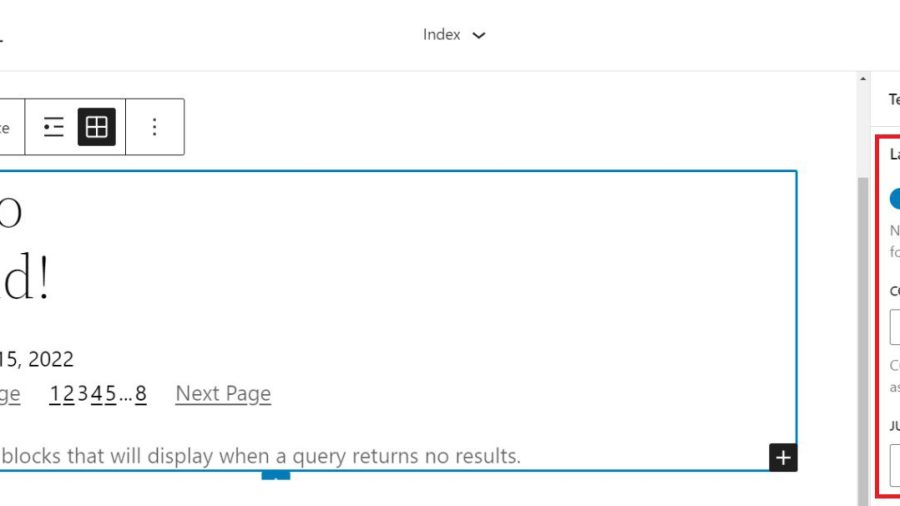
    Query Loop Sidebar Settings - Layout Nested Content Width

    Query Settings

    When the query “Settings” is untoggled (grey), then you can select exactly what to query. The first option is “Posts” which can be pages, posts, or custom post types. Next, users can choose between ascending or descending order for either date published or alphabetically. Lastly, there is an option to include or exclude sticky posts in the query.

    Query Loop Sidebar Settings - Setting Untoggled

    Toggling “Settings” (blue) sets the Query Loop Block to inherit the query from the template used template.
    Query Loop Sidebar Settings - Inherit Query Settings

    Query Filters

    Next, with query “Filters” gives users the option to further customize the query by filtering posts by:

    • Post Categories – Comma-separated list of categories
    • Post Tag – Comma-separated list of tags
    • Post Author – Dropdown list of authors
    • Post Keyword – Enter a list of keywords to filter by
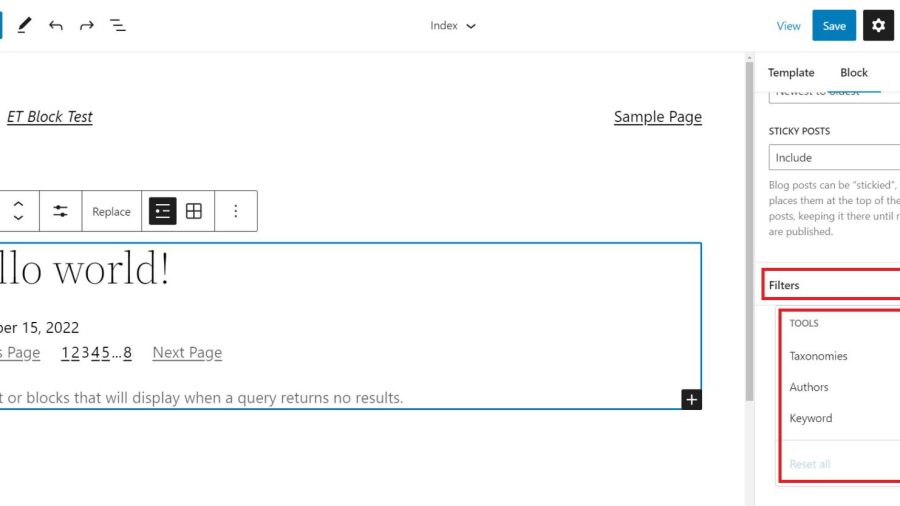
    Query Loop Sidebar Settings - Query Filters

    Color Options and Advanced Settings

    Lastly, we have Color settings and Advanced settings. The color options allow designers to choose colors for:

    • Text Color
    • Background Color
    • Link Color

    Advanced settings include the ability to add a CSS class to the WordPress Query Loop Block and/or assign an HTML element to the block.

    Query Loop Sidebar Settings - Color and Advanced Settings

    Each nested block within the Query Loop Block has its own Toolbar options and sidebar Settings. Visit the list of nestable blocks above to learn more about each and the settings that they have.

    Tips and Best Practices for Using the Query Loop Block in WordPress

    Query Loops are powerful blocks. Follow these tips and best practices to get the most out of them.

    Set Global Styles for Query Loops and Nested Blocks

    Global Styles can be set on a block-type-by-block-type basis. This lets designers create global default styles that apply to all instances of a block throughout the website. This is a huge time saver.

    Currently, on the 2022 Theme, the Query Loop Block allows you to add Global Styles for text color, background, and link colors. To get to the global styles editor, click on the “Global Styles” icon (half-filled in circle), select “Blocks”, and find the Query Loop Block.

    You can also assign separate global styles to each of the nested theme blocks (like Post Template, Post Title, etc.) within a Query Loop as well.

    Use Multiple Query Loop Blocks on a Single Page to Create a Featured Blog Section

    In creating a Blog Page template, you may want to create a featured post that stands out because it is the most recent post published on your site. Below is a simple version of the concept.

    Featured Post Result

    There will need to be two Query Loop Blocks on our “Index” template. The top Query Loop Block will have a “List View” display and will only show one single post. Make sure that it has no Pagination Block nested in this first Query Loop.

    With the second/bottom Query Loop Block, set it to “Grid View”. It should display multiple posts in columns and set the “Offset” to 1. An offset of 1 will skip the first post of the query. This is desired since the query loop above contains the featured post.

    Use Consistent Design for Query Loops Displaying the Same Post Types

    Query Loops used for “blog articles” should look similar. If you use Query Loop Blocks for other post types, consider a slightly different style for those so your site visitors can differentiate what are “Blog Posts” and what are other types of content. This will make for a clear website UX.

    Using Divi’s Blog Module: A Query Loop Block Alternative with More Design Options

    If you use Divi, the Blog Module functions much like the native WordPress Query Loop Block. And adding Divi’s Blog Module to a page or template is simple, giving you all the options you need to customize the parameters, layout, and design of the dynamic post content.

    divi-blog-module

    The content displayed within the Blog Module is completely flexible as well, allowing you to select a certain post type, post type categories, and the number of posts to include. Individual Module Elements can be added or removed such as featured images, titles, meta-text, body text, read more links, pagination, and so on.

    Each of these Module Elements can be completely styled using Divi’s extensive design options. Learn more about using Divi’s Blog Module on Templates.

    Frequently Asked Query Loop Questions

    Answering some of the most asked questions about WordPress’ Query Loop Block.

    What’s the Difference Between the Query Loop Block and the Latest Posts Block?

    The Query Loop Block is similar to the Latest Posts Block in that it has the capability of displaying a list of the latest posts on your blog dynamically. However, the Query Loop Block is much more advanced, allowing you to build your “list” of posts, pages, or other post types from scratch by integrating other nested blocks. For example, if you have a custom post type for recipes, you can use the Query Loop Block to create an entire page of recipes customized to your liking.

    Does the Query Loop Block Require Coding Knowledge?

    No, the WordPress Query Loop block does not require coding knowledge because the functionality is already built-in. This block enables you to display a loop of posts on your WordPress site using customizable block settings on the front end.

    Where Can I Use the Query Loop Block?

    The WordPress Query Loop Block loops through published posts and pages to display them. It will automatically update as new pages/posts meet the query parameters. This makes this block useful in many places such as post or archive templates, or on static pages where you want to display things like recent posts dynamically.

    Have you used the Query Loop Block on your WordPress site? What discoveries have you made? Let us know in the comments below.

    Featured Image by Dmitry Kostrov / shutterstock.com

    The post How to Use the WordPress Query Loop Block appeared first on Elegant Themes Blog.

    Go to source

  • How to Use the WordPress Stack Block

    Thanks to the introduction of Gutenberg blocks in version 5.8, WordPress makes it easy to organize your content and create awesome patterns. With the help of the WordPress Stack Block, you can add any type of block you choose, then display it vertically to create beautifully stunning layouts with ease.

    What is the Stack Block in WordPress?

    The WordPress Stack Block is a useful block that allows you to stack multiple blocks in a vertical column. Similar to the row block, it allows you to group multiple blocks together, making it easier to keep your blocks nice and tidy. It’s a versatile block because you can add any block you wish within it such as headings, images, buttons, and more.

    How to Add the Stack Block to your Template

    Adding the Stack Block to your page using the WordPress Editor is a simple process. Start by clicking the block inserter icon near the top left of the site editor screen.

    click block inserter

    Next, you can either search for the Stack Block or type /stack into the page editor directly. Then, simply click the block to add it.

    add Stack Block

    Stack Block Settings and Options

    There are two settings groups within the WordPress Stack Block – toolbar and additional settings. Let’s go over each group to give you a better understanding of how to use it.

    Toolbar Settings

    As with every block in WordPress, there are a few standard toolbar settings for the Stack Block. They can be observed by viewing the screenshot below:

    Stack Block toolbar settings

    1. Transform to
    2. Drag
    3. Move arrows
    4. Justification
    5. Alignment
    6. More options

    The first setting in the Stack Block is Transform To. With this option, you can turn the Stack Block into a quote, unwrap (ungroup) it, convert it to columns, or convert it into a cover block.

    transform settings

    The next two settings – drag and move – allow you to either drag your block into a different position on the page, or use the move arrows to move it up and down.

    The Justification option in the toolbar settings controls the justification of the blocks within the stack. They can either be aligned to the left, center or right.

    justification settings

    Next is the Align option. This option doesn’t necessarily control alignment, but rather the width of the stack. You can set it to None, which will allow the stack and all interior blocks to occupy a maximum of 650px. Wide width will allot 1000px for the stack, and Full width will stretch the Stack Block and all interior blocks across the full width of the page.

    Stack Block alignment settings

    The last toolbar settings group is more options. Within it, you can copy, duplicate, insert, move, lock, group, remove, or create a reusable block.

    Stack Block more settings

    The Stack Block Settings

    There are quite a few additional settings specific to the Stack Block. First, there is the Layout setting. Under the Layout options, you can control the justification and orientation of the stack, as well as control whether the blocks within the stack should be allowed to wrap to multiple lines. Justification options include left center, and right. For orientation, you can choose whether to orient them horizontally or vertically.

    Note that if you choose the horizontal orientation, the Stack Block will automatically be converted to a row block.

    Stack Block layout settings

    Next is the Color settings. When selecting a text color on the stack, it will control the color of the text on every block inserted into it. Alternatively, when choosing a background color, it will only apply a background color to the stack itself, rather than its contents. Finally, link color settings control any links added within the Stack Block.

    color settings

    Within the Typography settings, you can set the font size, appearance, line height, letter spacing, text decoration, and letter case for any block inserted into the Stack, which contains the text.

    typography settings

    Next are the Dimension settings. Here you can control the padding around the Stack. You can either set padding as a whole, or individually for the top, left, bottom, and right. Additionally, you can control the block spacing for all blocks contained within the stack.

    dimension settings

    The Border options allow you to add a border and/or a border radius to the Stack.

    border settings

    Tips and Best Practices for Using the WordPress Stack Block Effectively

    Even though the block is fairly simple to use, there are a few best practices that you should follow.

    When adding blocks to the Stack, a great way to stay organized and view your blocks is to use the WordPress List View. List view enables you to view each block within the stack, and allows you to easily drag them around to move them. To access the list view, simply click the list view icon to reveal all of the blocks in your stack.

    list view

    Also, make sure to keep the orientation option set to vertical. Swapping to a horizontal view in the layout settings will convert your Stack to a row. As previously mentioned, rows display blocks horizontally rather than vertically.

    Lastly, when setting colors for your stack, keep in mind that if you set a text color on the Stack Block itself, it will apply to other child blocks containing text as well. If you don’t want to apply a color to all blocks within the stack, be sure to apply color settings to individual blocks within the stack.

    WordPress Stack Block FAQs

    The WordPress Stack Block is a versatile block that can be utilized in pages, posts, and templates. So you will likely have a few questions. Hopefully, these will help.

    What’s the Difference Between a Row Block and a Stack Block?

    While Row Blocks and Stack Blocks allow you to group a series of blocks together, the difference is in orientation. You should use a row block when you want to display blocks horizontally. A great example of when to use a row block is when building a header. Typically, you want to have your site logo, as well as navigation links displayed horizontally. The Block works in much the same way. It can house a group of blocks. However, a Stack Block displays the block vertically. A great way to use the block is to build a sidebar with your post categories.

    Can I Use the Stack Block in a Template?

    Yes! Stack Blocks are a great way to display a group of blocks vertically, and help to keep blocks organized. This is especially useful when creating a template using full site editing in WordPress. For example, when creating a blog post template, it’s a good idea to use the block to house your post title, post meta, post content, and other post-related blocks.

    Wrapping Things Up

    Building a website in WordPress starts with adding structural elements like rows and columns. The Stack Block is a convenient way to add a row of content that is aligned vertically instead of horizontally. The block can be easily configured to help you design a page in WordPress using the built-in settings in the toolbar and sidebar block settings. Though this block is native to WordPress, page builders like Divi have more robust design options for optimizing the structure of your page using modules.

    For more, check out our other WordPress Block tutorials as well as our complete guide to WooCommerce Blocks.

    Have you experienced using the Stack Block on your website? Let us how in the comments below.

    The post How to Use the WordPress Stack Block appeared first on Elegant Themes Blog.

    Go to source

  • WooCommerce Permalinks: Tips & Tricks

    Learn the tips and tricks for setting up and optimizing WooCommerce permalinks for better SEO performance. From choosing the right structure to troubleshooting common issues, get the most out of your WooCommerce URLs.

    The post “WooCommerce Permalinks: Tips & Tricks” first appeared on WP Mayor.

    Go to source

  • Sendinblue Review: Best Affordable Email Marketing Solution?

    Email is still one of the most effective marketing channels available, with a return on investment of $36 for every $1 spent. Using the right tools can greatly enhance the success of your email marketing campaigns. One such tool is SendinBlue, one of the most cost-effective email marketing platforms with powerful features. In this SendinBlue review, we’ll dive into the features and pricing of SendinBlue to help you make the right decision.

    What is Sendinblue?

    Sendinblue is an all-in-one email marketing and marketing automation platform that helps businesses reach their customers through email, SMS, and chat. It is surprisingly easy to use and has a wide range of features like email templates, automation, list management, analytics, and more. It also offers a pricing model based on the number of emails sent each month, making it an affordable choice for businesses of all sizes.

    Sendinblue Homepage

    Review of Sendinblue Features

    Sendinblue has a lot of features that help businesses and brands manage their email marketing. But sending emails is just the beginning. Additional features include:

    • Drag-and-drop visual email builder
    • SMS messaging
    • CRM
    • Forms and Landing pages
    • Automation
    • Web Chat
    • Transactional emails

    While Sendinblue isn’t the best email marketing provider in each of these individual categories, their feature mix and price point give them a right to be considered in many marketers’ tech stack.

    Sendinblue Email Marketing Campaigns

    The Sendinblue visual email editor makes creating beautiful emails easy. With its drag-and-drop interface, you can add all the email elements you may need to create your email and use the inline text editor for an intuitive visual editing experience. This allows anyone to create stunning emails in minutes.

    Sendinblue Email Template Preview

    In addition to the drag-and-drop editor, you can use a rich text editor or create your campaign using custom HTML (if you need that sort of functionality).

    Sendinblue CRM

    If you’re looking for a Customer CRM to manage contacts and notes, Sendinblue is definitely worth consideration. With Sendinblue, you can easily add and update contact information, as well as add notes, see email activity, and create reminders.

    SIB CRM Company Profile with Tasks

    There is even a deal desk with a Kanban view of active deals and the stages that they are in.

    SIB CRM Pipeline Kanban

    Plus, the CRM fully integrates with your Sendinblue email marketing and automation to make marketing a breeze. This helps you create useful segments for your email marketing campaigns. Find out why email segments are very important.

    Sendinblue Automation

    Sendinblue provides a marketing automation creator that lets you build workflows based on your contacts’ website behavior, purchase/store behaviors, and email opens/clicks. You can use these workflows to send automated emails and SMS messages that are tailored to your contacts’ needs and interests.

    Here are a few automation ideas to consider:

    • Send a welcome series of emails based on the list they sign up for
    • Set priority pages that when visited trigger a targeted email about the page’s subject (since they are interested)
    • Send abandoned cart email or up-sell recommendations based on products they view in your eCommerce store or add to cart
    • Create lead scoring that gives and removes points from contacts based on actions they take within your web and marketing properties

    SIB Lead Scoring Visual

    Sendinblue offers a high level of automation at an affordable price, making it a standout feature among other platforms. There are plenty of other more expensive automation platforms (ActiveCampaign) that have more automation capabilities.

    Automation Pricing Feature Chart

    The fact that Sendinblue includes automation in the free plan is astounding. This makes it a strong contender for businesses and websites that have some marketing chops that can fully utilize medium-tiered automation tools.

    Sendinblue Transactional Email

    Transactional emails are automated email messages that are sent to customers/visitors after they take a specific action. For example, a customer might receive a transactional email after they make a purchase, sign up for an appointment, or change their password on your website. They deliver necessary information to customers based on particular actions taken with your business.

    Creating a transaction email can be done using the drag-and-drop editor using a template or from scratch.

    Sendinblue Transactional Purchase Confirmation Email Example

    Sendinblue has a robust transactional email platform that is outfitted with webhooks and an API that lets you meld your website and operational systems with Sendinblue.

    Sendinblue Review of Webhooks

    Sendinblue is particularly good with transactional emails because you can easily manage transactional and marketing emails all in one place. This could streamline a lot of the email functions for many businesses. Instead of learning two different platforms, site owners can focus on mastering one platform that can do almost it all.

    Sendinblue WordPress Plugin Marketing Automation and SMTP

    Sendinblue also works nicely with WordPress. Their SMPT WordPress plugin lets Sendinblue handle the SMTP marketing, transactional emails, and more for your WordPress websites. This makes your system-generated email deliverability more reliable.

    Check out a step-by-step guide on how to use SMPT to send email with WordPress and Sendinblue.

    Social Sharing and Ads with Sendinblue

    Next, we are taking a look at how Sendinblue handles social posting and advertising.

    Social Media Sharing

    Sendinblue lets you easily connect your social accounts so that you can easily share your email campaigns with your social audiences. It’s a nice way to give audiences on other channels the ability to see what’s going on in your email campaigns. Sendinblue lets you share your campaigns on your Facebook, Twitter, and LinkedIn accounts.

    Email Campaign Share on Social

    Social Chat Integrations

    Sendinblue’s chat features also integrate with a few compelling social channels. Sendinblue offers a standalone chat widget that you can deploy to your website (by adding the chat script or by connecting to Shopify, WooCommerce, and other integrations). The chat functionality can also integrate with your business page’s Facebook Messenger or with your Instagram account’s inbox.

    Sendinblue Review of Chat Integrations

    Social Advertising

    Sendinblue allows customers to create advertising on Facebook. If you’ve ever delved into ads on Meta Ads Manager (formerly Facebook Ads Manager) you’ll know how difficult this can be to do manually.

    Sendinblue simplifies the process by creating an easier ad creation process and by connecting your CRM to your Ads Manager account. This creates undeniable efficiencies. It also limits the workload customers have to put in to be successful with both types of marketing. Lastly, with this all being on one platform, you can better use lead ads with CRM and Automation.

    Social Ads are made easy by Sendinblue’s audience creation.

    Create Audience for FB Ad

    You can set the timing and budget of your ads easily in Sendinblue.

    Set Budget for FB Ad

    Designing an Ad on Facebook or Instagram is very easy and Sendinblue gives you a preview of your work. Certain ad types are not available in Sendinblue.

    Create Facebook Ad Content

    Sendinblue Ease of Use

    One of the first things we noticed when we logged into our test account is how intuitive the dashboard is. There are a limited number of menu items in the top navigation which made it feel much less daunting. In the new account creation, we answered questions that created a custom onboarding experience tailored to our initial stated goals. This made it so that we only saw the features we said we wanted when we first logged in.

    Sendinblue Onboarding

    Jumping into the settings, you’ll see more options under the hood. Each feature is well-organized in a grid format and each feature listed has an on-off toggle. This allows you to control what features are active and visible in the dashboard with a simple click.

    Sendinblue Review of Addons

    For example, if you are just doing marketing emails, you can turn off transactional emails and not see them in your dashboard. This is a brilliant way to improve user experience. Sendinblue gets an “A+” for modular feature toggles.

    Powerful Automation

    Sendinblue sports an attractive and easy-to-use automation workflow builder. The nice thing is that Sendinblue has pre-built recipes or workflow templates for you to choose from.

    These pre-made workflows include:

    • Most Popular Workflows
    • Increase Engagement
    • Increase Traffic
    • Increase Revenue (eCommerce)
    • Build Relationships

    Prebuilt workflows are a great time saver, especially for those new to marketing automation. They can choose a workflow that fits their business needs and create email/SMS campaigns based on where they land in the workflow.

    This mid-level automation could not be easier and gives marketers enough power to push business forward.

    Email Creation

    As an email marketing campaign, how Sendinblue handles creating emails is very important. We’ll start with Sendinblue’s email templates. Their premade email starters are separated into layouts and templates.

    • Layouts – Paired down templates without images and design elements. Just the visual layout
    • Templates – Full-fledged starter emails. Pick a template based on the design elements

    There are 41 templates available but the real value is the ability to create your own templates that you can reuse and stay on brand.

    Sendinblue Email Visual Editor

    Their visual editor is powerful, simple, and attractive.

    Sendinblue Email Visual Editor

    Standout visual editor features include:

    • Drag and drop blocks
    • Simple Block settings (colors, spacing, alignment
    • HTML block
    • Reusable content blocks
    • Block Visibility Toggle – to hide blocks but not delete
    • Duplicate Block
    • Repeat Block for Dynamic Content Varaitations

    Sendinblue’s email editor is, in some ways, more powerful than the likes of Constant Contact and Mailchimp. But, a lot of that comes down to familiarity. Power users will enjoy the HTML block that allows for a visual editor plus some additional HTML.

    Sendinblue Pricing

    Sendinblue’s Pricing is where it really sets itself apart. Their pricing structure is proving to be a uniquely effective marketing strategy, attracting users that want more bang for their buck.

    Sendinblue Pricing Chart Review

    A Generous Free Plan

    They have a generous free plan for email marketing with nearly all necessary features included. The free plan is limited to 300 emails per day ( 9,000 per month) with a cap of 2,000 contacts for email automation. That’s a great deal for small businesses with less than 500 contacts and could reasonably be all they need.

    Scalable Paid Plans

    Sendinblue bases its prices on the number of emails sent instead of the number of contacts you have. That means you can have as many contacts as you want and Sendinblue won’t charge extra. This is a huge value for companies that send fewer emails and have a large audience.

    The Starter plan ($25/m) includes reporting, email support, and no daily email limit. The Business plan ($65/m) offers full automation, A/B testing, advanced reporting, and multiple user access. The Enterprise plan ($1000/m) provides white-glove onboarding, flexible pricing, advanced integrations, and top security.

    SendinBlue vs Mailchimp

    Sendinblue seems to have made significant strides to compete with Mailchimp. They’ve changed their pricing structure and feature mix (especially in the free tier) to truly offer a better product for small businesses. The below figure shows what sending 1 email per contact would cost you as compared to Mailchimp.

    Sendinblue vs Mailchimp Pricing

    Mailchimp’s free plan has some notable limitations compared to Sendinblue including limited number of monthly sends (9,000 vs 2,500) and no live chat, CRM, or transactional email options. Plus, Sendinblue allows unlimited contacts (excluding automation) while Mailchimp does not.

    Sendinblue vs Mailchimp Free Features Comparison

    Digging deeper into Mailchimp vs. Sendinblue feature comparisons, Sendinblue offers a few features that would be add-ons with Mailchimp. The cost savings could be quite large if you need these features.

    Sendinblue vs Mailchimp All Features Comparison

    Notably, the Business Plan with Sendinblue (at $65 per month currently) comes with phone support but phone support is only available with Mailchimp with their $300 per month plan. Mailchimp also charges by the contact so Sendinblue’s unlimited contacts (especially if you are using CRM and Automation) are quite appealing.

    One of the Best Free Email Marketing Platforms with Affordable Upgrades

    Sendinblue is proving to be one of the best affordable email marketing platforms. If you’re looking for a powerful email marketing tool that won’t break the bank, SendinBlue is the perfect solution.

    With a free account, you can send up to 300 emails per day. And if you need more, you can upgrade anytime with scalable plans that charge by the number of emails rather than the number of contacts. Plus, their free plan includes most of the features of their paid plans, so you can give it a try and see how fits with your marketing strategy.

    Have you tried Sendinblue within the last year? How was it? How did it help you with your marketing goals? What else would you add to this Sendinblue Review?

    Featured Image via TMvectorart / shutterstock.com

    The post Sendinblue Review: Best Affordable Email Marketing Solution? appeared first on Elegant Themes Blog.

    Go to source

  • How to Fix Broken Links in WordPress

    There are a few ways to fix broken links in WordPress:

    1. Use a plugin: There are several plugins available for WordPress that can help you find and fix broken links on your website. Some popular options include Broken Link Checker and Dead Link Checker.

    2. Manually check your website: You can manually check your website for broken links by navigating through your pages and clicking on each link to see if it is working.

    3. Check your website’s log files: Your website’s log files can contain information about broken links, and you can use this information to fix them.

    4. Redirect broken links: If a page or post has been removed or moved, you can use a plugin like Redirection to redirect the broken link to a new page.

    5. Check external links: If the broken links are external links pointing to other website, the best thing you could do is to contact the owner of the external website to ask them to fix their link, or update your own link with a new one.

    It’s important to regularly check your website for broken links to ensure that your visitors have a positive experience and to maintain the integrity of your website’s structure.

  • How to Stop WordPress User Registration Spam

    There are several ways to stop spam user registration in WordPress:

    1. Use a plugin such as Akismet or Antispam Bee to filter out spam registration attempts.

    2. Use a CAPTCHA plugin, such as Google reCAPTCHA or Really Simple CAPTCHA, to verify that a real person is registering on your site.

    3. Limit the number of user registrations per IP address to prevent bulk registration attempts.

    4. Use a security plugin, such as iThemes Security or Wordfence, to add additional layers of security to your site.

    5. Block the IP address of spammer if you found any specific spammer IP.

    6. Use a double opt-in process for new user registrations to confirm the email address of the registrant.

    7. Keep your WordPress and plugins updated to the latest version to ensure that your site is protected against known security vulnerabilities.

    It’s worth noting that no single solution will work for every website, so you may need to try a combination of these methods to effectively reduce spam and improve the security of your site.

  • The Complete Guide to Masterfully Secure B2B Sales Process in 2023

    B2B sales is a more complex process as compared to business-to-consumer (B2C) sales. It involves multiple decision-makers who are well aware of industry and business. B2B buyers are smarter and more careful about buying products than the end consumers.

    The post “The Complete Guide to Masterfully Secure B2B Sales Process in 2023” first appeared on WP Mayor.

    Go to source

  • How to Migrate a WordPress Website

    To migrate a WordPress website, you can follow these steps:

    1. Backup your website: Use a plugin or a tool to create a backup of your website’s files and database.

    2. Export your database: Use phpMyAdmin or a similar tool to export your website’s database.

    3. Import your database: Create a new database on your new hosting account and import the exported database to it.

    4. Update the wp-config.php file: Update the wp-config.php file with the new database details.

    5. Transfer your files: Use FTP to transfer all the files from your old hosting account to the new one.

    6. Update URLs: Use a search and replace tool to update all the URLs in your database to the new domain.

    7. Test the website: Test the website on the new server to make sure everything is working properly.

    8. Update DNS: Update the DNS settings of your domain to point to the new hosting account.

    It’s important to test your website on the new server before updating the DNS, to make sure everything is working properly. Once the DNS is updated, it can take 24-48 hours for the changes to propagate worldwide.

    In addition to the steps outlined above, there are a few other things to consider when migrating a WordPress website:

    9. SSL Certificates: If your website has an SSL certificate, make sure to install it on the new server. If your certificate is expiring soon, it’s a good idea to renew it before migrating the website.

    10. Redirection: If you’re migrating to a new domain, make sure to set up redirects from the old pages to the new pages. This will help ensure that any incoming links to your old website will still work.

    11. Plugins and Themes: After migrating your website, make sure to check that all your plugins and themes are compatible with the new version of WordPress and that they’re working properly.

    12. Email: If you’re using email services through your website, you’ll need to update the MX records to point to the new server.

    13. Performance: After migration, it’s essential to check the performance of your website and optimizing it if needed.

    14. Maintenance: Once your website is migrated, set up a regular maintenance schedule to ensure that it’s running smoothly and that all your backups are up-to-date.

    Migrating a website can be a complex process, and it’s essential to plan ahead and test everything thoroughly before making the switch. If you’re not comfortable with the process, it’s best to seek out the help of a professional developer.

  • 20 Best WordPress Plugins (Must-Have)

    Some popular must-have WordPress plugins include:

    1. Yoast SEO: Helps optimize your website for search engines and improve your search engine rankings.

    2. Akismet Anti-Spam: Protects your website from spam comments.

    3. WPForms: Enables you to create forms and surveys on your website.

    4. WP Super Cache: Improves website performance by caching pages and posts.

    5. Jetpack: A multi-functional plugin that offers security, performance, and design features for your website.

    6. Google Analytics for WordPress: Enables you to track website traffic and user behavior.

    7. WP Optimize: Optimizes your website’s database for better performance.

    8. Yoast SEO for WordPress: Optimize your website for search engines

    9. W3 Total Cache: Improve the user experience of your site by increasing server performance, reducing the download times and providing transparent content delivery network (CDN) integration.

    10. BackupBuddy: Backup, restore and move your WordPress site to a new domain or server with ease.

    11. Gravity Forms: A premium plugin that allows you to create advanced forms and surveys.

    12. WP Smush: Optimizes images on your website to improve page load times.

    13. All in One SEO Pack: An alternative to Yoast SEO that helps optimize your website for search engines.

    14. Contact Form 7: A widely used plugin that enables you to create contact forms on your website.

    15. Advanced Custom Fields: Allows you to add custom fields to your website’s post, pages and custom post types.

    16. WP Security Audit Log: Keeps a log of all changes made to your website and alerts you to suspicious activity.

    17. WP User Avatar: Allows users to upload and use avatars on your website.

    18. UpdraftPlus: A backup and restore plugin that creates backups of your website files and database.

    19. ShortPixel Image Optimizer: Optimize images, reduce page load time and save space.

    20. Autoptimize: Optimizes your website’s code to improve page load times.

    It is important to note that the best plugins for your website will depend on your specific needs, but these plugins are widely used and considered must-have for any WordPress website.